

What is Channel
Channel is a bridge between CodeBanana and external IM tools. By configuring a bot, you can send messages from platforms like Slack or Telegram directly to your project agent and receive responses in return. This enables a more flexible workflow where the agent is accessible across different communication environments.Supported Platforms
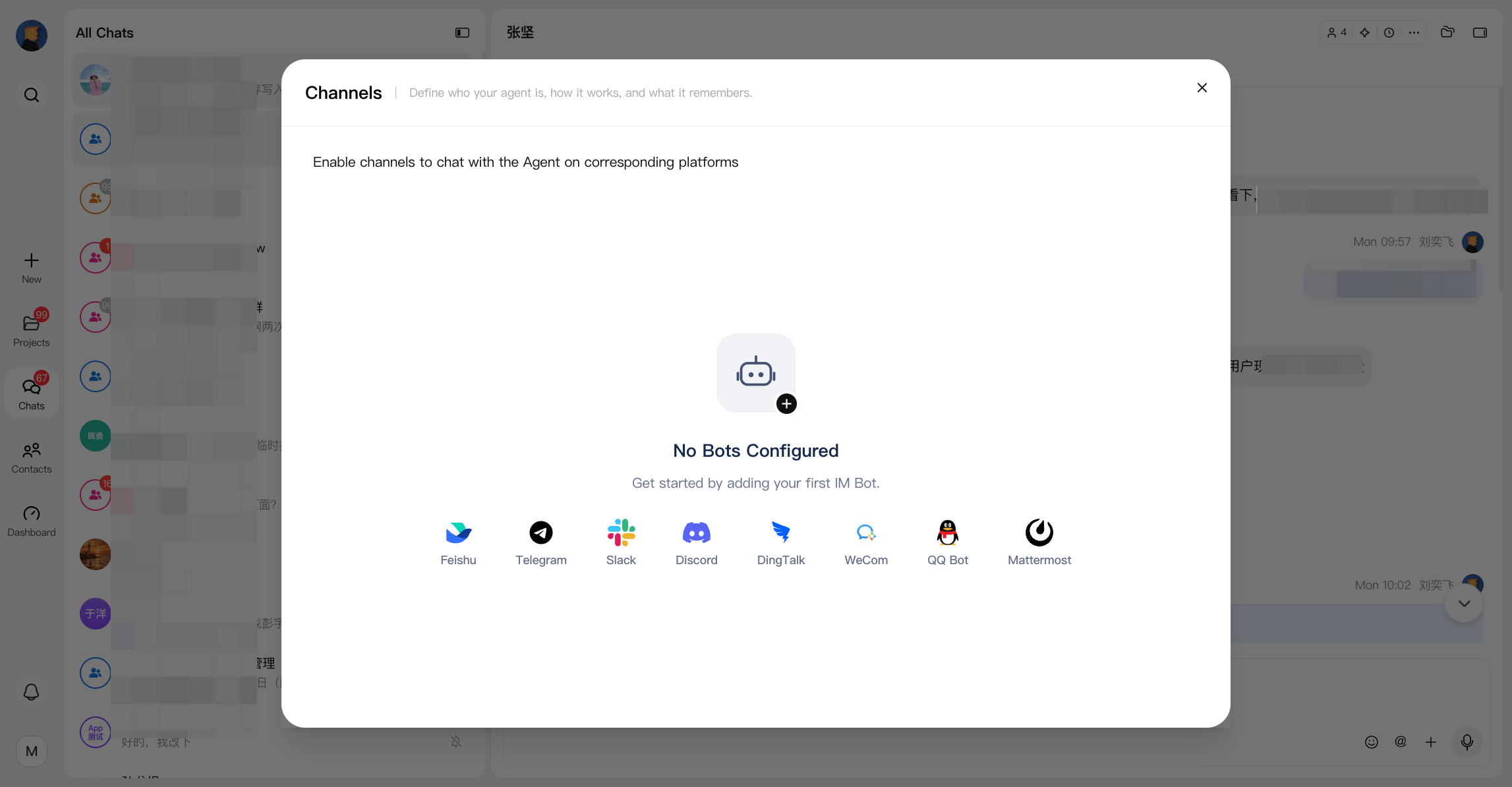
You can connect the agent to multiple IM platforms, including:- Feishu
- Telegram
- Slack
- Discord
- DingTalk
- WeCom
Create a Bot
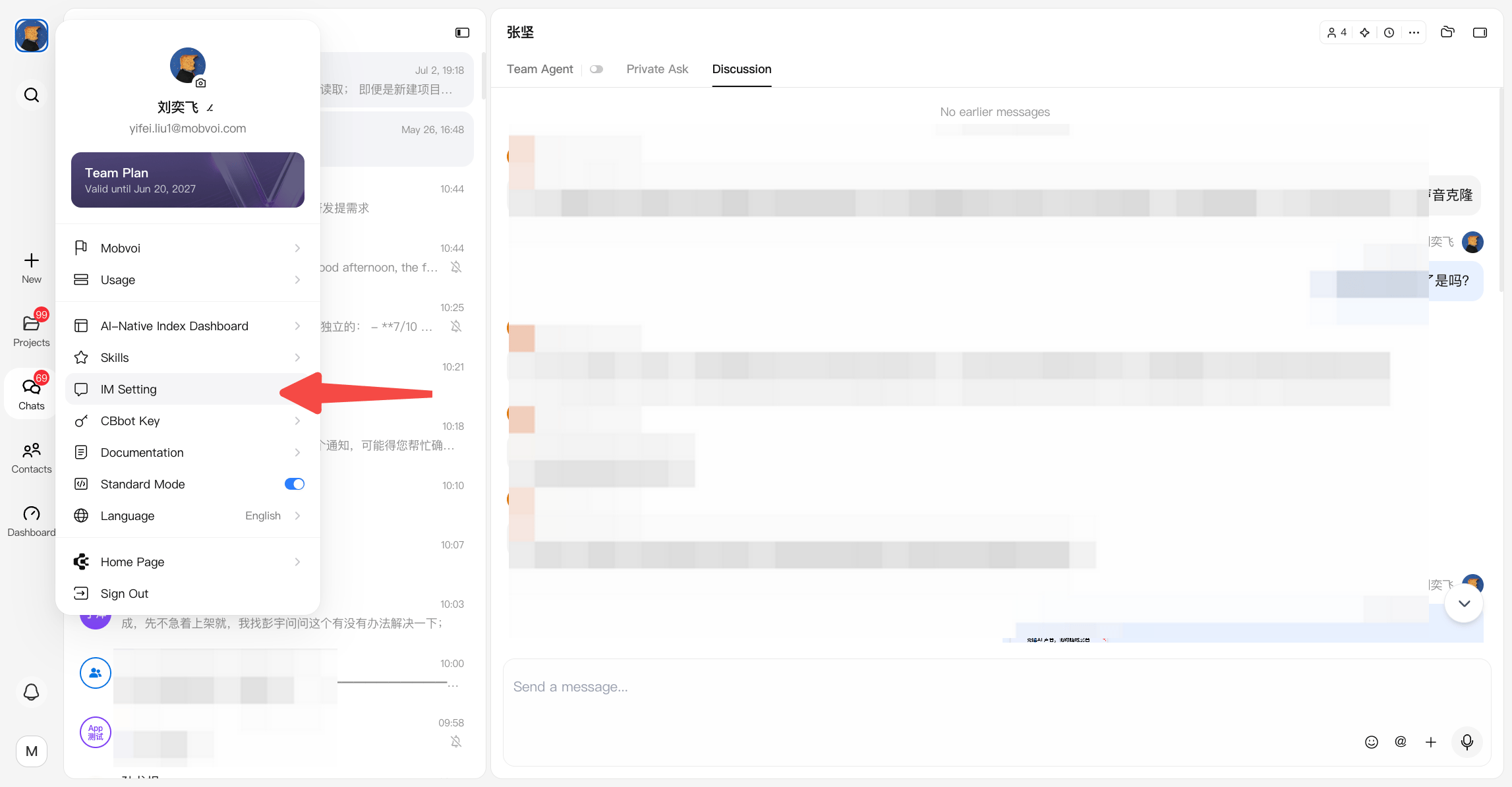
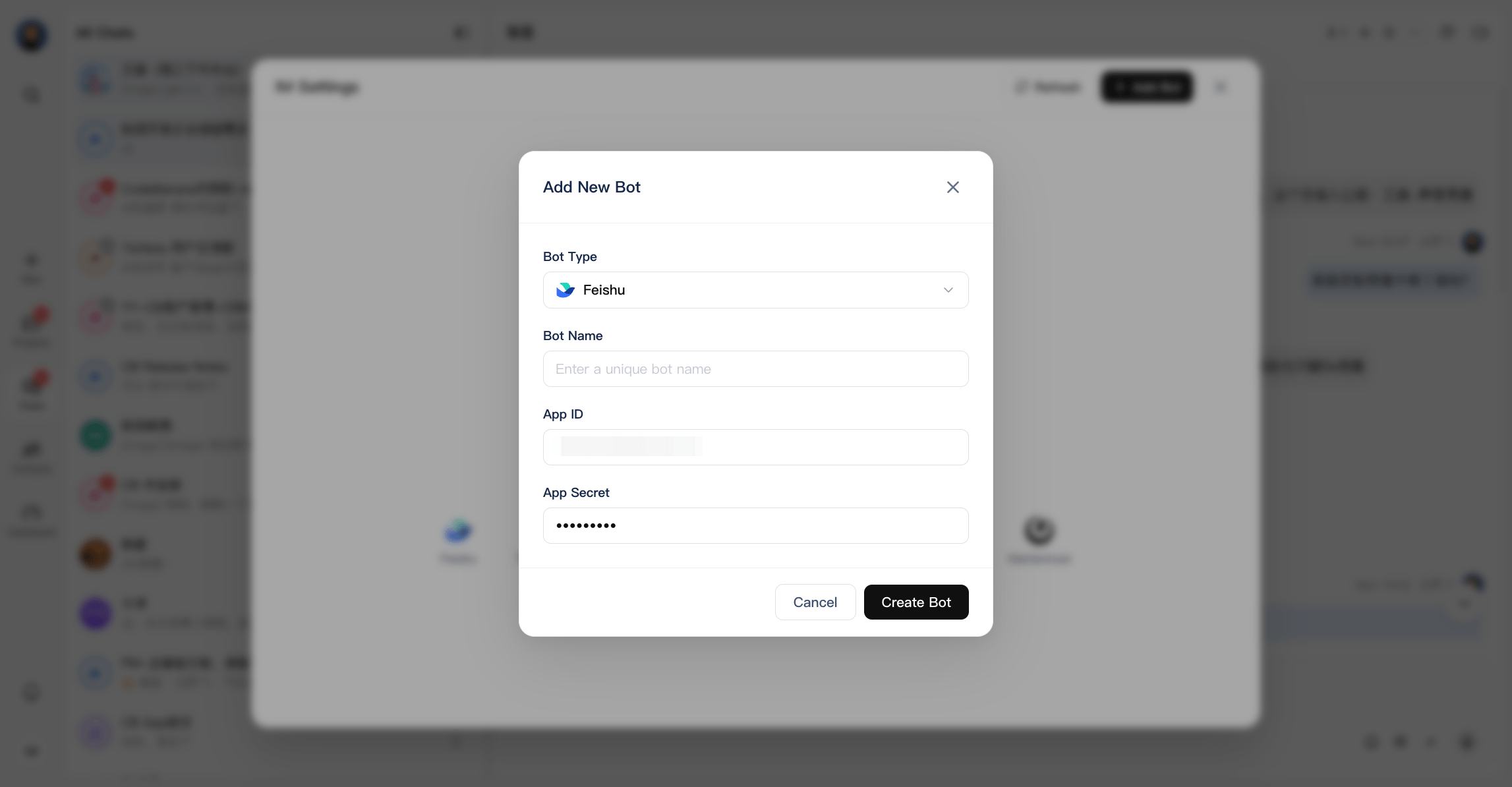
To enable Channel, you need to create and configure a bot:- Click your avatar → IM Setting → Add Bot
- Select the target IM platform
- Provide required credentials (e.g. ID and Secret)
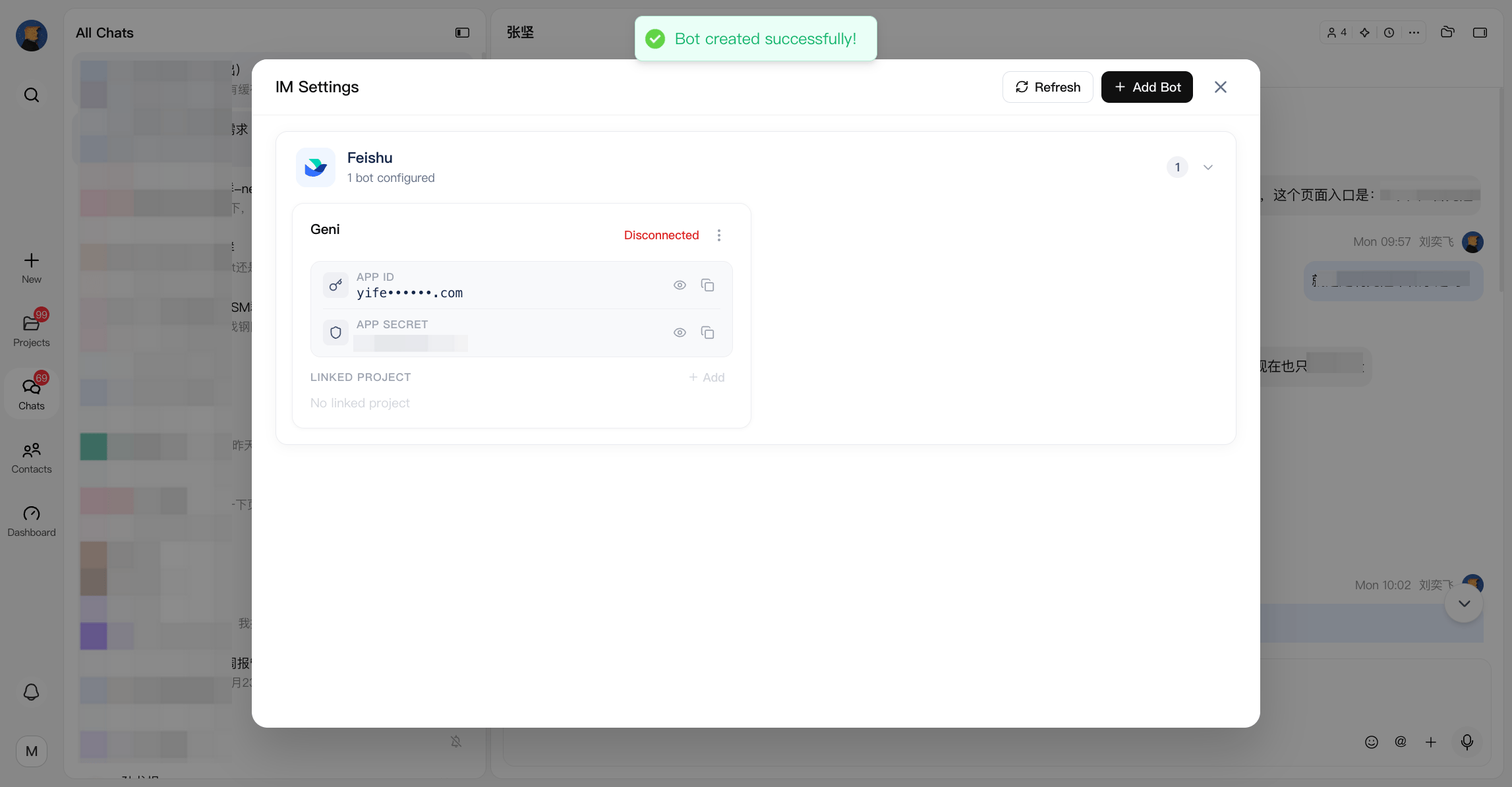
- Once configured correctly:
- Status shows as Connected
- Invalid configurations will show as Disconnected
1
Open IM Setting
2
Add a New Bot
3
Created successfully
Bind Bot to Project
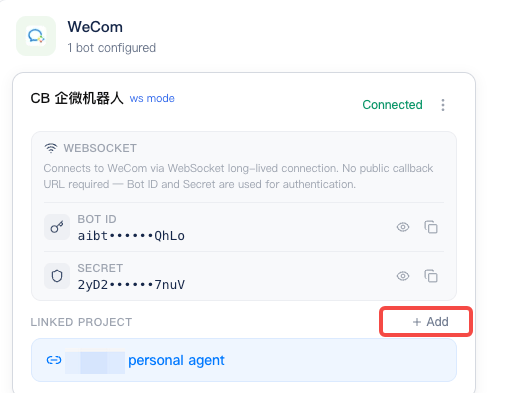
After creating a bot, it must be linked to a specific project:- Select a bot and bind it to the project
- Each project can bind only one bot
- Each bot can be bound to only one project
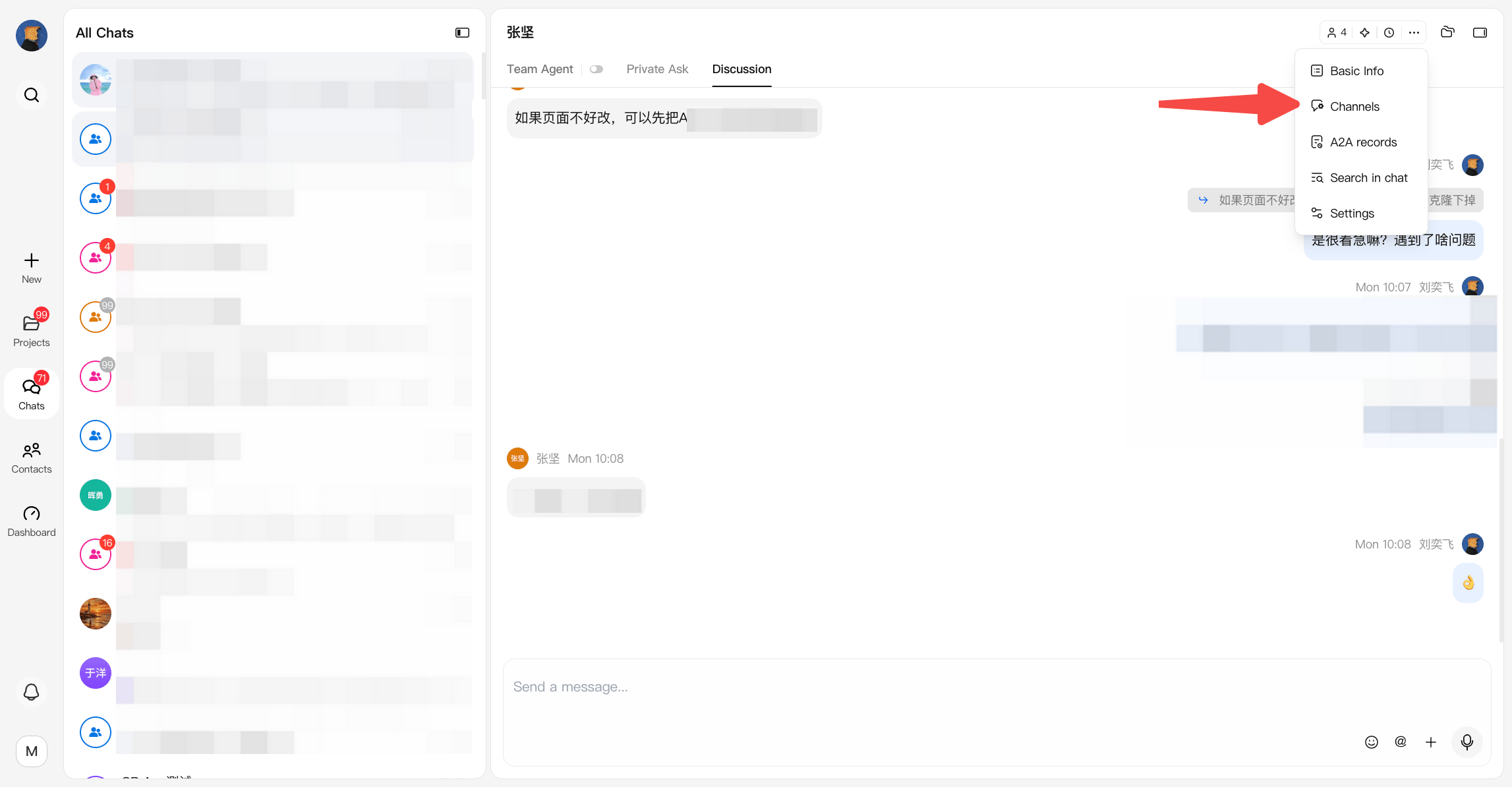
1
Open channel config
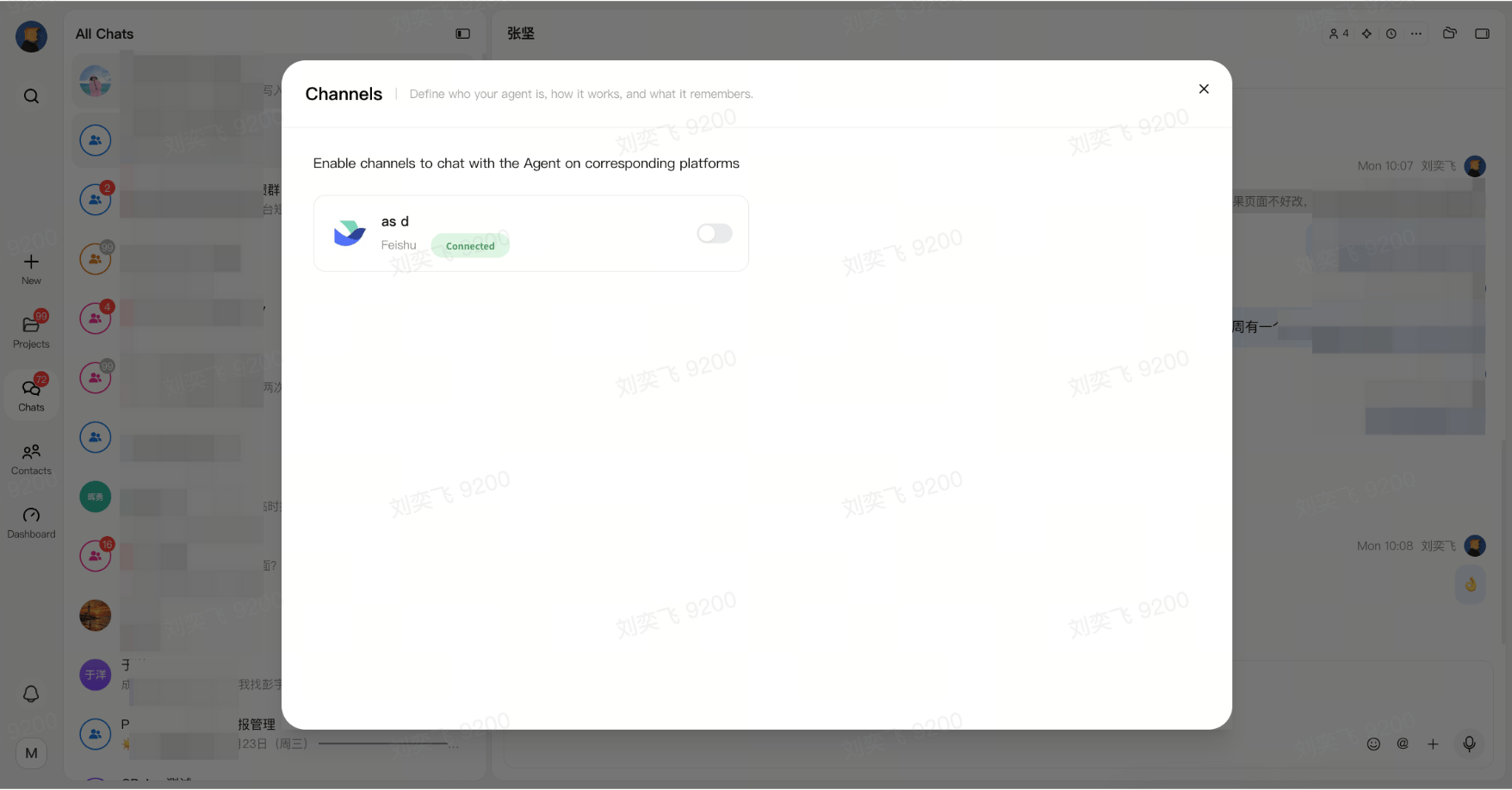
2
Binding a bot
How It Works
Once connected:- Messages sent from the external platform are routed to the project Team Agent
- The agent processes the request using the same project context
- Responses are returned to the external platform
IM Integration Guide
Feishu (Lark)
Feishu (Lark)
Setup
Create an application in the developer console:- Log in to https://open.feishu.cn/app
- Create an enterprise self-built application
- Configure name, description, and avatar
- Record App ID and App Secret
Permissions
Add the following:im:message:send_as_botim:message:readonly
Event Subscription
- Use long connection mode
- Subscribe to:
im.message.receive_v1
Configuration in CodeBanana
- Go to Personal Center → IM Settings
- Enter App ID and App Secret
Telegram
Telegram
WeCom (Enterprise WeChat)
WeCom (Enterprise WeChat)
Setup
- Log in to https://work.weixin.qq.com/wework_admin/frame#/manageTools
- Go to Security and Management → Management Tool
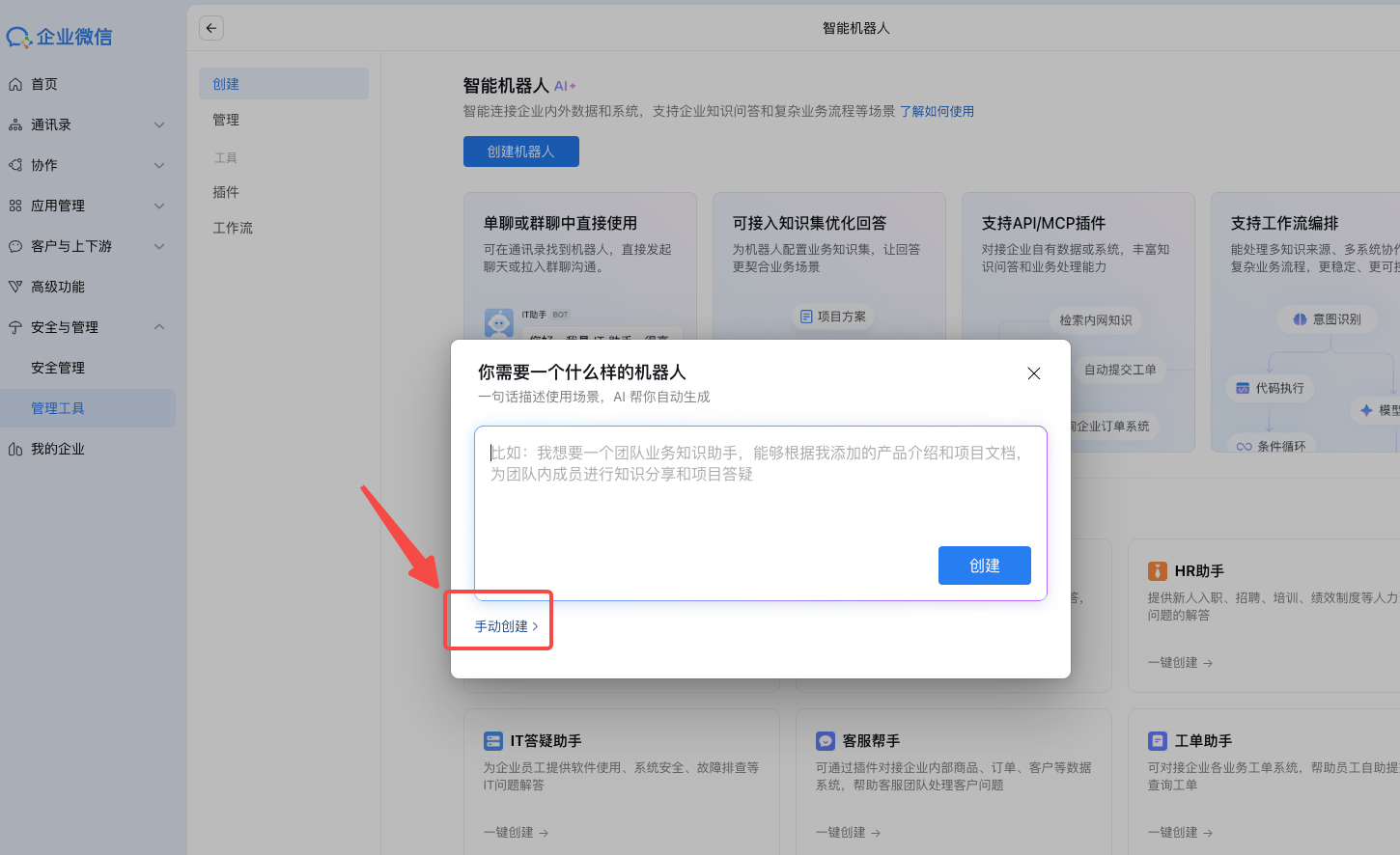
- Configure name, logo, and visibility (All)→ Save
Messaging Configuration
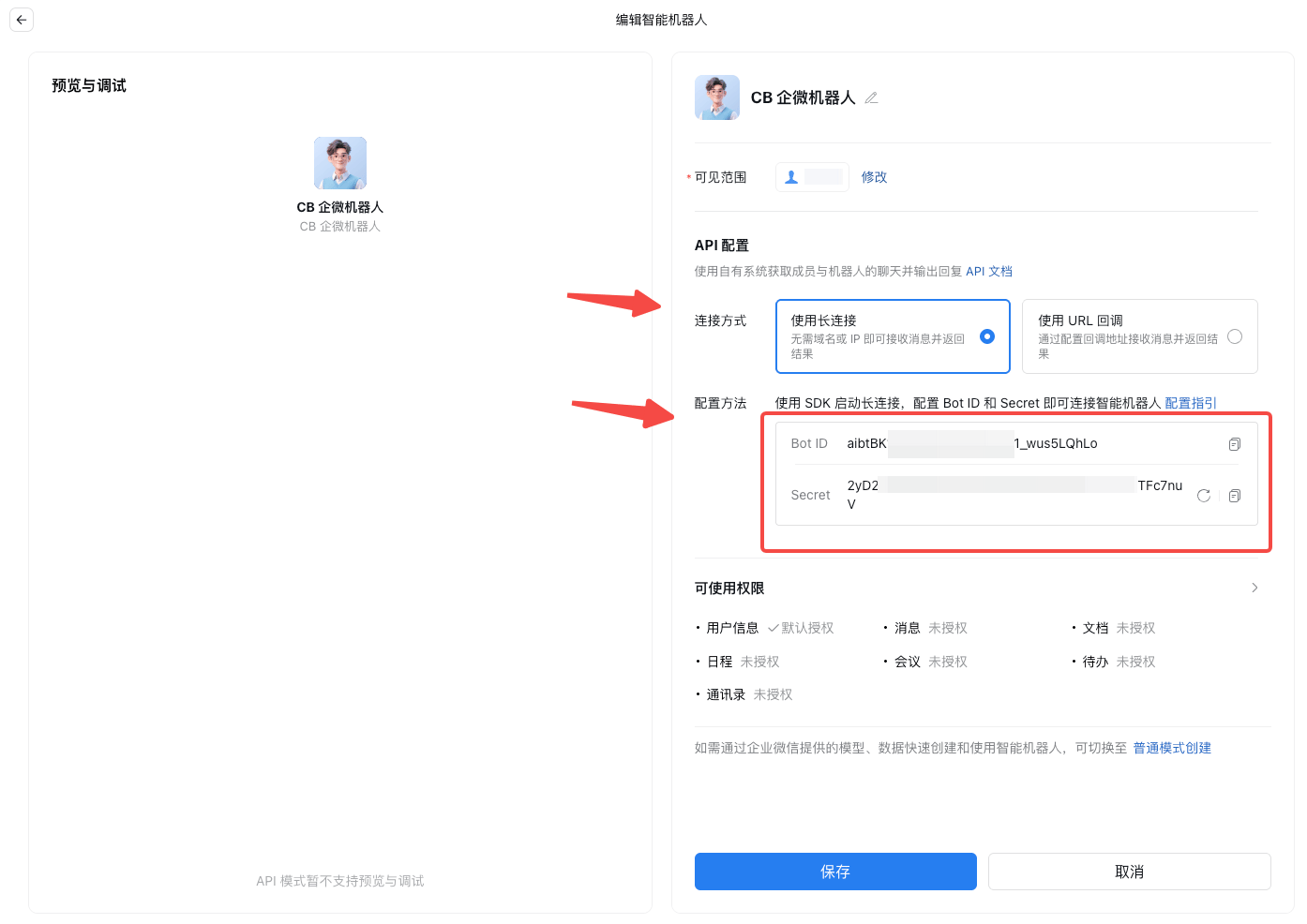
- Edit the robot → Click create by API mode
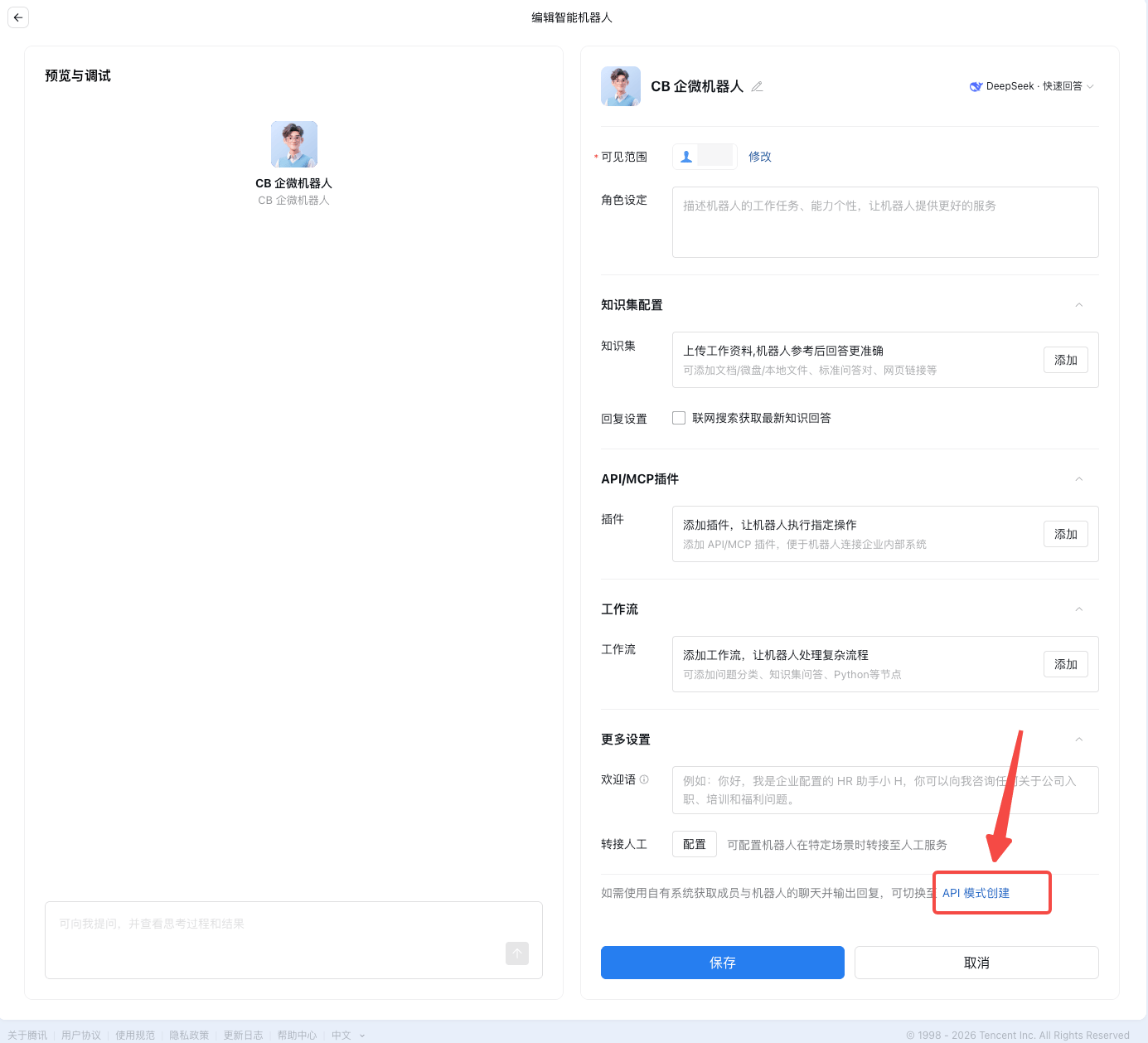
- Choose keep-alive mode, and get Bot ID and Secret
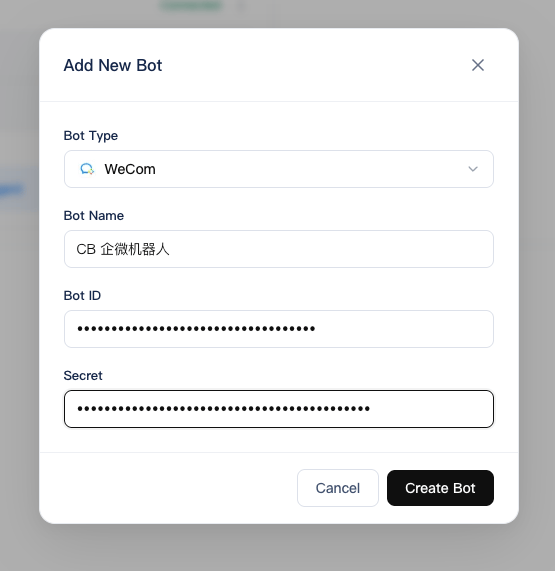
- Go back to CodeBanana,
- Go to IM Setting
- Add a new bot
- Configure as follow & Save
- [Important] Link a CodeBanana project to use the IM channel
QQ
Setup
- Visit https://q.qq.com/#/
- Enter OpenClaw bot creation portal
- Log in via QR code
- Create bot and obtain:
- App ID
- App Secret
Configuration in CodeBanana
- Add credentials in IM Settings
DingTalk
DingTalk
Setup
- Open https://open-dev.dingtalk.com
- Create OpenClaw bot application
- Record:
- Client ID
- Client Secret
Configuration in CodeBanana
- Enter credentials in IM Settings
Slack
Slack
Setup
Create a Slack App from the official console:- Visit https://api.slack.com/apps
- Click Create New App → From scratch
- App Name: (e.g. CB)
- Development Slack Workspace: select your workspace
- Click Create App
Socket Mode (Required)
Enable long connection mode:- Go to Settings → Socket Mode
- Turn on Enable Socket Mode
- Create a token (e.g.
openclaw-socket)- Permission:
connections:write (auto-assigned)
- Permission:
- Click Generate and copy the App-Level Token (
xapp-...)
Bot Permissions
Configure bot capabilities:- Go to Features → OAuth & Permissions
- Under Bot Token Scopes → Add an OAuth Scope, add:
app_mentions:read— read @mentionschat:write— send messageschannels:history— read public channelsgroups:history— read private channelsim:history— read direct messagesmpim:history— read group DMsfiles:write— upload files/images
Install & Token
- Click Install to Workspace → Allow
- Copy the Bot User OAuth Token (
xoxb-...)
xapp-...→ App Token (Socket Mode / connection)xoxb-...→ Bot Token (message sending)
App Home Configuration
- Go to Features → App Home
- Under Show Tabs, enable:
- Messages Tab (allows users to DM the bot)
Event Subscription
Enable event-based message handling:- Go to Features → Event Subscriptions
- Turn on Enable Events
- Under Subscribe to bot events, add:
app_mention— triggered when bot is mentioned in channelsmessage.im— direct messagesmessage.channels— public channelsmessage.groups— private channels
- Click Save Changes
Configuration in CodeBanana
- Go to Personal Center → IM Settings
- Configure both tokens:
- App Token (
xapp-...) - Bot Token (
xoxb-...)
- App Token (
Discord
Discord
Create Bot
Set up a bot via the Developer Portal:- Visit https://discord.com/developers/applications
- Click New Application → name it (e.g.
OpenClaw Bot) → Create - Go to Bot → Add Bot → Yes, do it!
- Click Reset Token → copy Bot Token (shown once only)
- Example format:
MTk5OTk5OTkyNzY4OTk4NzYxNg...
Required Intents (Critical)
Enable privileged intents:- Scroll to Privileged Gateway Intents
- Enable all:
Message Content Intent(read message content)Server Members IntentPresence Intent
- Click Save Changes
Invite Bot to Server
Generate an invite link:- Go to OAuth2 → URL Generator
botapplications.commands(for slash commands)
Read Messages / View ChannelsSend MessagesRead Message HistoryEmbed LinksAdd Reactions (optional)- Copy generated URL → open in browser
- Select your server → Authorize
Configuration in CodeBanana
- Go to Personal Center → IM Settings
- Paste the Bot Token