File Navigation and Tabs
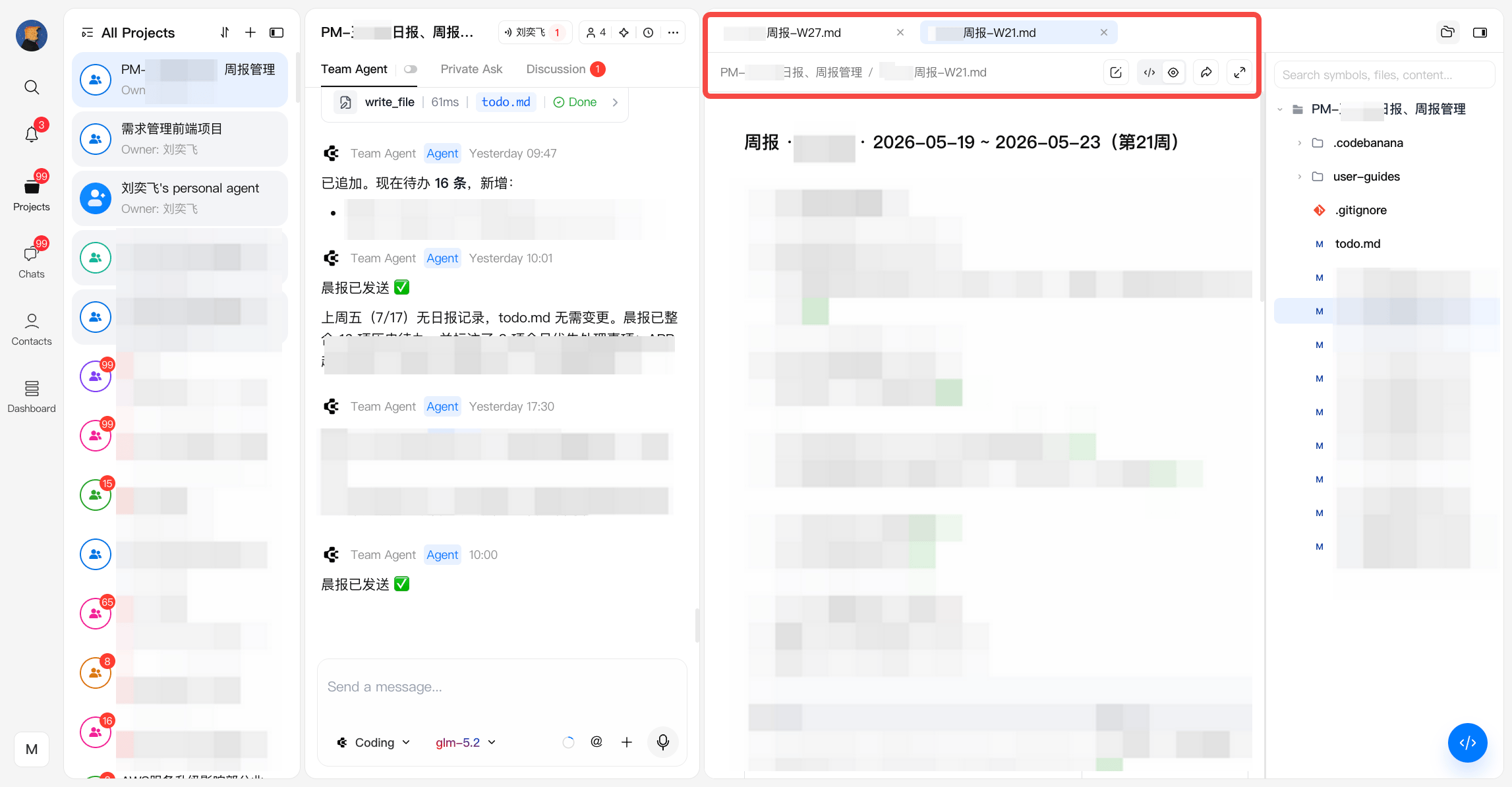
When working within a project, opened files are organized into tabs for easy switching:- Multiple files can be opened simultaneously
- Tabs appear at the top of the viewer
- Right-click on tabs to:
- Close current
- Close others
- Close all
File View and Preview
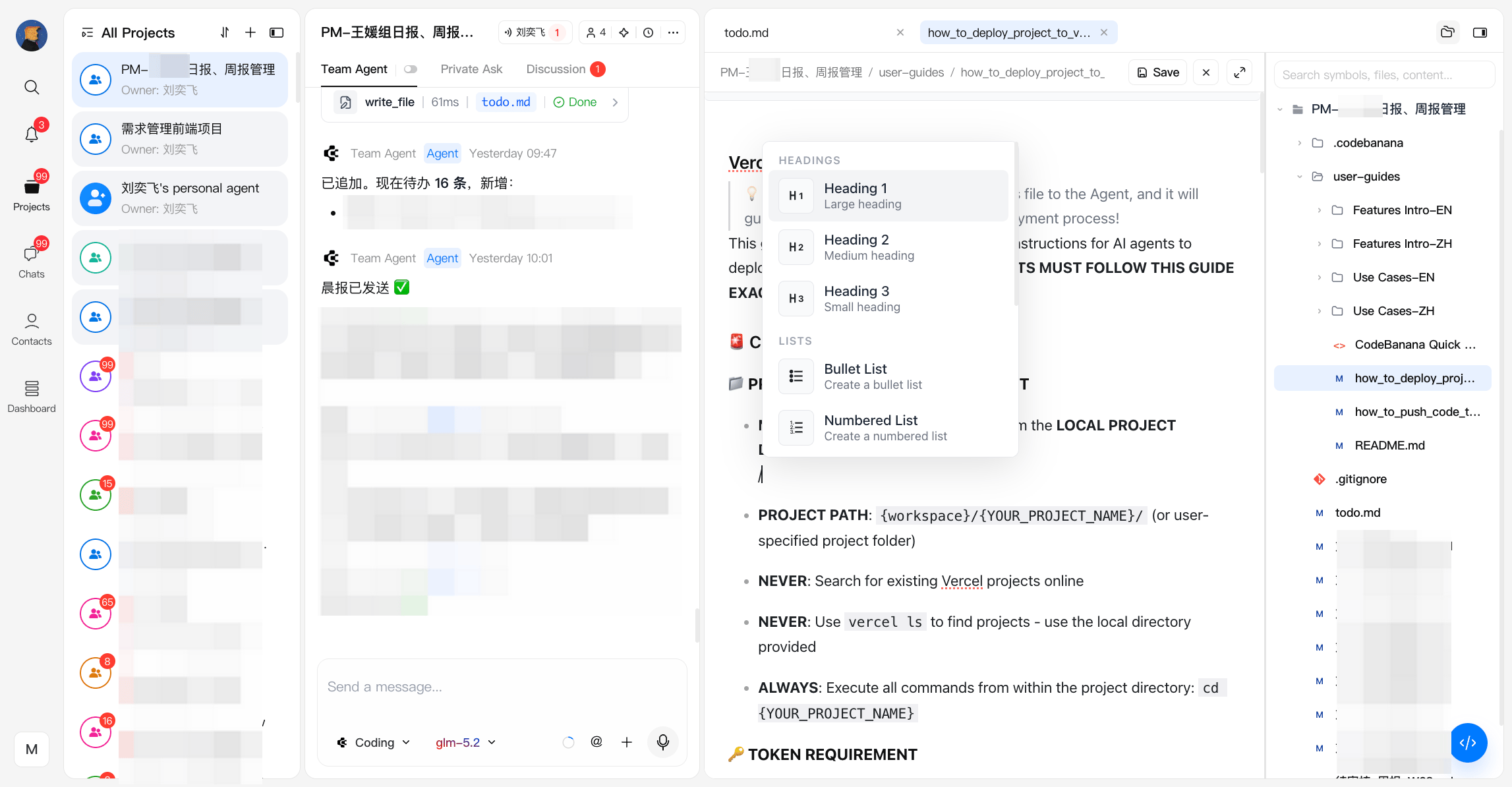
The viewer supports both code and preview modes, depending on file type: Markdown (md)- Switch between Code and Preview
- Edit directly in preview mode
- Use / to trigger formatting options
- Select a line and right-click for formatting and editing actions
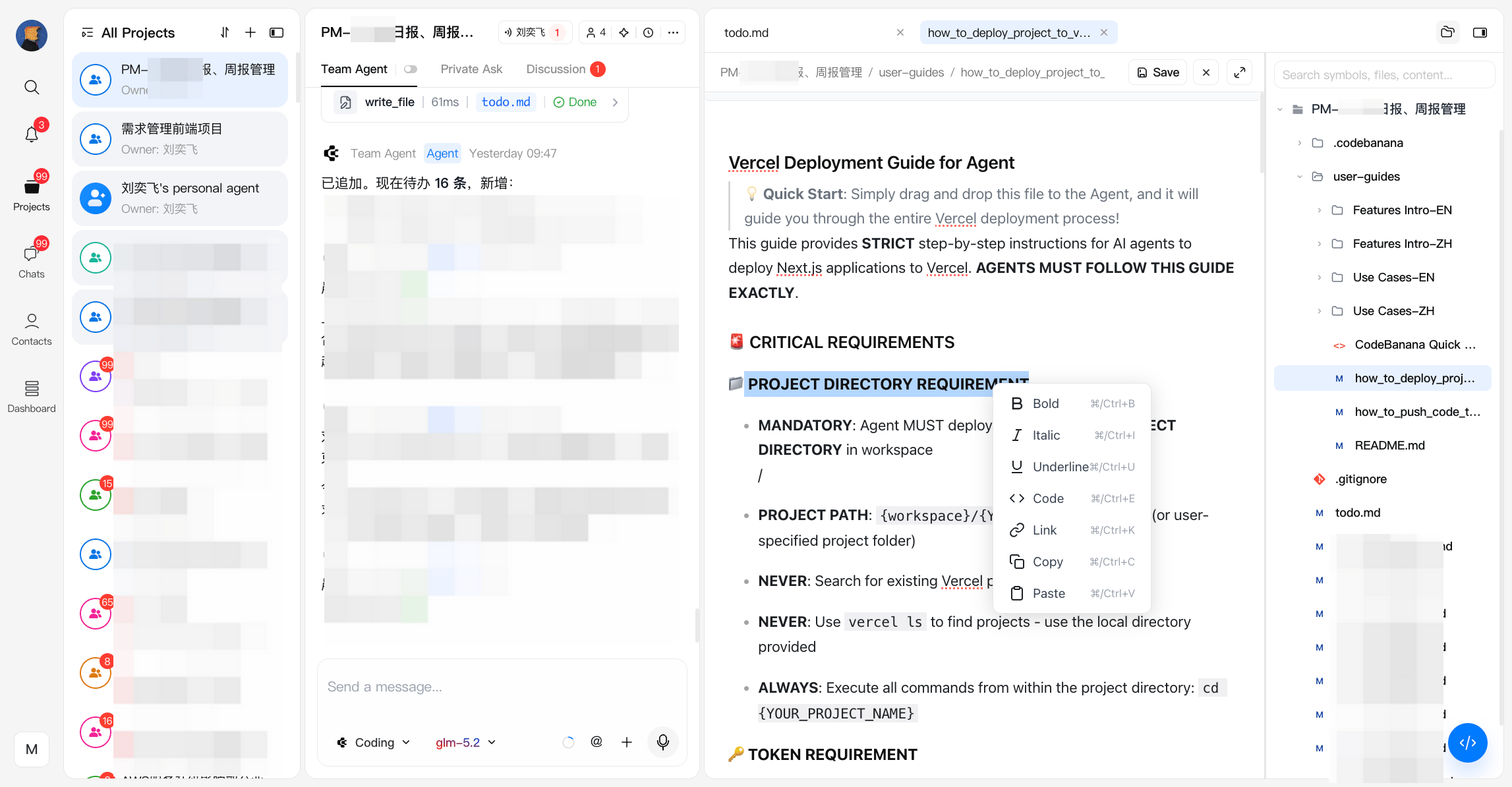
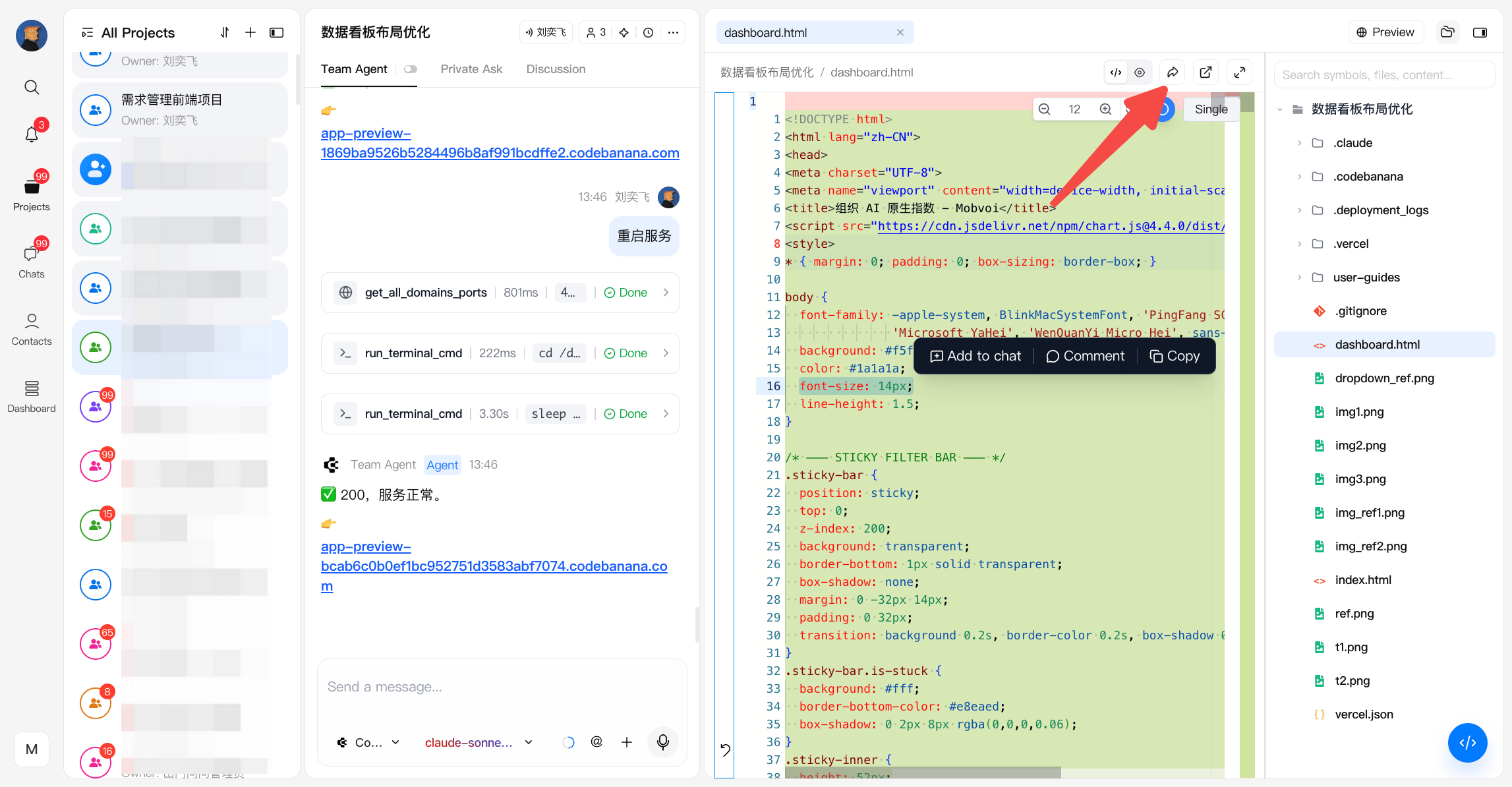
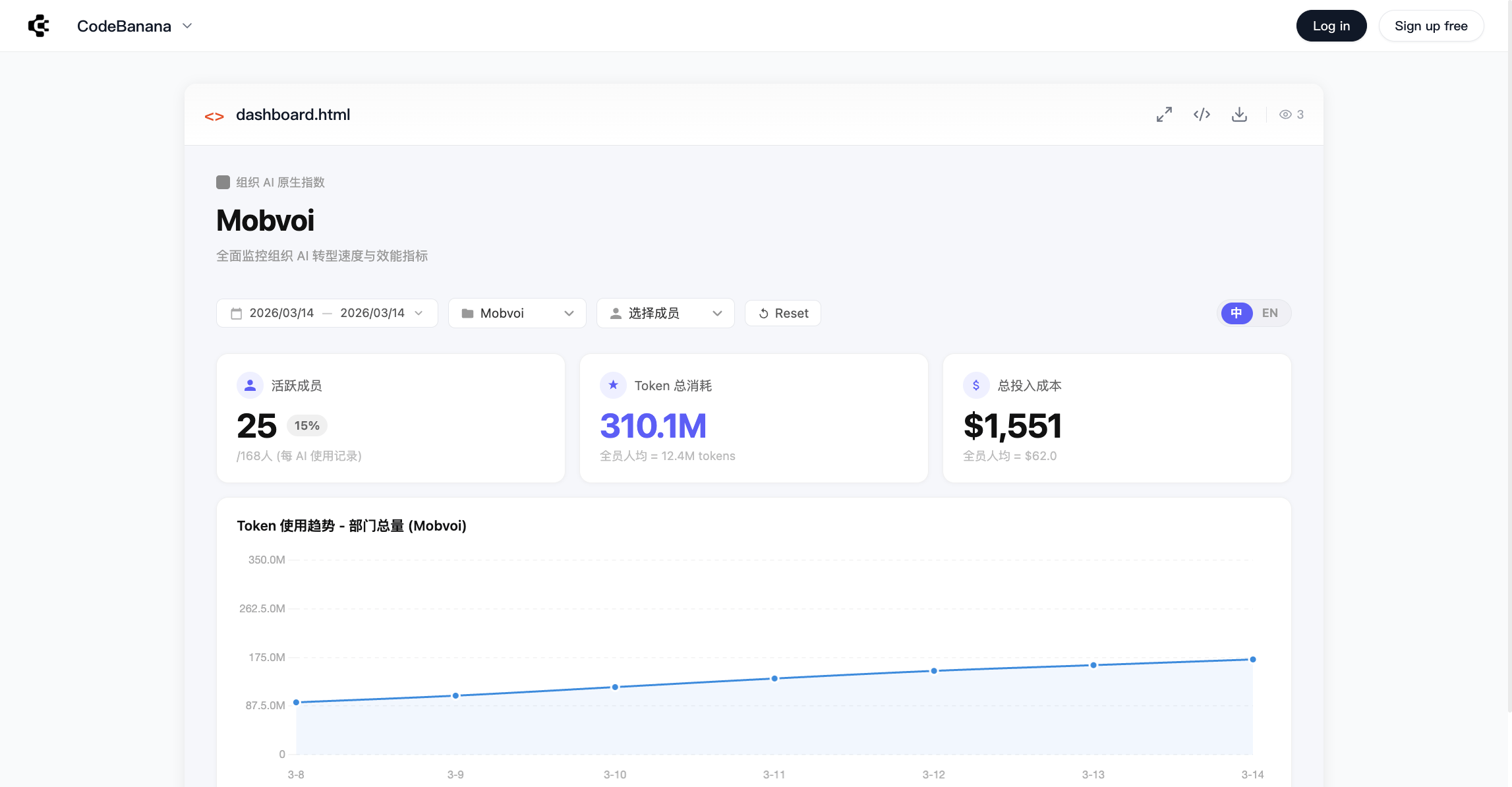
- Code view and preview mode available
- Option to open in a new tab
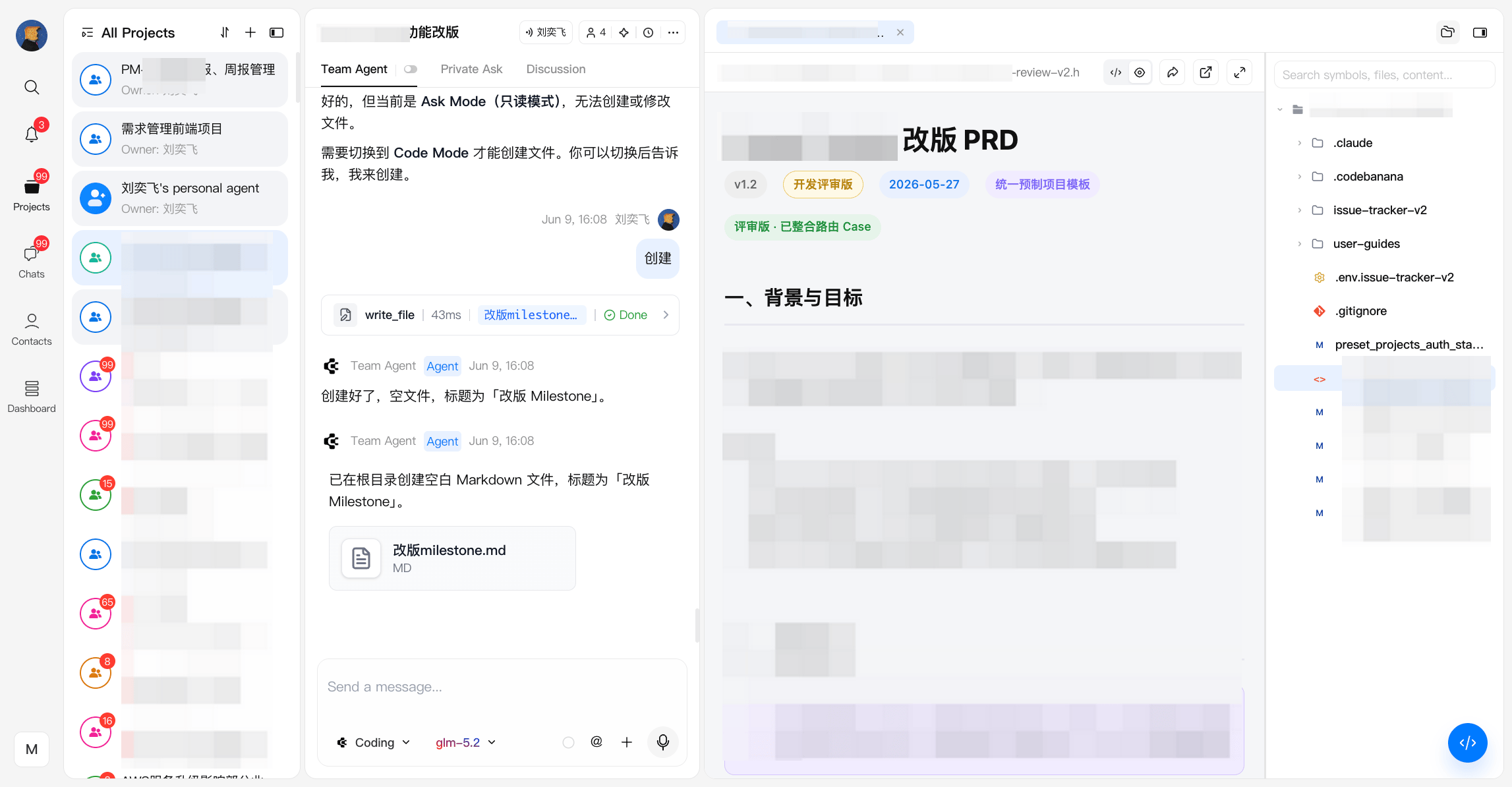
- Preview across multiple environments:
- Web
- iOS
- Android
- My Device (via external preview tools)
- Refresh available for real-time updates
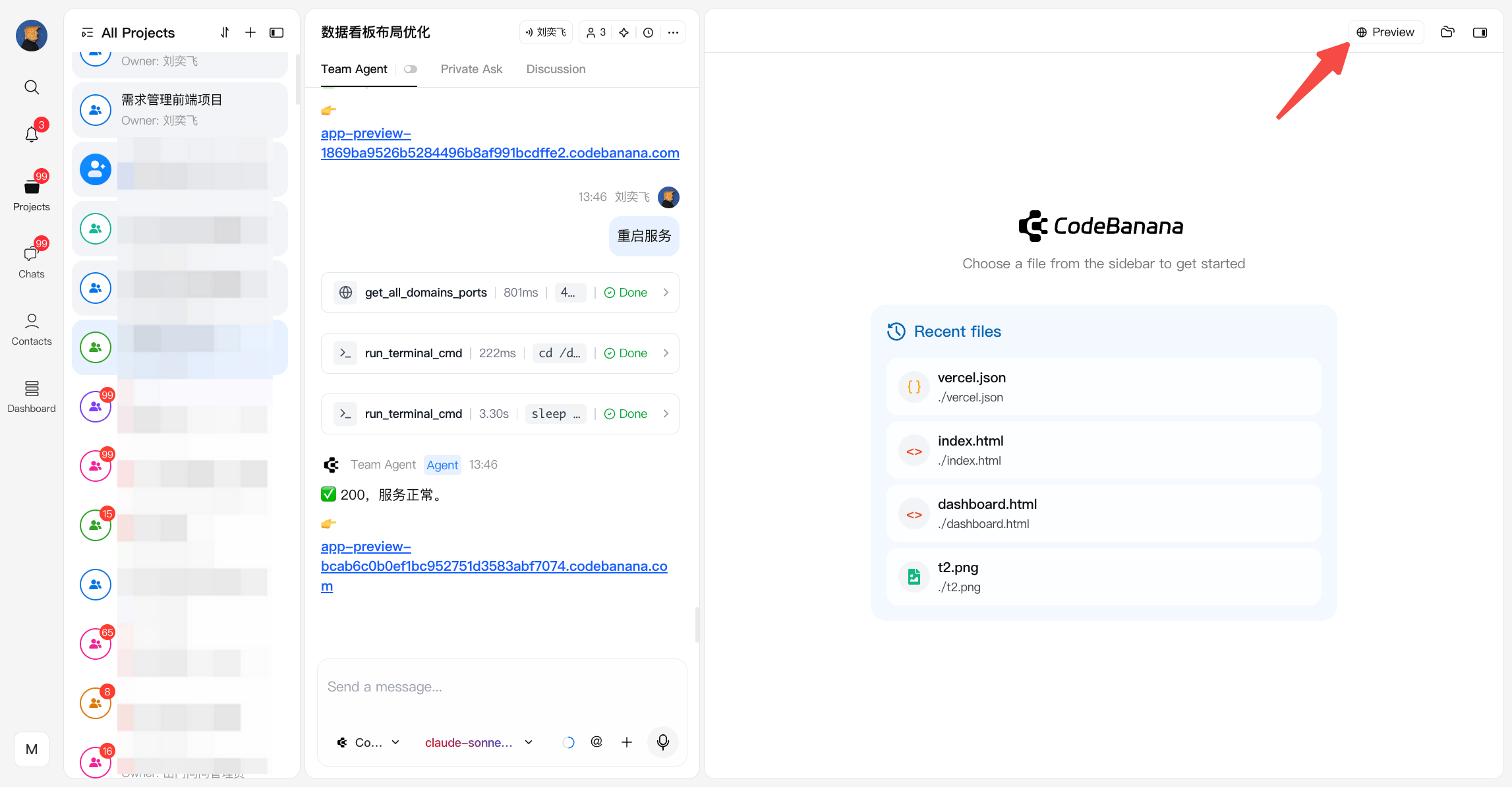
Project Preview
When a service is running, the Project Viewer enables live preview:- Automatically detects active ports
- Allows instant access to running applications
- Can also be accessed via the Service panel
Editing and Interaction
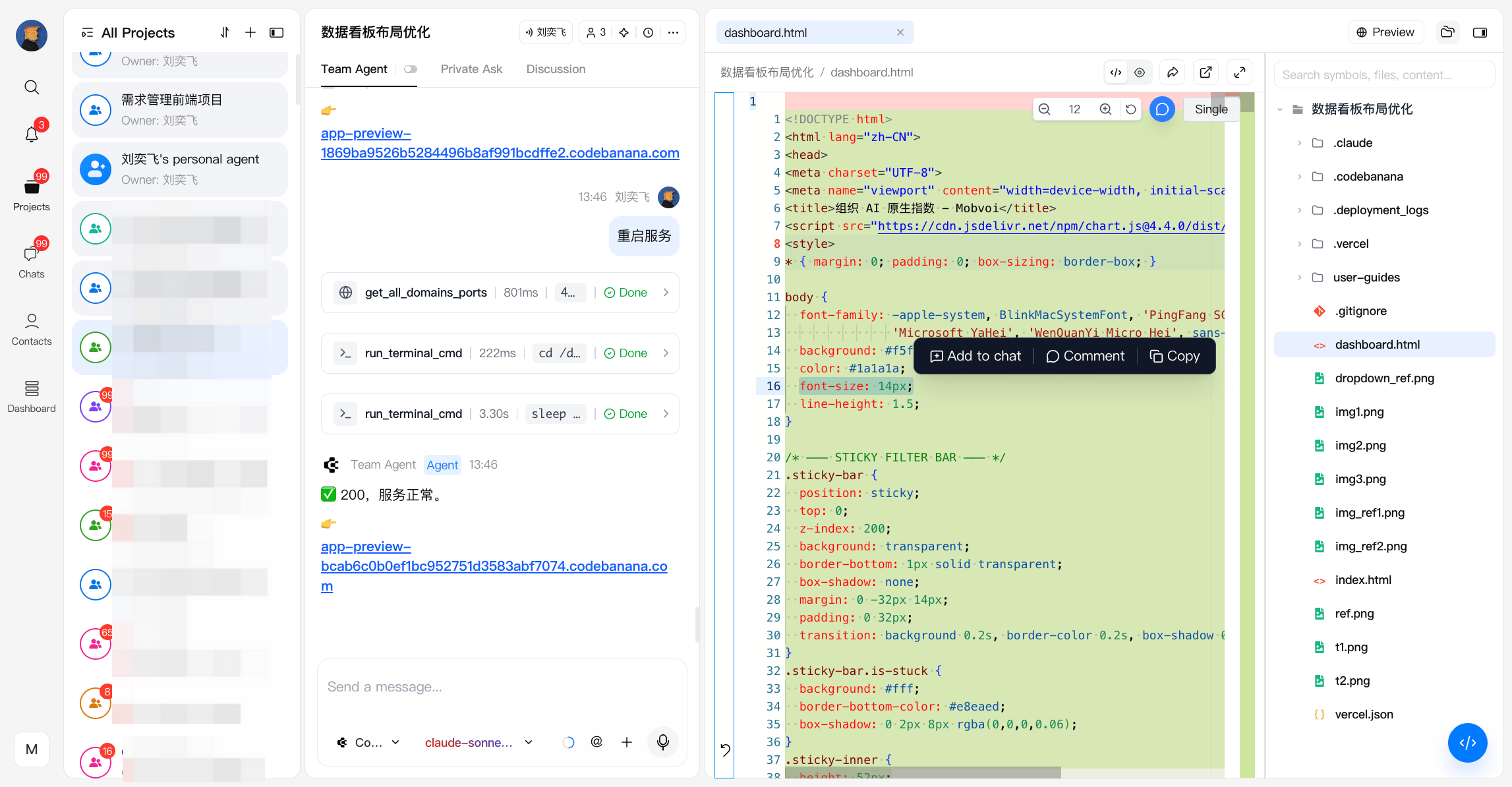
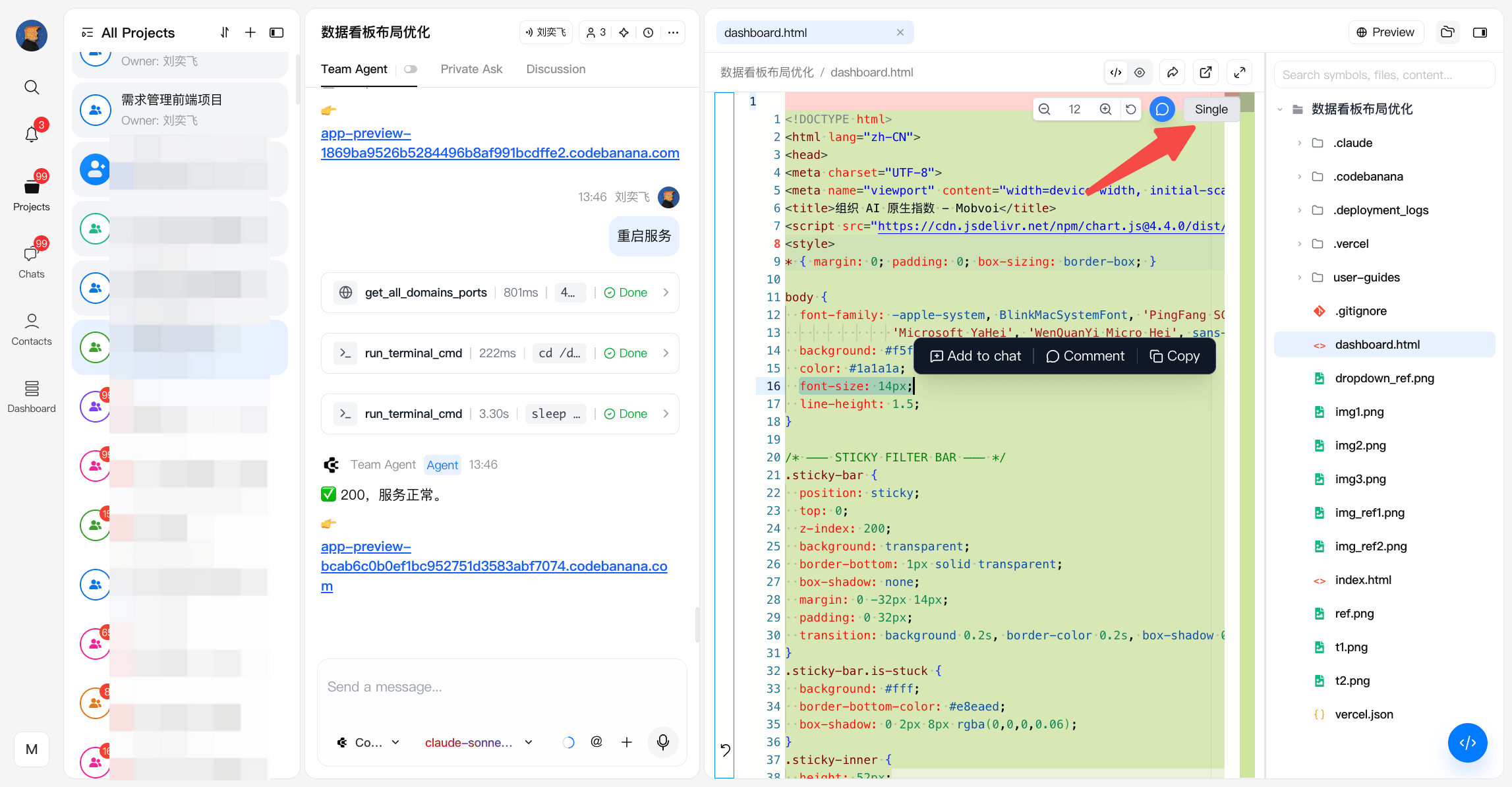
The Project Viewer supports direct interaction with project content:- Select content to:
- Add comments
- Reference in chat
- Copy content
- Comments are tied to specific lines and remain visible in context
- A floating comment panel allows quick navigation across all comments
Diff and Change Tracking
When files are modified, additional views are available:- Preview — current state of the file
- Diff View — compare changes against previous versions
Sharing
Certain file types (e.g. HTML, Markdown, JSON) support shareable links, allowing others to view content externally without accessing the full project.