

Projects
Projects are the core unit of work in CodeBanana, combining code, environment, and collaboration into a single workspace. Each project belongs to a fixed organization, determined when the project is created, and that organization does not change over the project’s lifecycle. Each project can be accessed from two entry points: Projects and Chats. These two tabs lead to the same underlying project workspace, but surface different types of activity by default.Project List
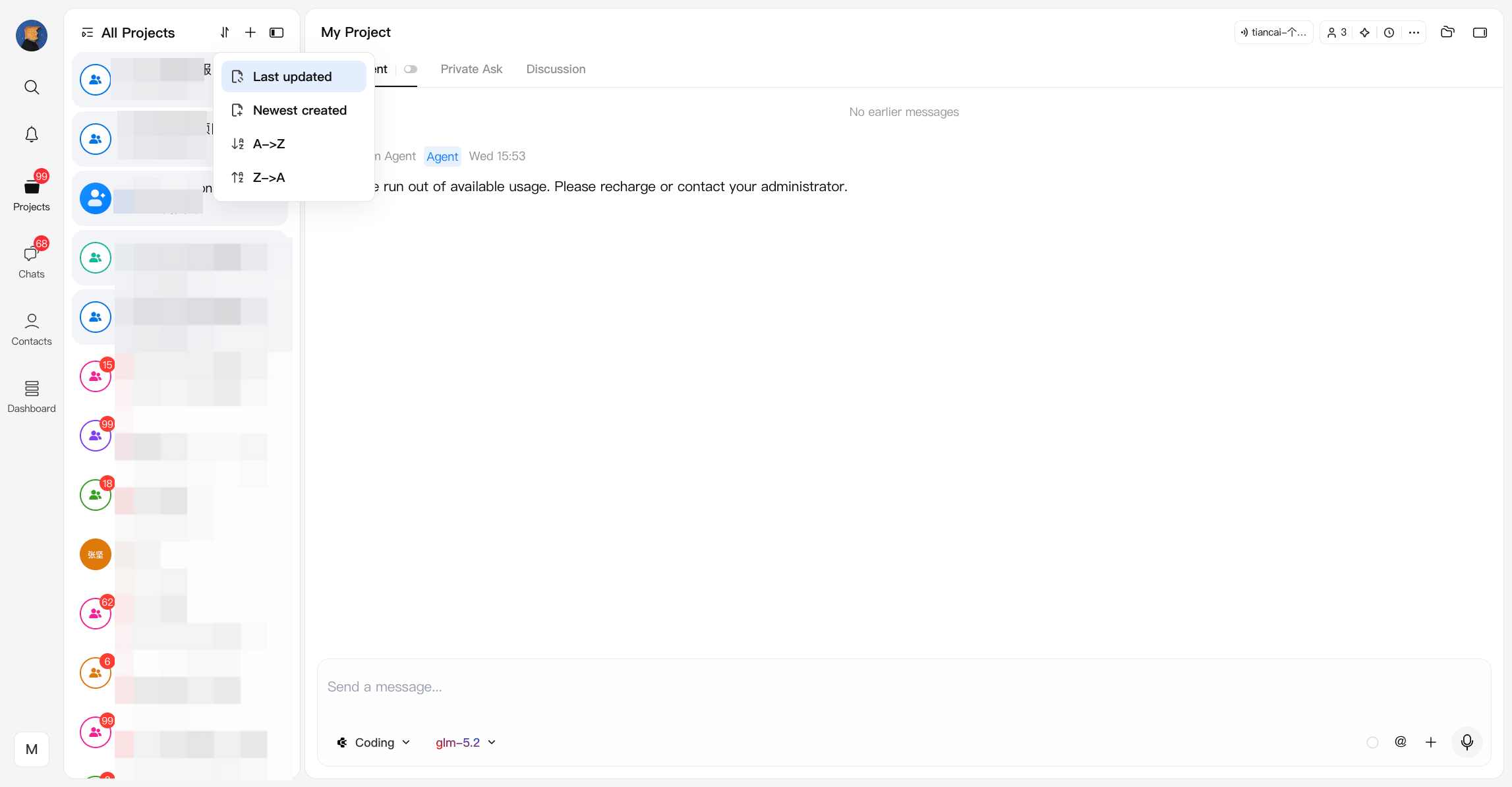
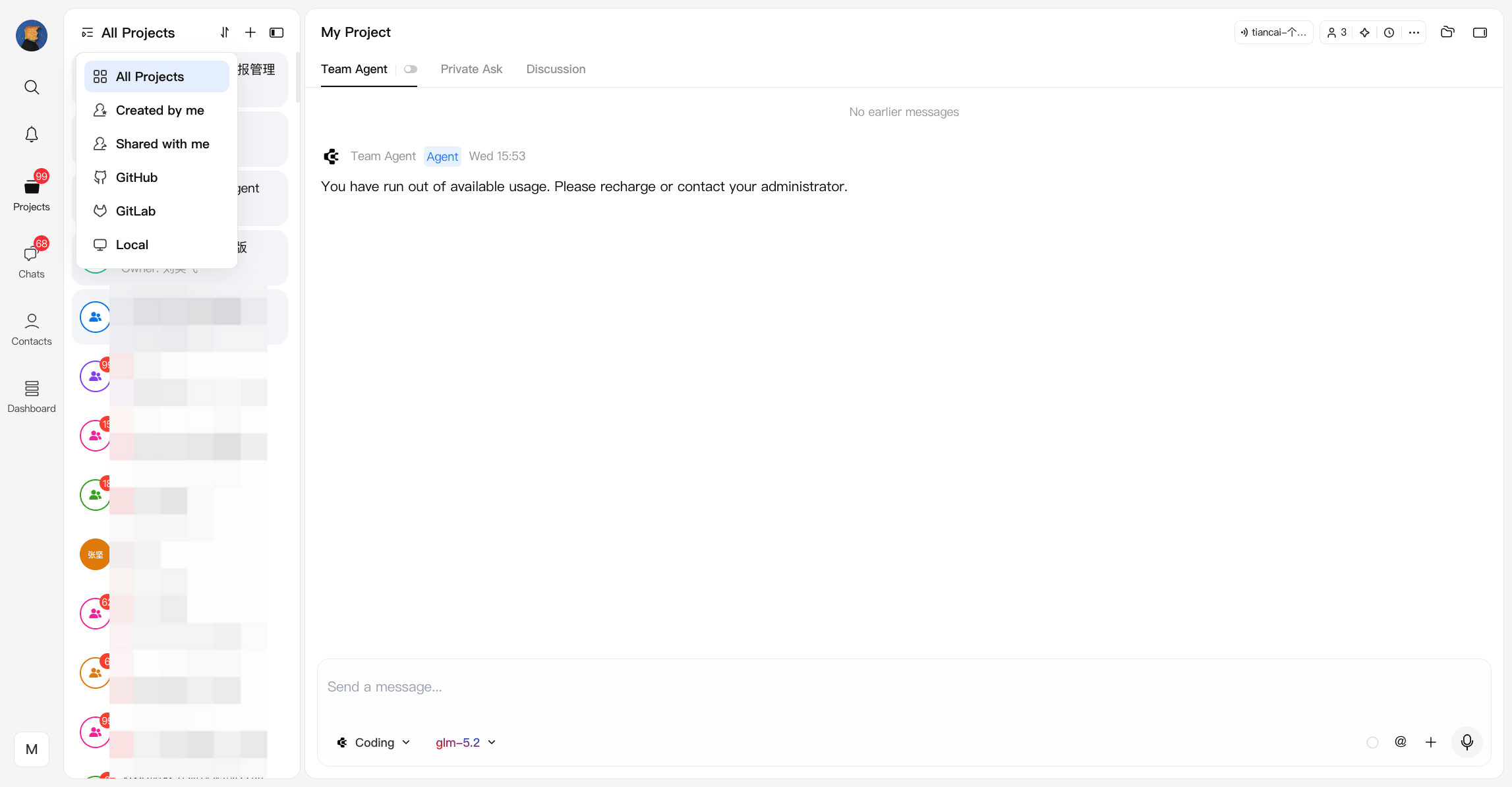
The project list provides flexible management and navigation: Filtering and sorting:- By project type, owner, creation time, last activity, etc.
- Visual indicators for:
- GitHub projects
- Local projects
- Projects from the same repository branch are grouped under a single parent
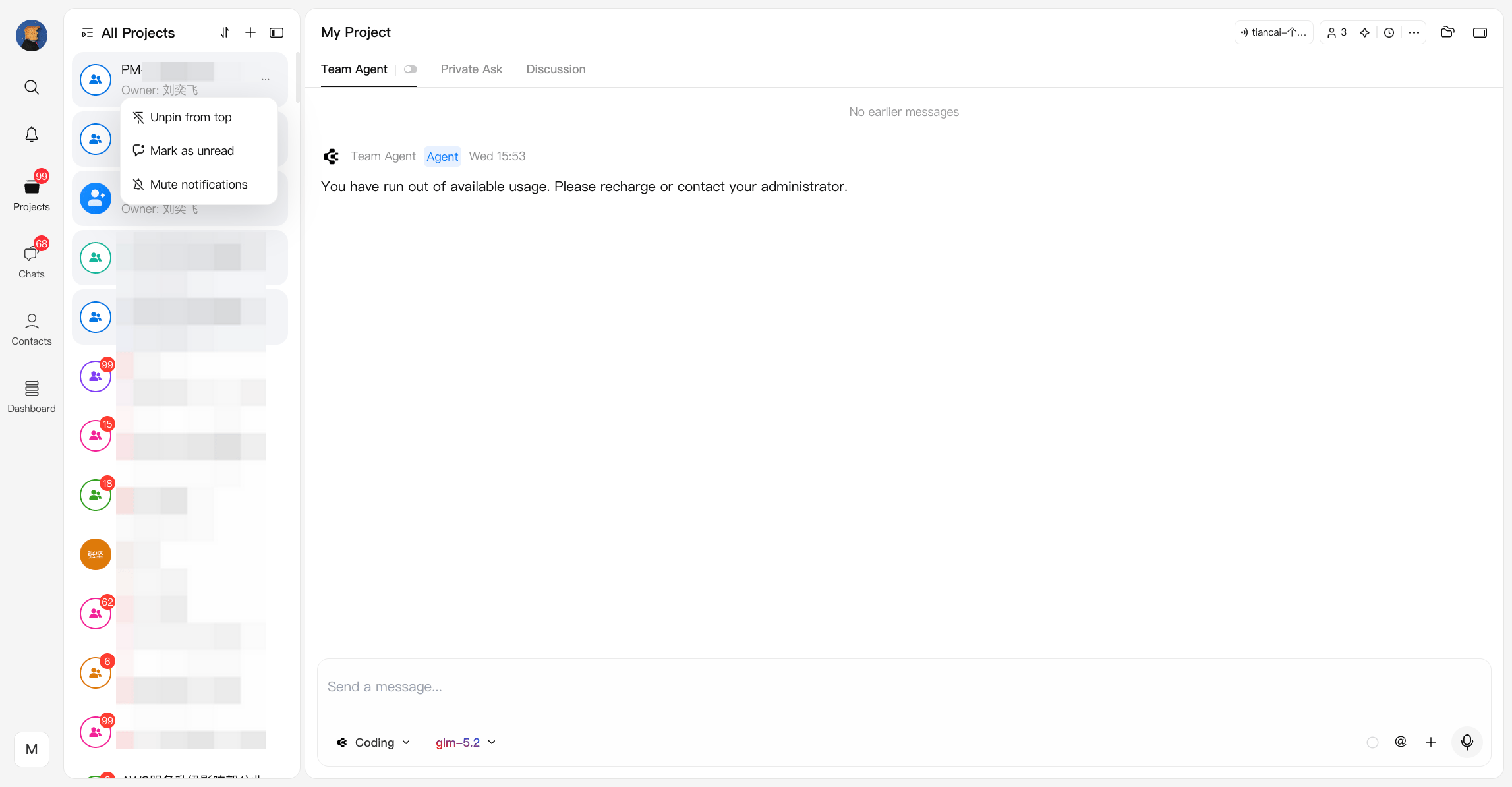
- Pin / Unpin from top
- Pin important projects to keep them at the top of the project list
- Unpin restores the default sorting behavior
- Mark as unread
- Marks the project as unread
- A red notification badge appears again on the project
- The unread count is included in the total notification count shown in the left navigation bar
- Mute notifications
- Mutes notifications from the selected project
- The red notification badge changes to a gray indicator
- Muted projects will no longer contribute unread counts to the left navigation bar
Notification count
- New messages generate unread indicators on the corresponding project or chat
- Unread counts are accumulated at multiple levels:
- Individual project/chat level
- Group by Project or Chat level which on left navigation bar
- Muted projects are excluded from notification count calculations
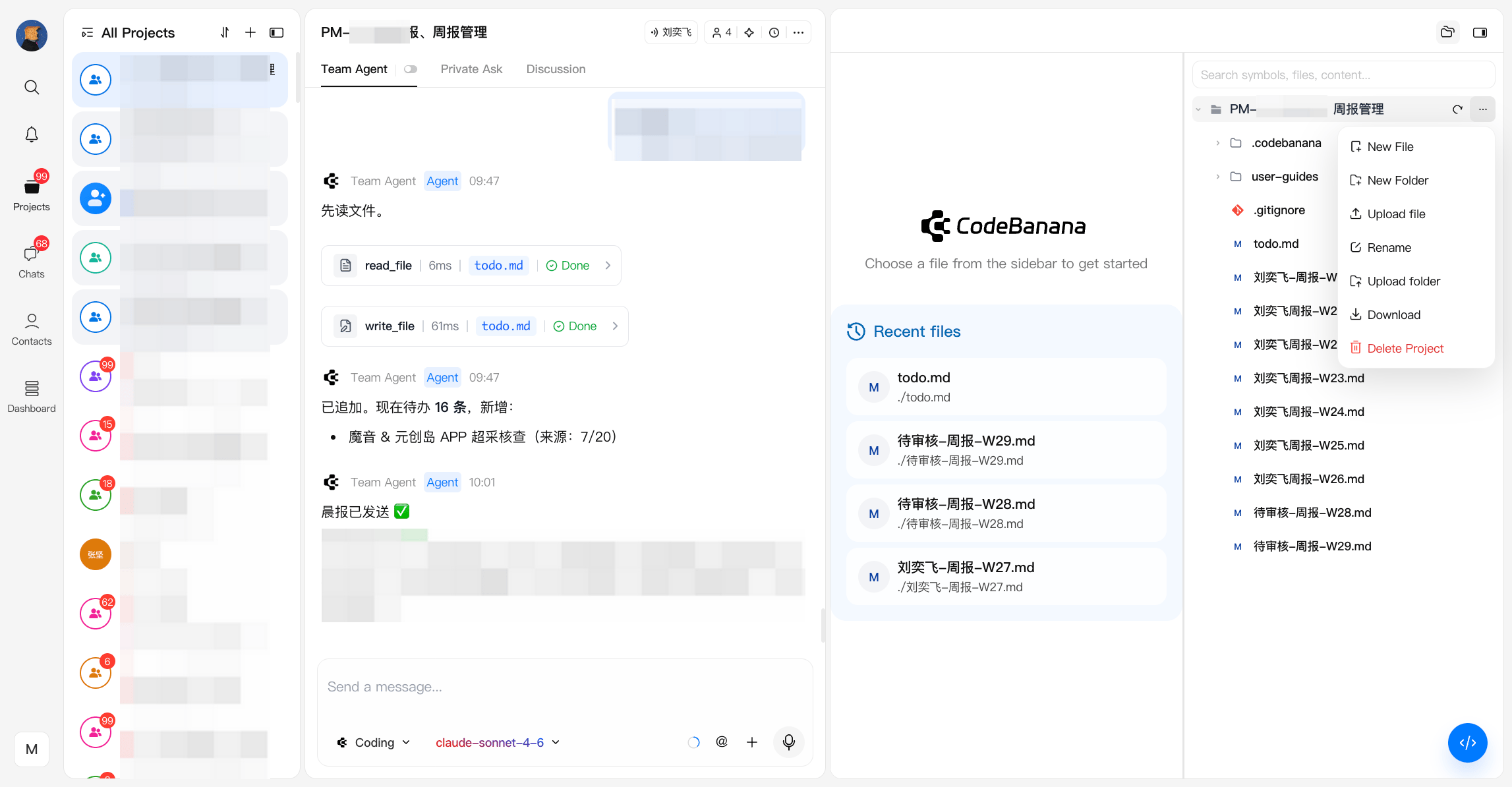
- click the “folder” icon at the top-right corner
- Additional actions available via the “…” menu
- Permissions apply to all destructive actions
- Folders: Rename, create, upload, copy path, move, delete, download
- Files: Rename, copy path, move, delete, download
- Copies the file path relative to the project or workspace root
- Deletion requires agent-level permissions
- Only the project owner can delete a project
- Deletion is allowed only if the owner has more than one project
Create Project
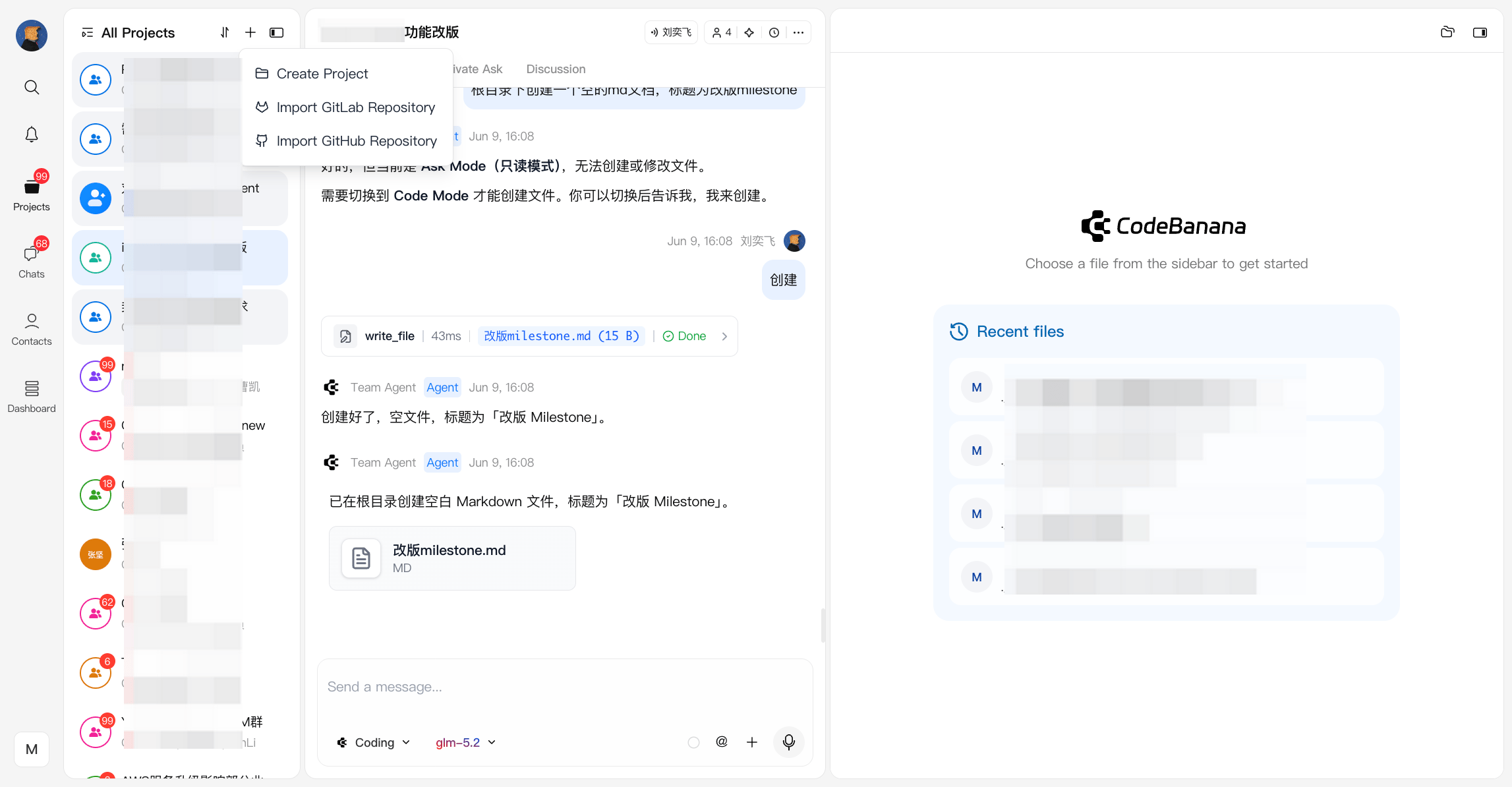
CodeBanana supports multiple ways to initialize a project Project sources:- Create a local project
- Import from GitHub or GitLab
- Pre-configured templates based on use cases:
- Include styles, skills, and agent settings
- Option to start from Custom (empty project)
Project Visibility Across Organizations
Project visibility is determined by the relationship between:- The project’s fixed organization
- The organizations the current member has joined
- The member’s role in that project
- The project is shown only under its own organization
- Even if you are the owner, the project will not appear when your current working organization does not match the project’s organization
- If the project’s organization is included in the organizations you have joined, the project is shown only under that organization
- It will not appear under your other organizations
- If the project’s organization is not included in any organization you have joined, the project is shown under all organizations you have joined
- In this case, it is marked as External
- A project may initially appear as External because none of your joined organizations match the project’s organization
- If you later join that organization, the project will automatically switch to the normal organization-based display and the External label will disappear
User Guide
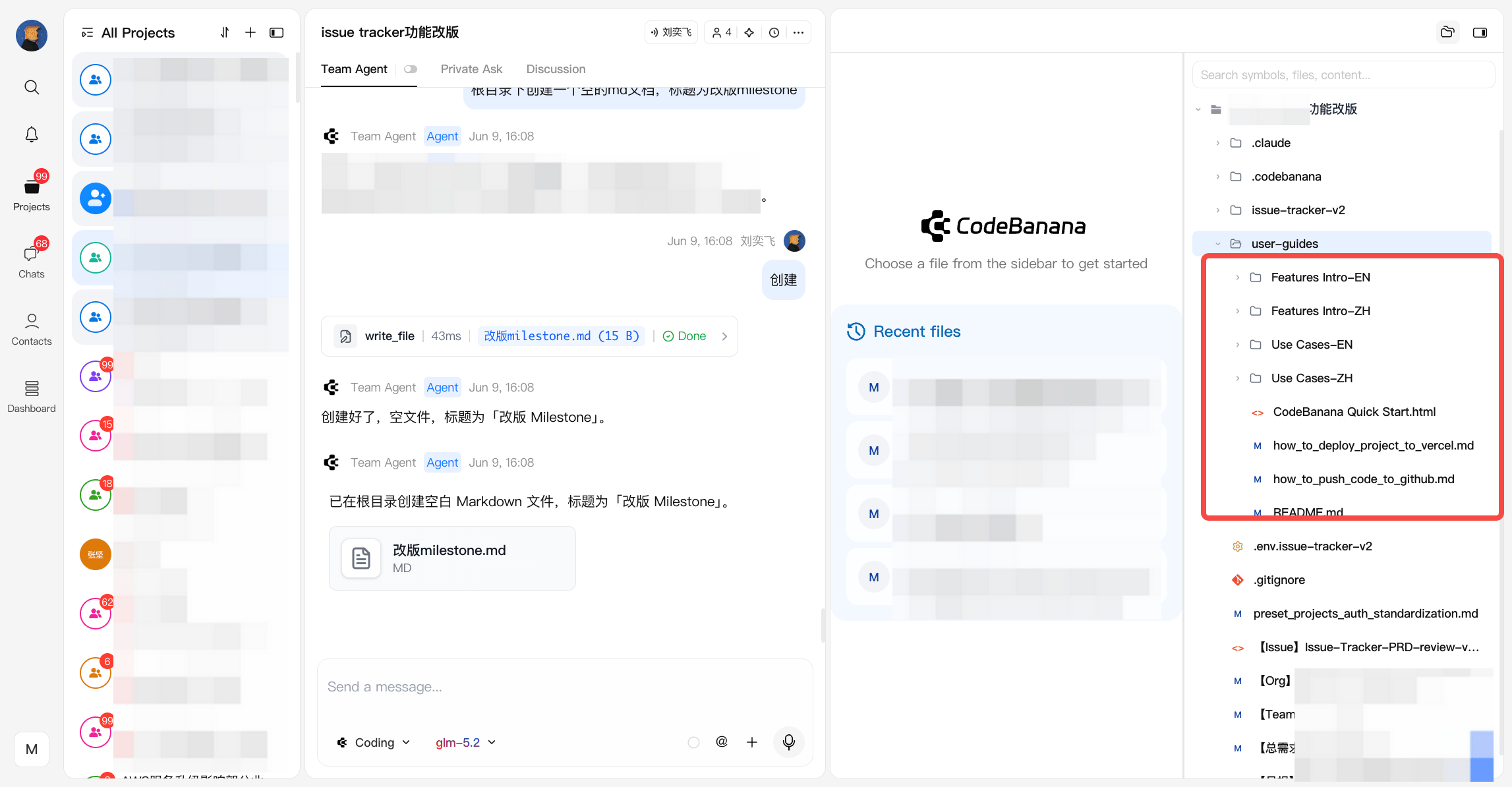
After creating a new project, a User Guide directory is automatically generated within the project file tree. This directory contains detailed documentation for CodeBanana’s core features, including both English and Chinese versions. It covers the main modules in Studio and serves two purposes:- As a readable reference for users to understand product capabilities
- As a knowledge source that agents can access during task execution
Adding Members
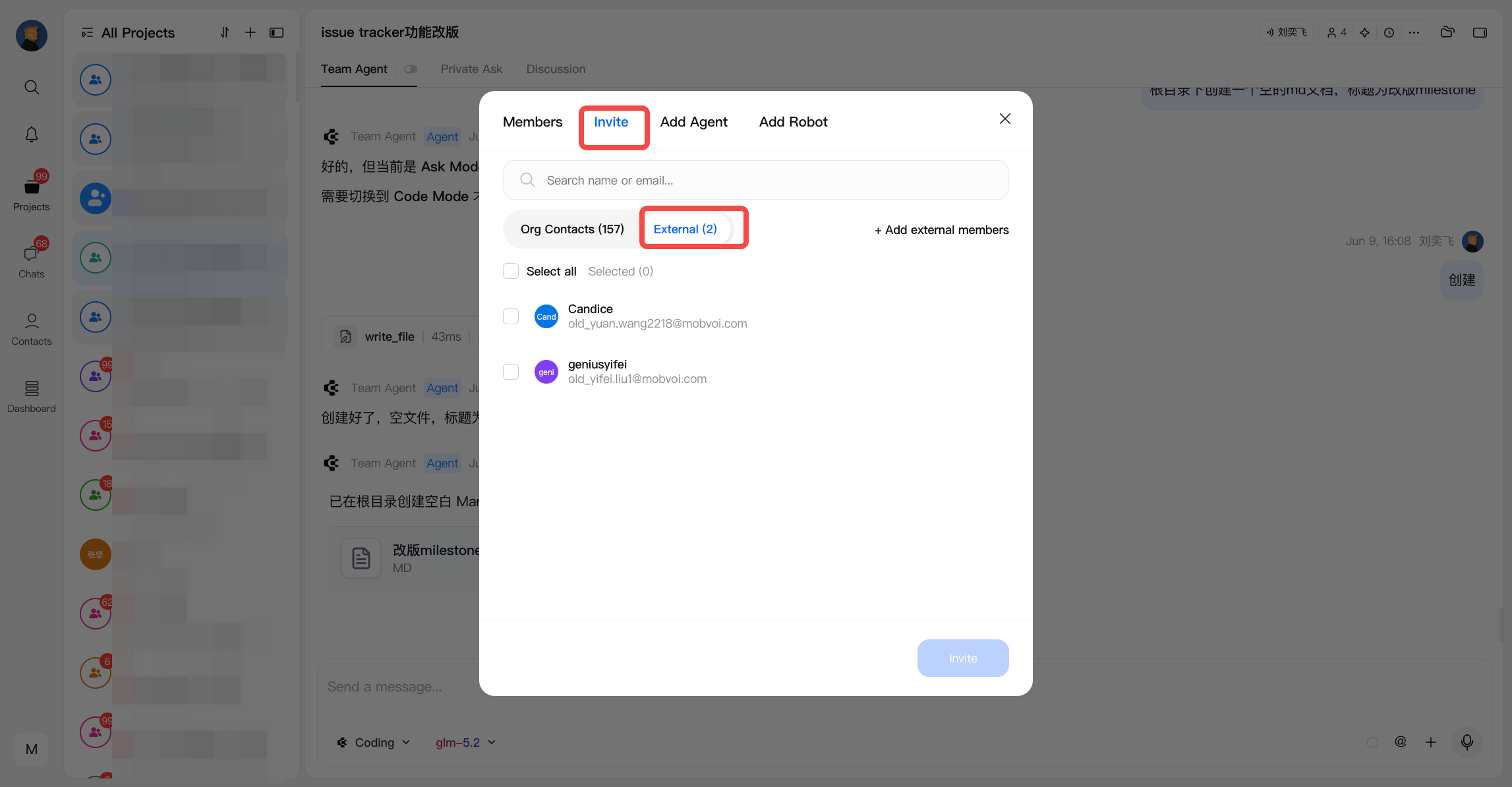
All members in a project can expand the project team in two ways, depending on whether collaborators are part of your organization or external. Add organization members Add existing members from your organization directly into the project group chat without notification.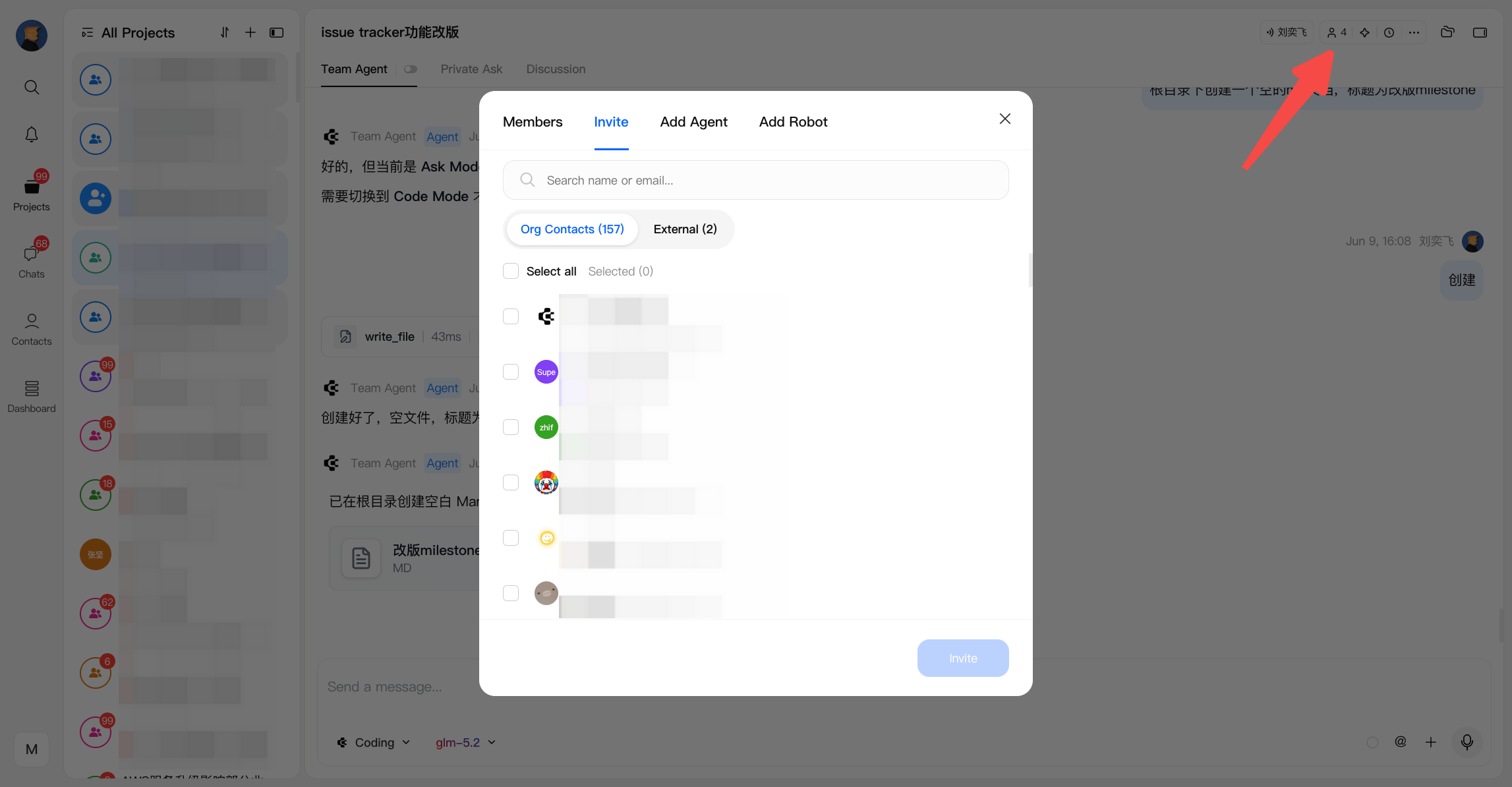
- Sends a notification and email invitation to the external collaborator
- They do not become members of your organization
- Their access is limited to the project they are invited to
- Temporary collaborators
- Clients or stakeholders
- External partners who need visibility or participation without full organizational access
Member Management
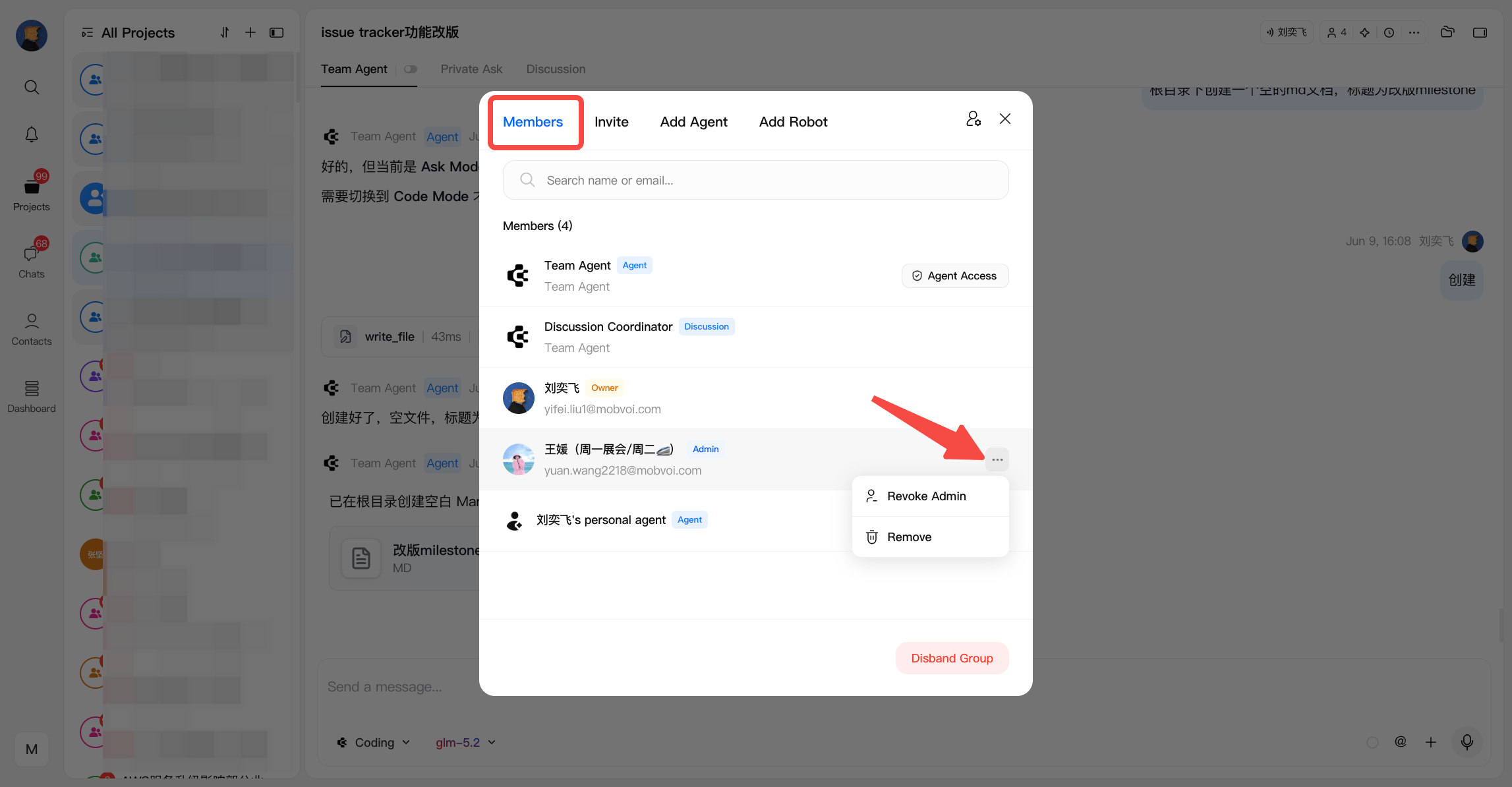
Project membership is managed by the project owner, who can access member management by clicking the icon in the top-right corner of the agent panel. Remove Members The project owner can remove members from the project group:- Removed members will lose access to the project and its chat
- This action is typically used to:
- Manage team changes
- Revoke access for external collaborators
- The project owner can disband the entire project group:
- All members will be removed from the group chat
- The collaboration session is effectively terminated
- This action is irreversible and should be used with caution
Project Admins
Projects and chats support an Admin role to make team collaboration more flexible. Admins can take control of the Team Agent under the same access rules as other authorized users. Previously, members needed the project owner to explicitly grant permission before they could interact with the Team Agent. Now, if a user is a project admin, they can directly take over agent access and start a conversation whenever the agent is not actively responding. Admin Permissions Project admins can:- Directly interact with the Team Agent when it is idle
- Access the Team Agent under the same control rules as other authorized users
- Up to 5 admins can be assigned per project
Support Access
Projects can request dedicated support:- Use Request Support to bring in technical assistance
- A support member is automatically assigned to the project chat
- During support sessions: All token usage is billed at 1.5× rate
Tabs
Projects and Chats are two entry points for accessing the same set of project workspaces. They separate agent activity from human discussion, making message signals easier to follow.Projects Tab
The Projects tab emphasizes agent-related activity and opens the selected project in Team Agent by default. You can use this tab when you want to focus on:- Team Agent conversations
- Agent execution progress
- Project files and agent-driven workflows
Chats Tab
The Chats tab emphasizes human discussion activity and opens the selected project in Discussion by default. You can use this tab when you want to focus on:- Human discussion
- Team coordination
- Discussion-first collaboration
- Team Agent
- Private Ask
- Discussion
- File tree and project context
- Summarize your discussions
- Organize todos
- Generate follow-ups
- Turn conversation into project outputs at any time
Messaging Features
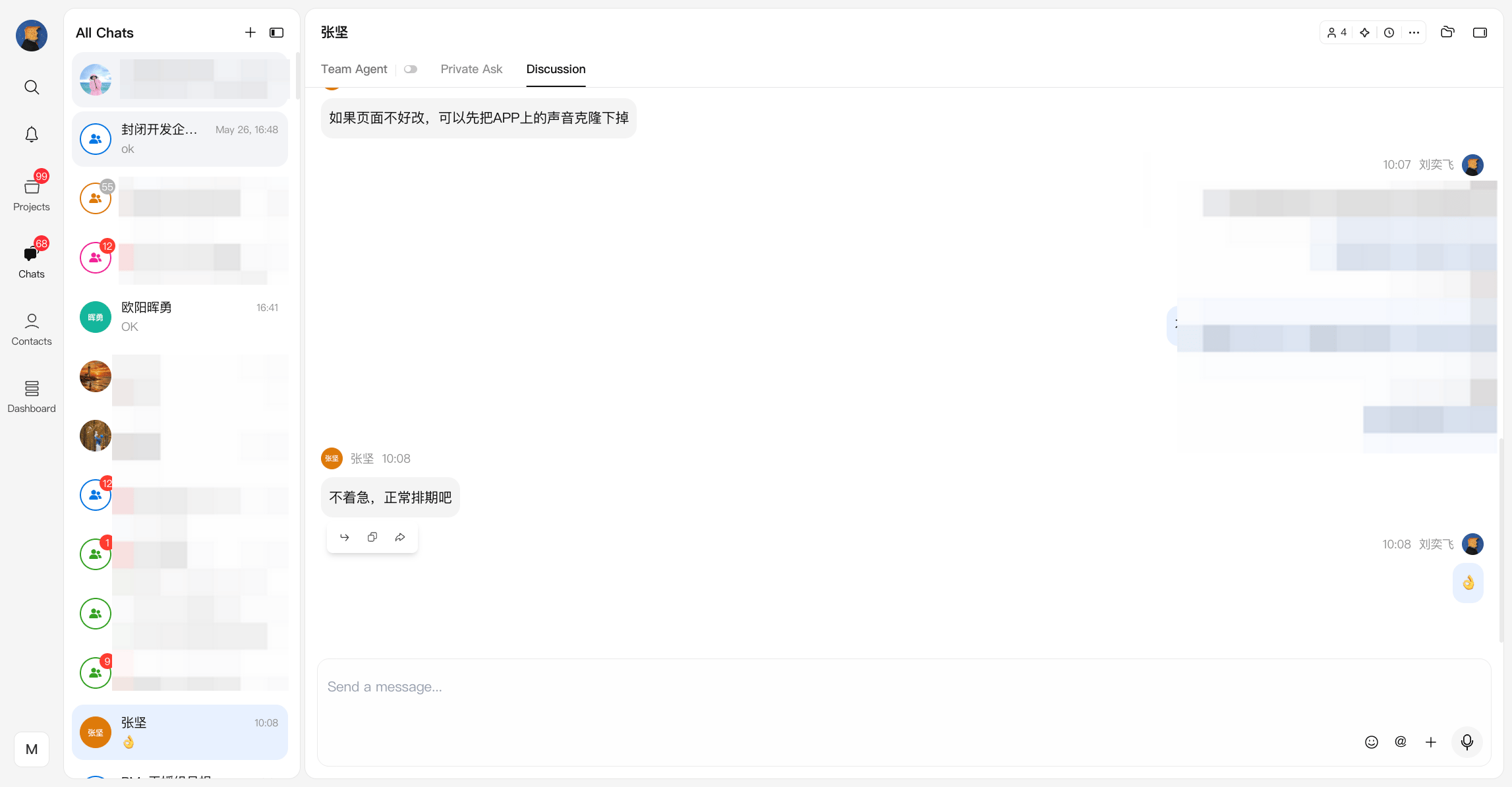
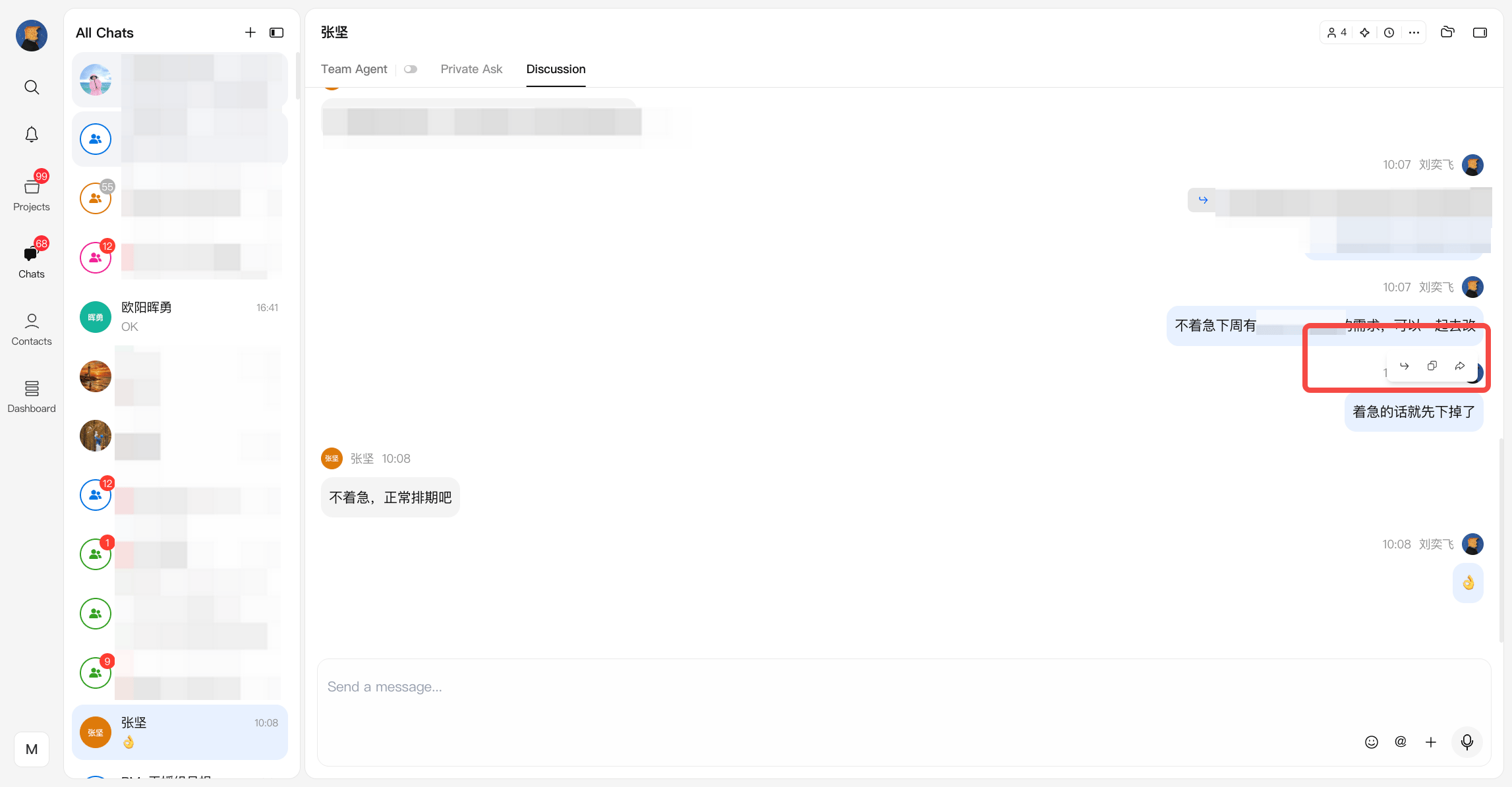
Chats support essential messaging capabilities for efficient communication:- Copy, quote, and forward messages
- Automatic notifications when members join or leave a group
- Search across:
- Organization contacts
- Chat history
- Messages can be forwarded to:
- The current group
- Other groups
- Restrictions:
- In Team Agent, messages can only be forwarded to destinations with agent access
- In Private Ask and Discussion, forwarding is unrestricted
- Restore (agent-related)
- Available on user prompts in agent conversations
- Allows reverting the conversation, model memory, and project state to a previous point
- Not available in standard chat-only conversations
Queue Visibility
When multiple messages are sent to the Team Agent, the project shows queue status directly in the Team Agent view.- Team Agent displays how many messages are still waiting to be processed
- All project members can see the current queue count
- This helps the team understand whether the agent is currently busy or still processing earlier messages
New Messages
New messages help you quickly identify incoming activity across tabs and notification, so you can stay aligned with your team in real time.Where New Messages Appear
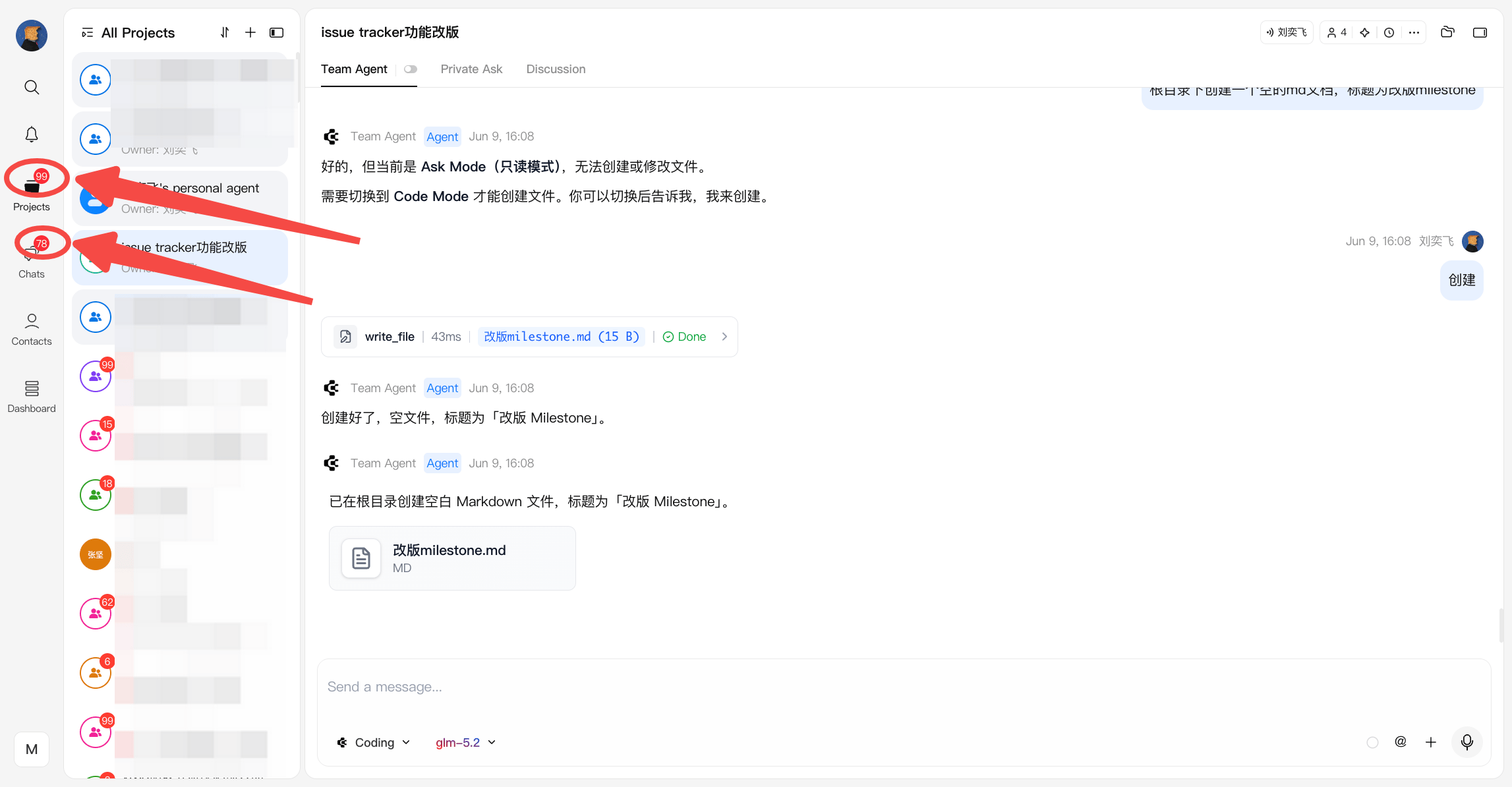
New message indicators are shown across key areas:- Projects
- Chats
- Notifications
Priority Handling
Not all messages are treated equally:- @mentions are prioritized over general new messages
- Mentioned messages are surfaced first, helping you focus on what requires immediate attention
Ranking Logic
Projects and Chats may show the same project in a different order.- In Chats, projects with new Discussion messages are pushed higher
- In Projects, projects with new Team Agent messages are pushed higher
Notification
Notifications keep you informed about important activities across your workspace, including permissions and collaboration events. Notifications cover key events such as:- Agent permission requests and approvals
- Organization join requests and status updates
- External project invitation
- Billing and usage limit updates
- Group invitation
- Track actions that require your attention
- Quickly navigate to related projects or contexts
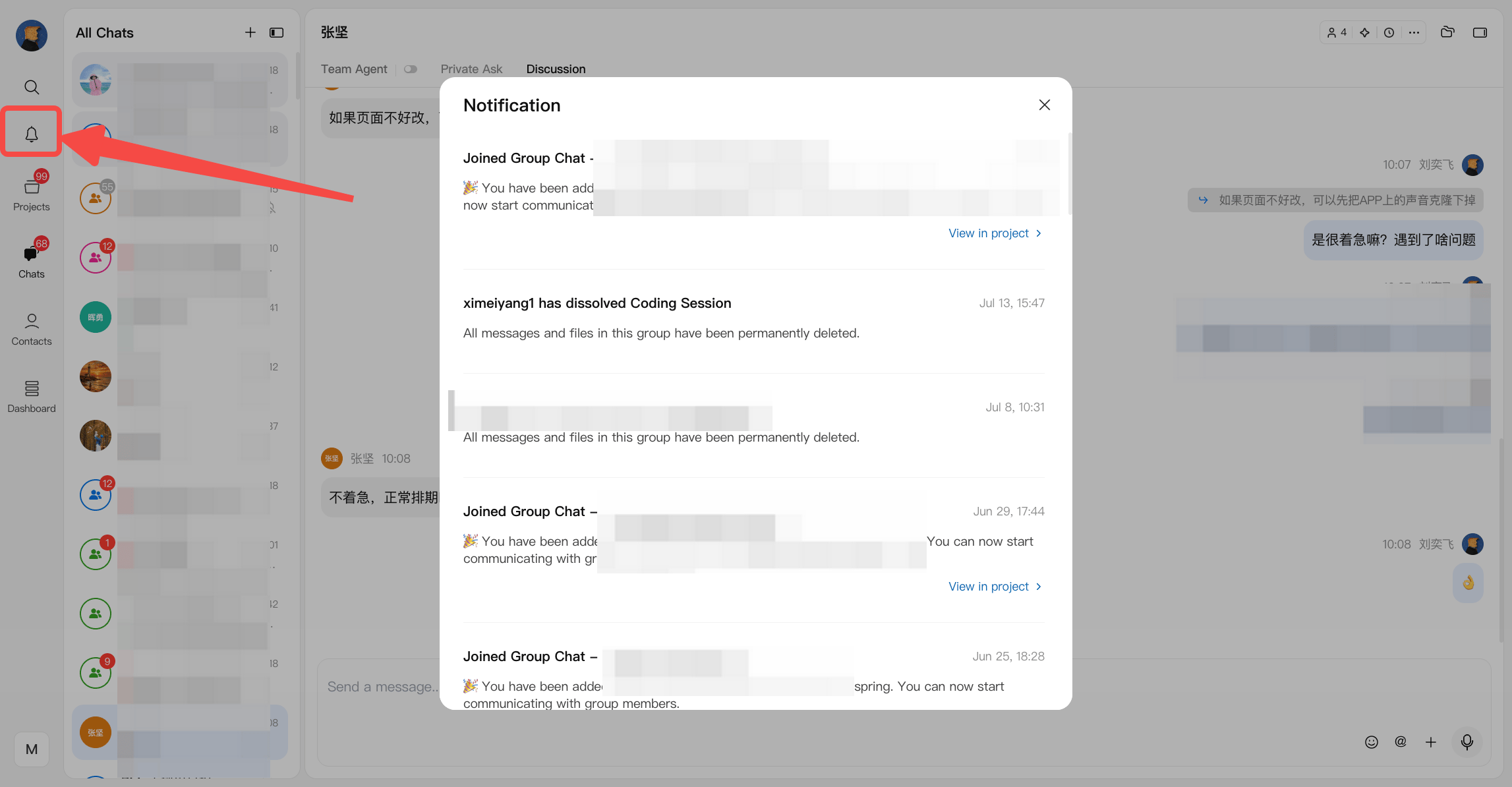
Notification Visibility
Notification visibility follows the same organization logic as project visibility. Standard project notifications- Notifications for regular projects are shown only under the organization that owns the project
- If you switch to another organization, those notifications will not appear there
- If a project is treated as External, its notifications are shown under every organization you have joined