> ## Documentation Index
> Fetch the complete documentation index at: https://docs.codebanana.com/llms.txt
> Use this file to discover all available pages before exploring further.
# User Onboarding
> Complete CodeBanana onboarding for personal, team, and enterprise users, including creating or joining an organization, signing up and signing in, editing team information, importing department and member structures, previewing organization data, using the built-in CB-FAQ Skill, and accessing the Org Admin Workspace for organization management, usage analysis, and AI maturity insights.
## **Sign Up and Sign In**
Before starting the onboarding process, you'll need to create a CodeBanana account and sign in.
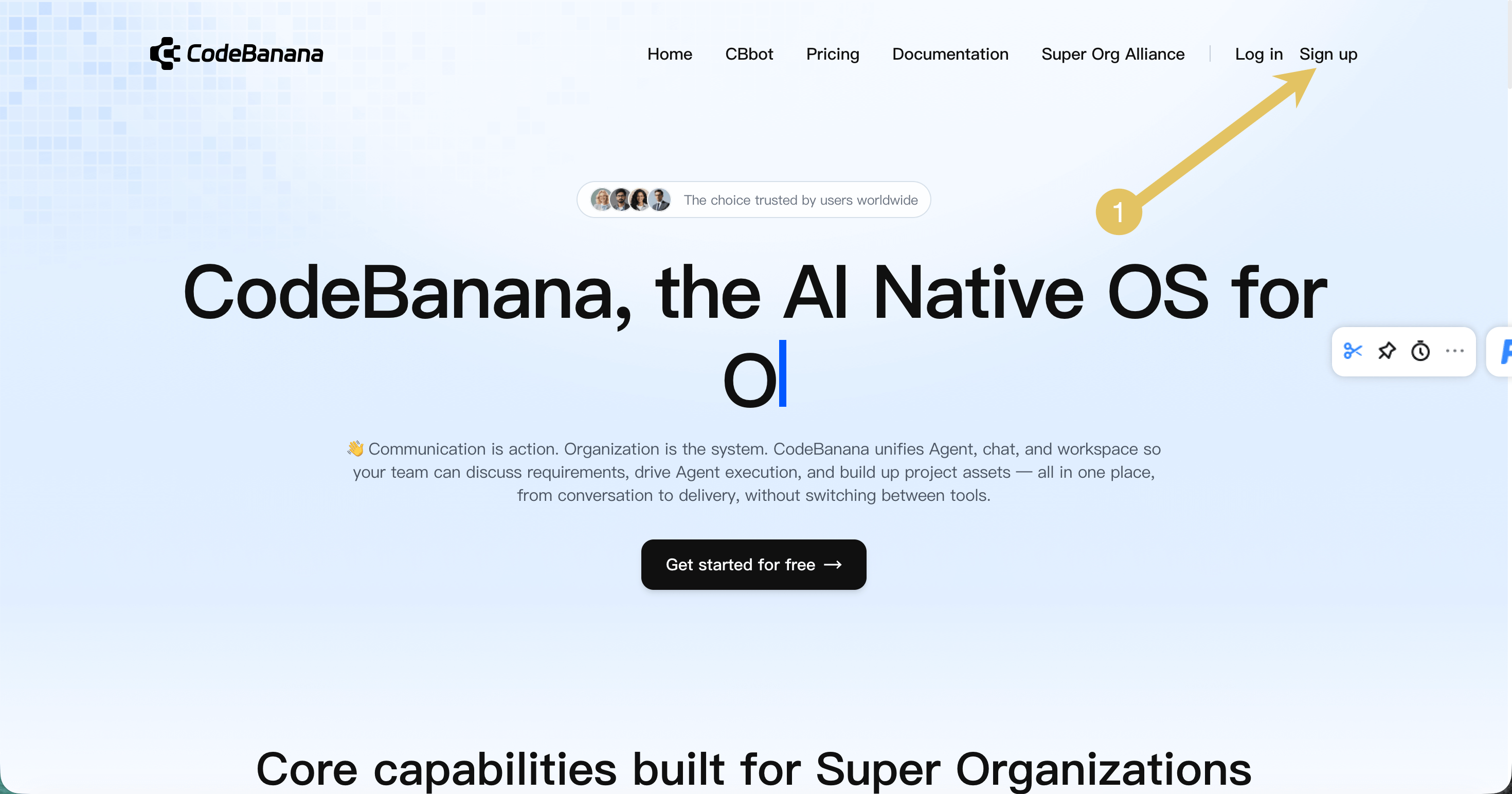
Visit the CodeBanana website and click **Sign Up** in the upper-right corner.
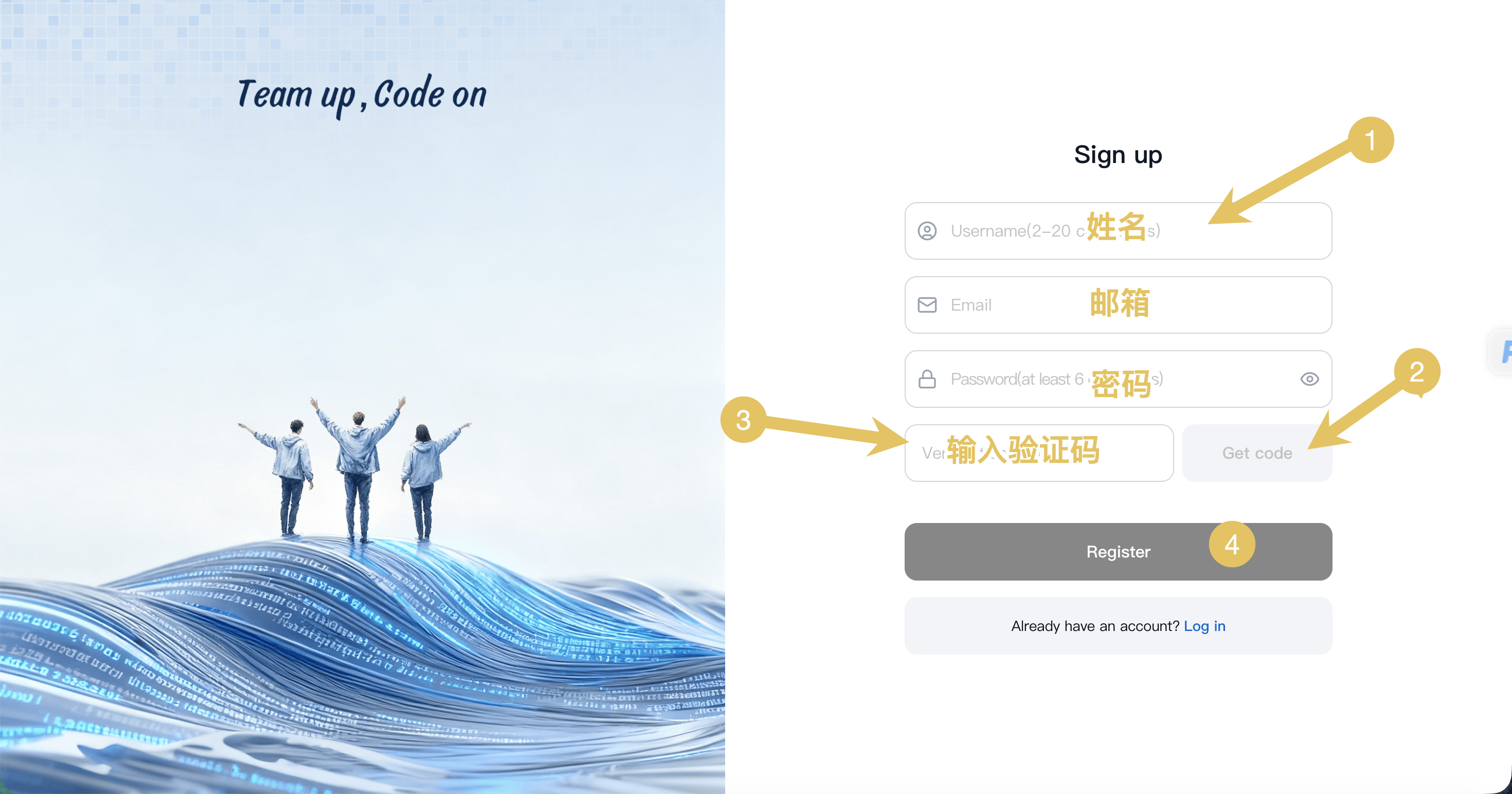
 Fill in the registration form:
* Username
* Email address
* Password
Click **Get Code** to receive a verification code, then enter the code and click **Register**.
Fill in the registration form:
* Username
* Email address
* Password
Click **Get Code** to receive a verification code, then enter the code and click **Register**.
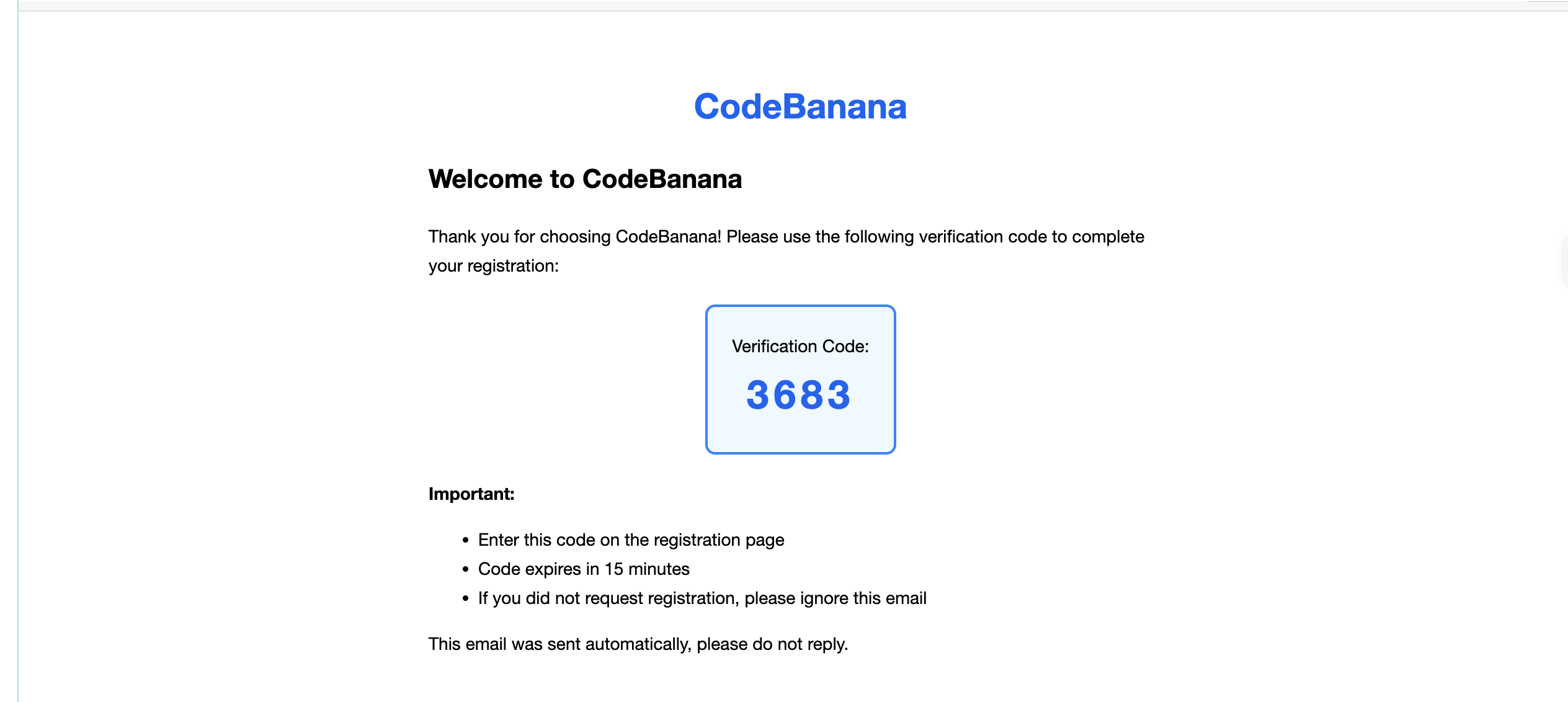
 Open the verification email sent by CodeBanana.
* Copy the **4-digit verification code**
* Enter it on the registration page to complete verification
Verification codes expire after **15 minutes**. If you don't receive the email, check your spam folder.
Open the verification email sent by CodeBanana.
* Copy the **4-digit verification code**
* Enter it on the registration page to complete verification
Verification codes expire after **15 minutes**. If you don't receive the email, check your spam folder.
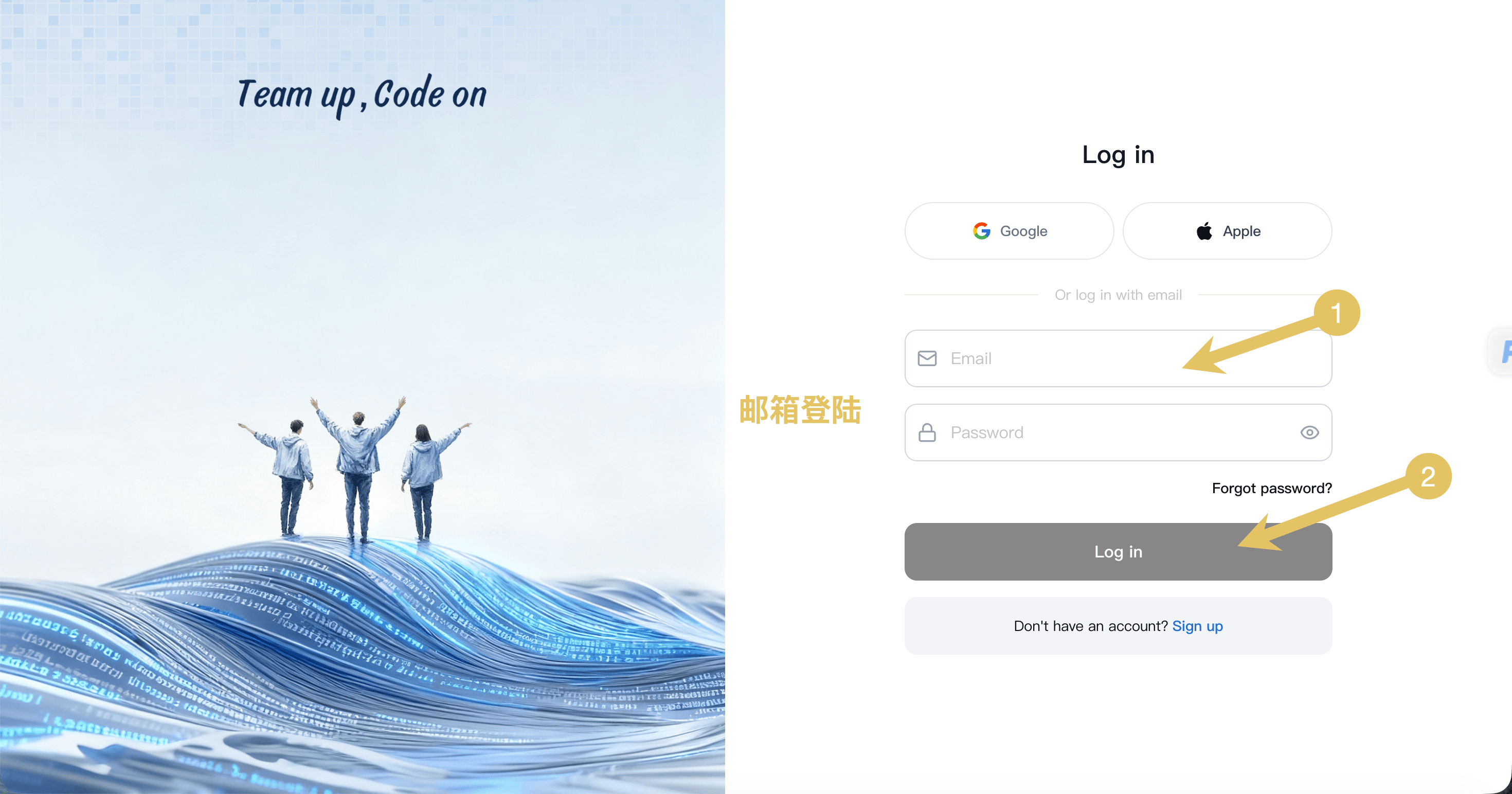
 After registration is complete:
* Choose **Log in with Email**
* Enter your email address and password
* Click **Log In**
After signing in successfully, you'll enter the onboarding flow.
After registration is complete:
* Choose **Log in with Email**
* Enter your email address and password
* Click **Log In**
After signing in successfully, you'll enter the onboarding flow.
 ## **Personal Onboarding**
New users complete a two-step onboarding flow to personalize their workspace. These selections are directly aligned with project template categories.
Choose how you plan to use CodeBanana:
* **Personal** — individual workflows and tasks
* **Team / Enterprise** — collaborative and organizational usage
## **Personal Onboarding**
New users complete a two-step onboarding flow to personalize their workspace. These selections are directly aligned with project template categories.
Choose how you plan to use CodeBanana:
* **Personal** — individual workflows and tasks
* **Team / Enterprise** — collaborative and organizational usage
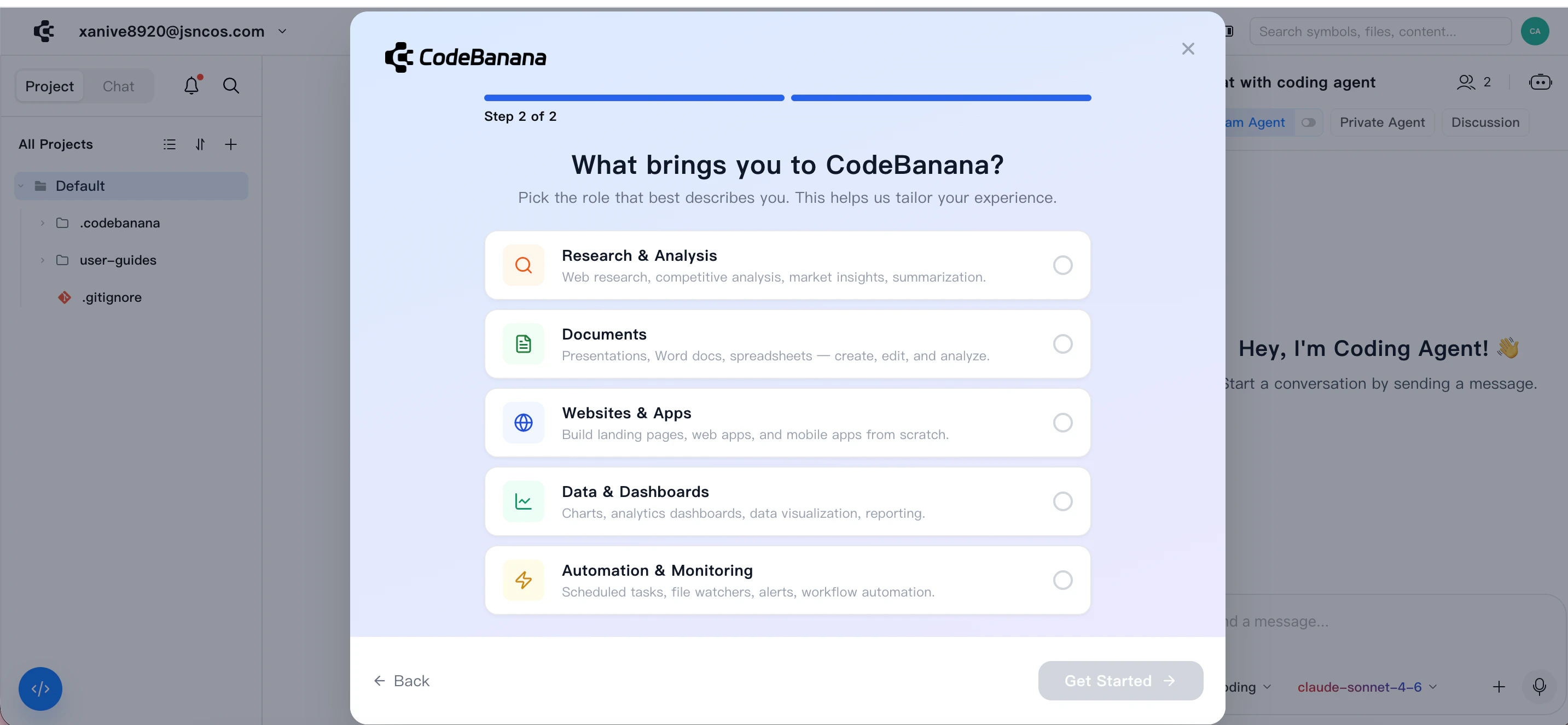
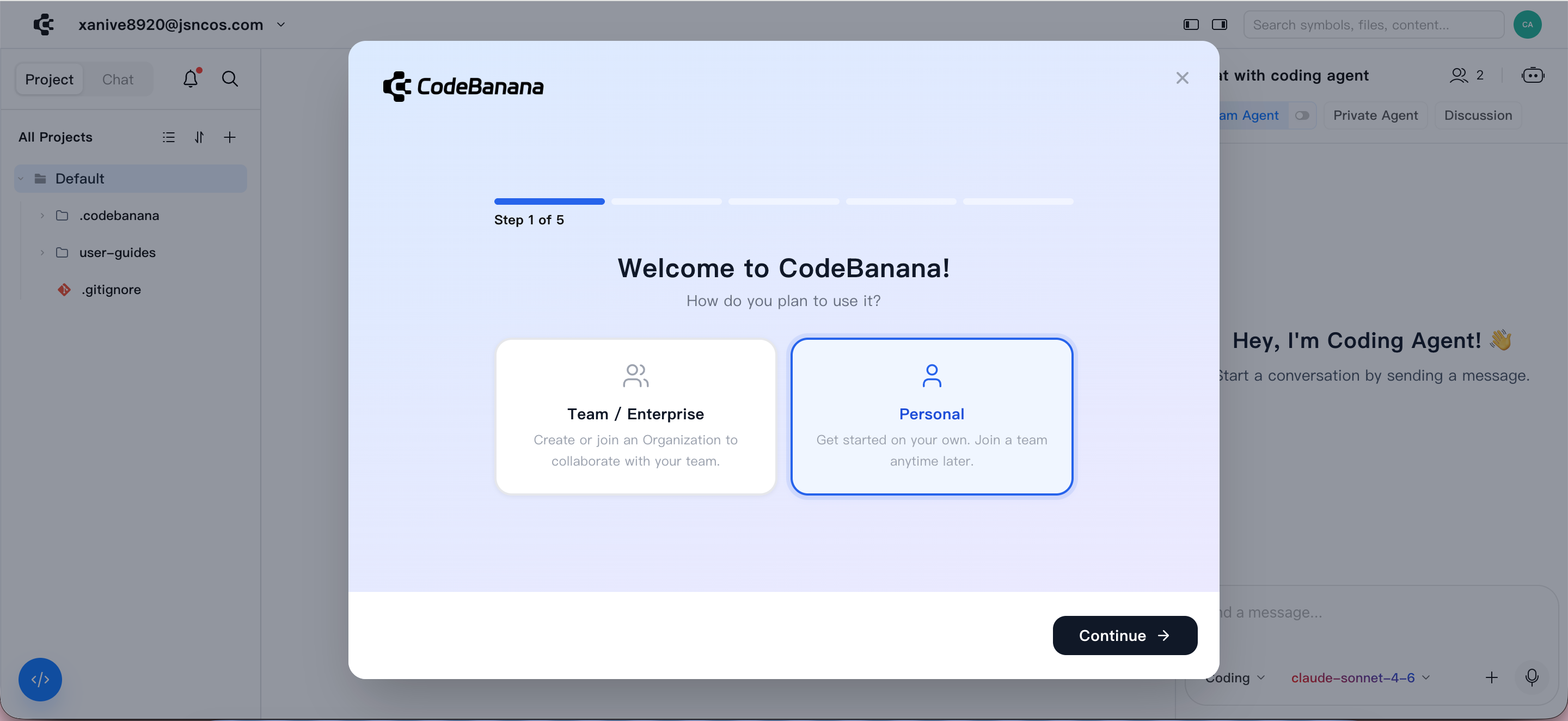 Select your primary purpose, which maps directly to **project template categories**, ensuring a consistent experience when creating new projects.
 ## **Organization Onboarding**
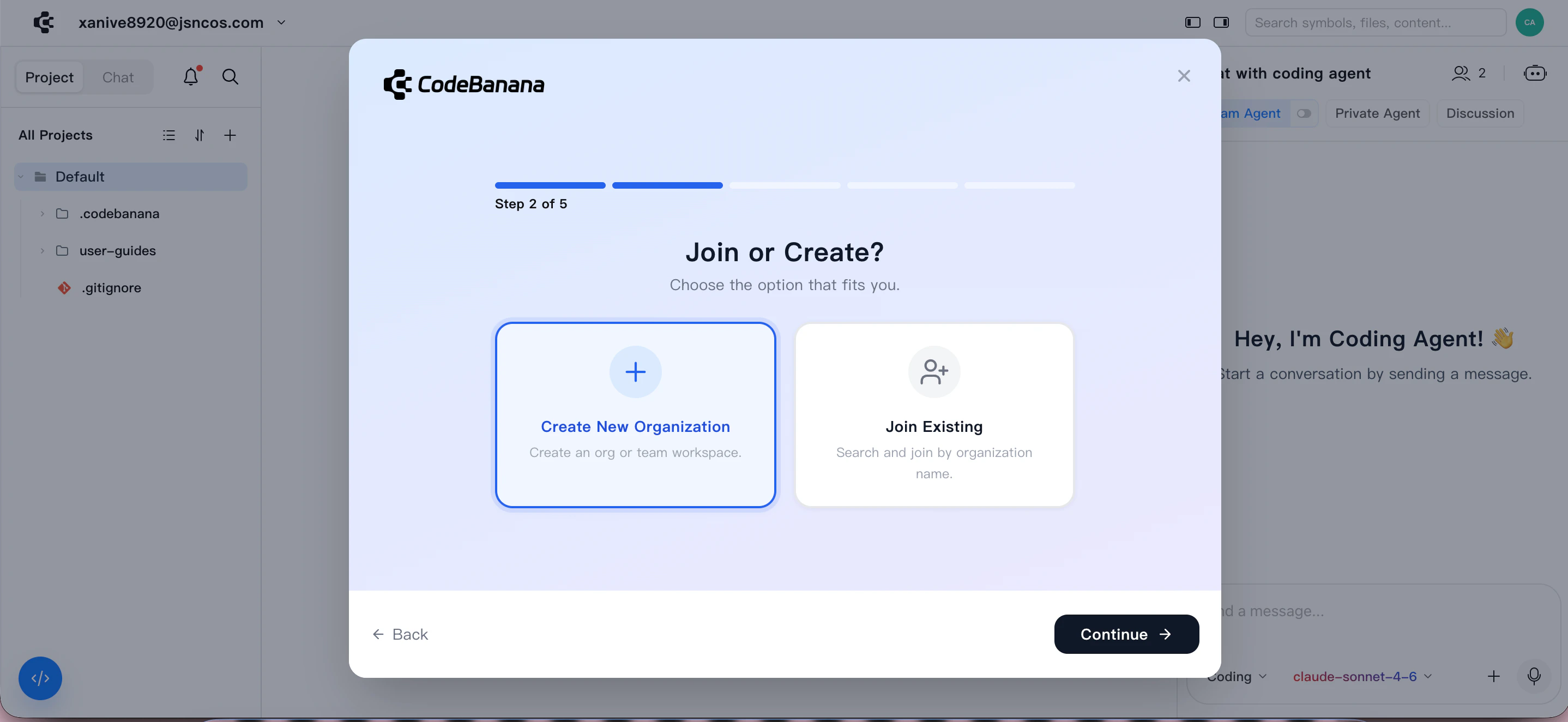
For team and enterprise users, onboarding includes organization setup or joining an existing organization.
### Admin actions
Choose how you plan to use CodeBanana:
* **Create New Organization**
* **Join a Team**
## **Organization Onboarding**
For team and enterprise users, onboarding includes organization setup or joining an existing organization.
### Admin actions
Choose how you plan to use CodeBanana:
* **Create New Organization**
* **Join a Team**
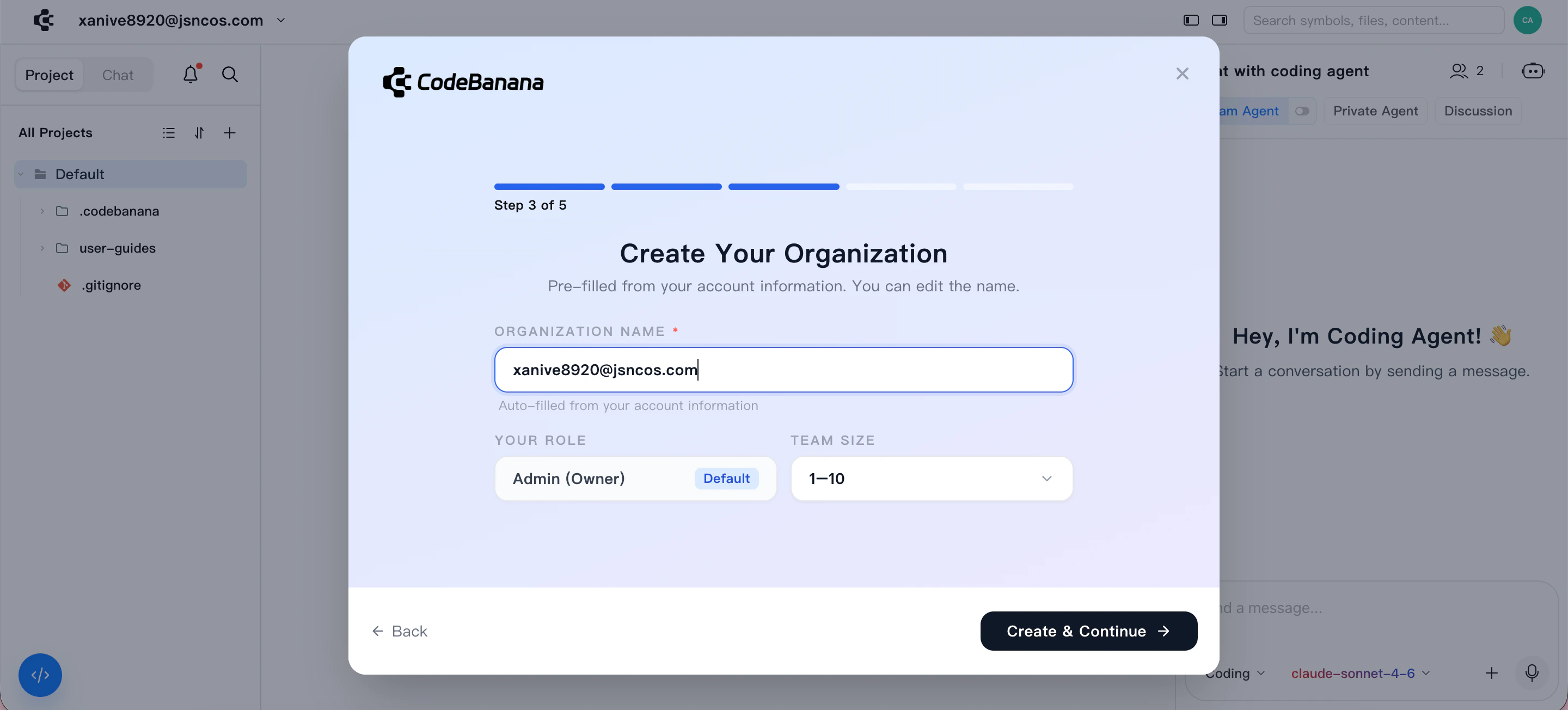
 1. Enter organization name
* Default is generated from admin email
* Can be modified
2. Configure:
* Roles (Owner / Admin)
* Team size
1. Enter organization name
* Default is generated from admin email
* Can be modified
2. Configure:
* Roles (Owner / Admin)
* Team size
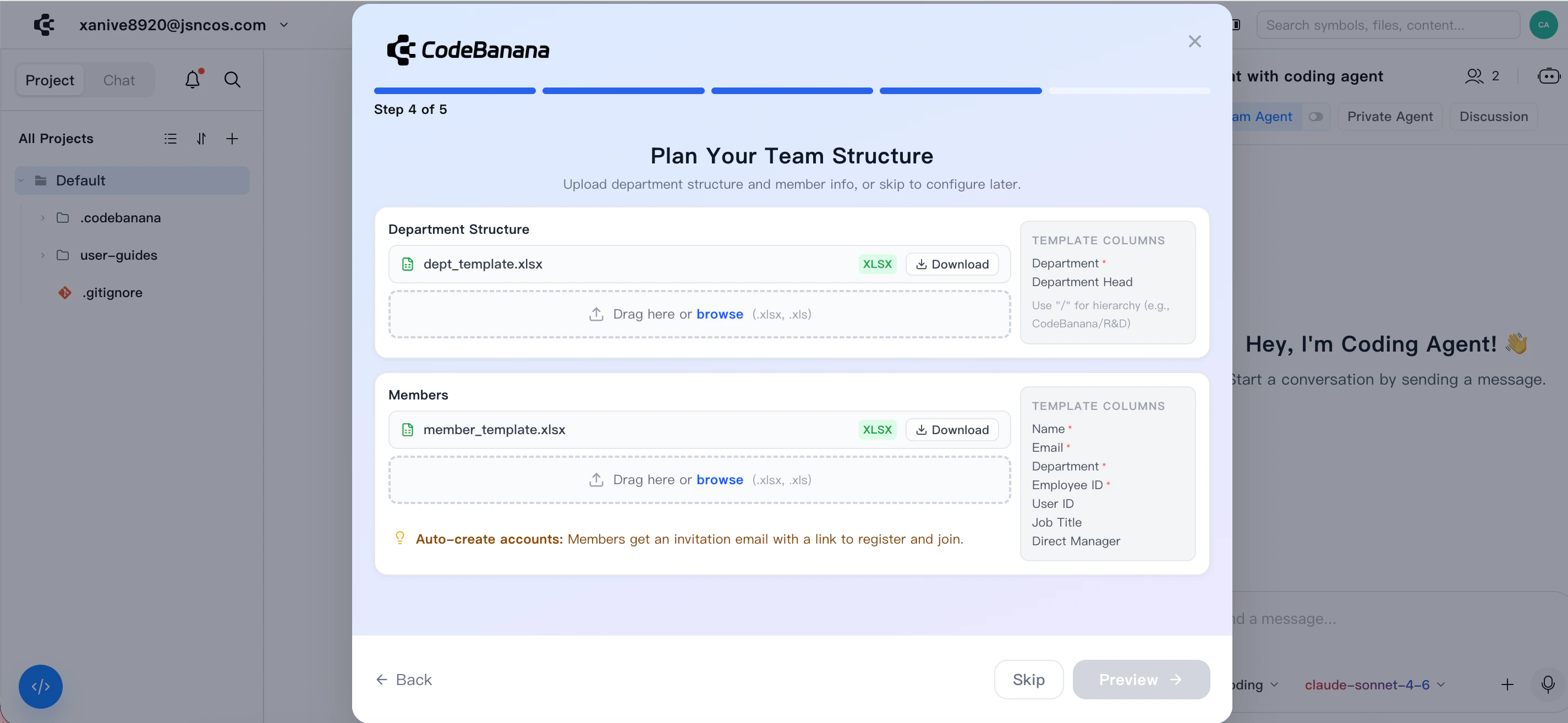
 Upload organization data through excel templates we provide:
* Department structure
* Member list
Upload organization data through excel templates we provide:
* Department structure
* Member list
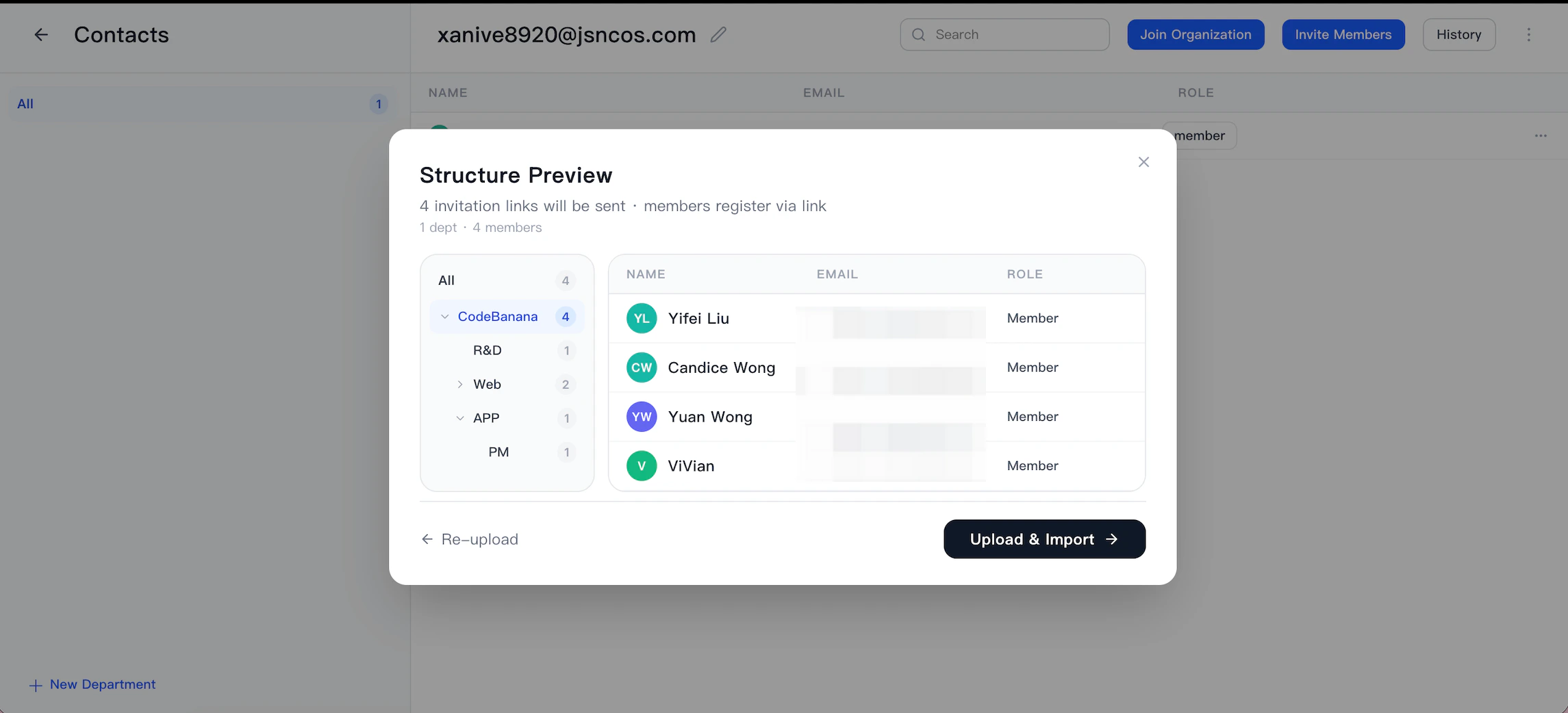
 Before importing, you can use **Structure Preview** to verify:
* Department hierarchy
* Member assignments
Before importing, you can use **Structure Preview** to verify:
* Department hierarchy
* Member assignments
 After upload:
* Invitation emails are automatically sent
* Members can register and join directly
This step is optional and can be skipped and you can manage structure later in **Contacts** page.
### Member actions
Choose to join an existing organization
After upload:
* Invitation emails are automatically sent
* Members can register and join directly
This step is optional and can be skipped and you can manage structure later in **Contacts** page.
### Member actions
Choose to join an existing organization
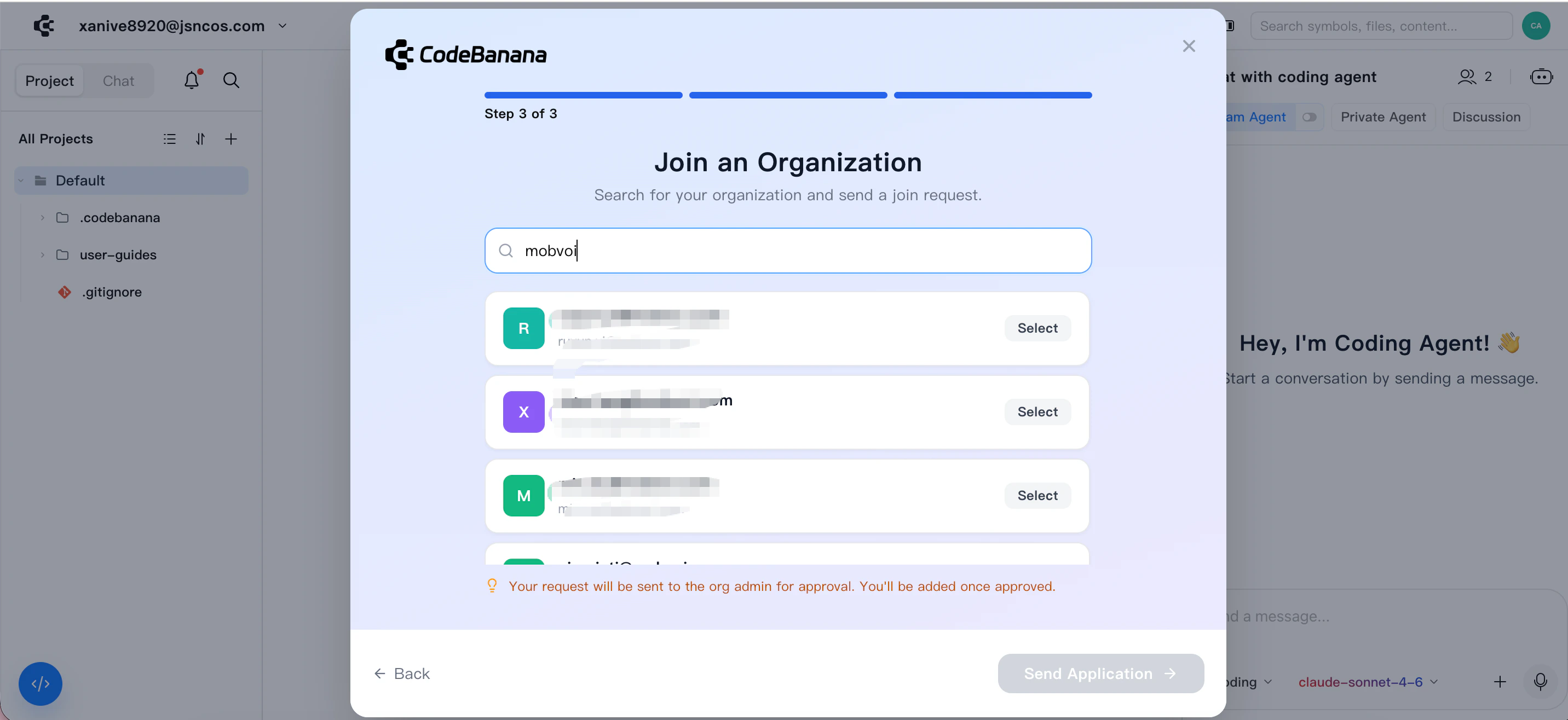
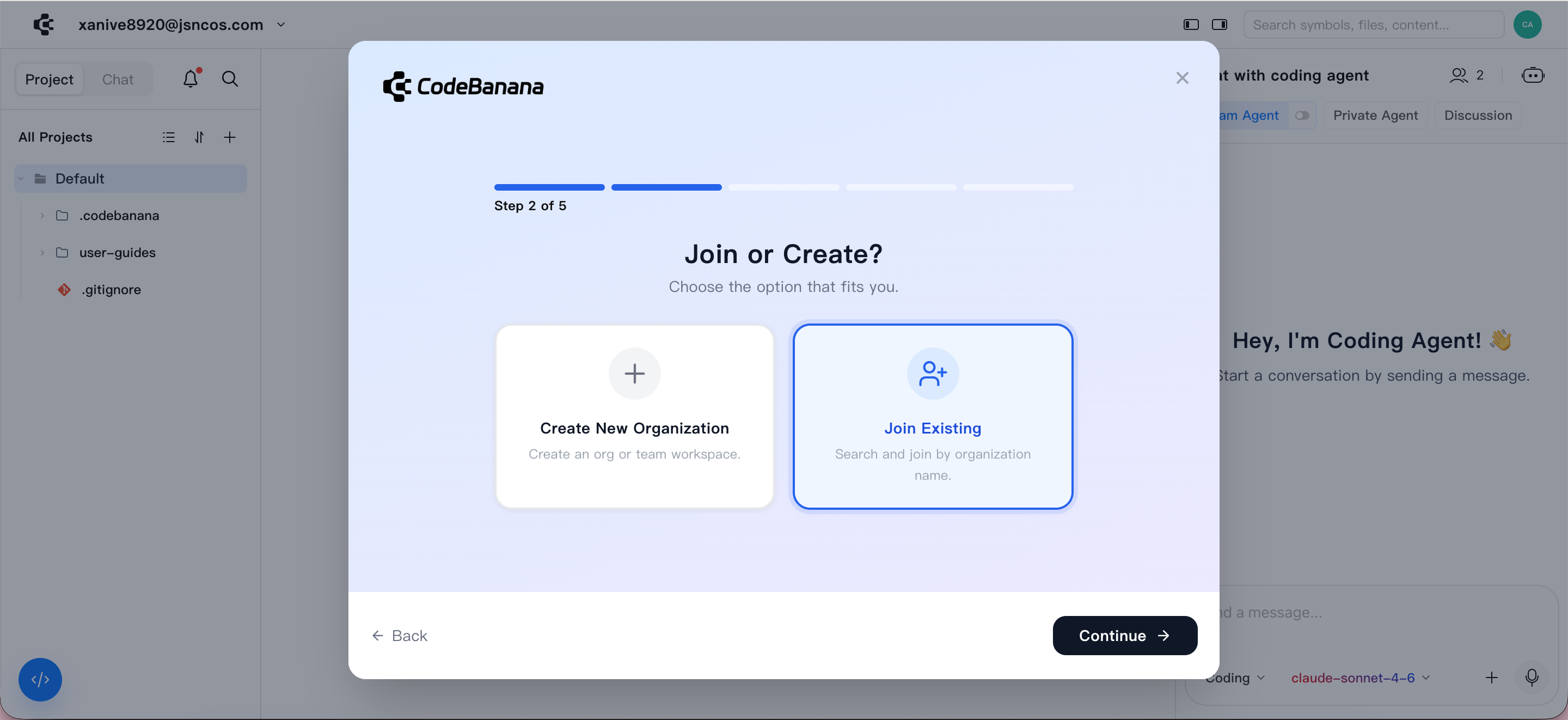 * Search organization by name and choose from search results
* Submit a join request
* Search organization by name and choose from search results
* Submit a join request
 After approval by the organization owner:
* You are automatically added as a member
* Your workspace switches to the selected organization
## **Onboarding Enhancements**
CodeBanana provides several built-in onboarding enhancements to help new users get started more smoothly.
### **CB-FAQ Skill**
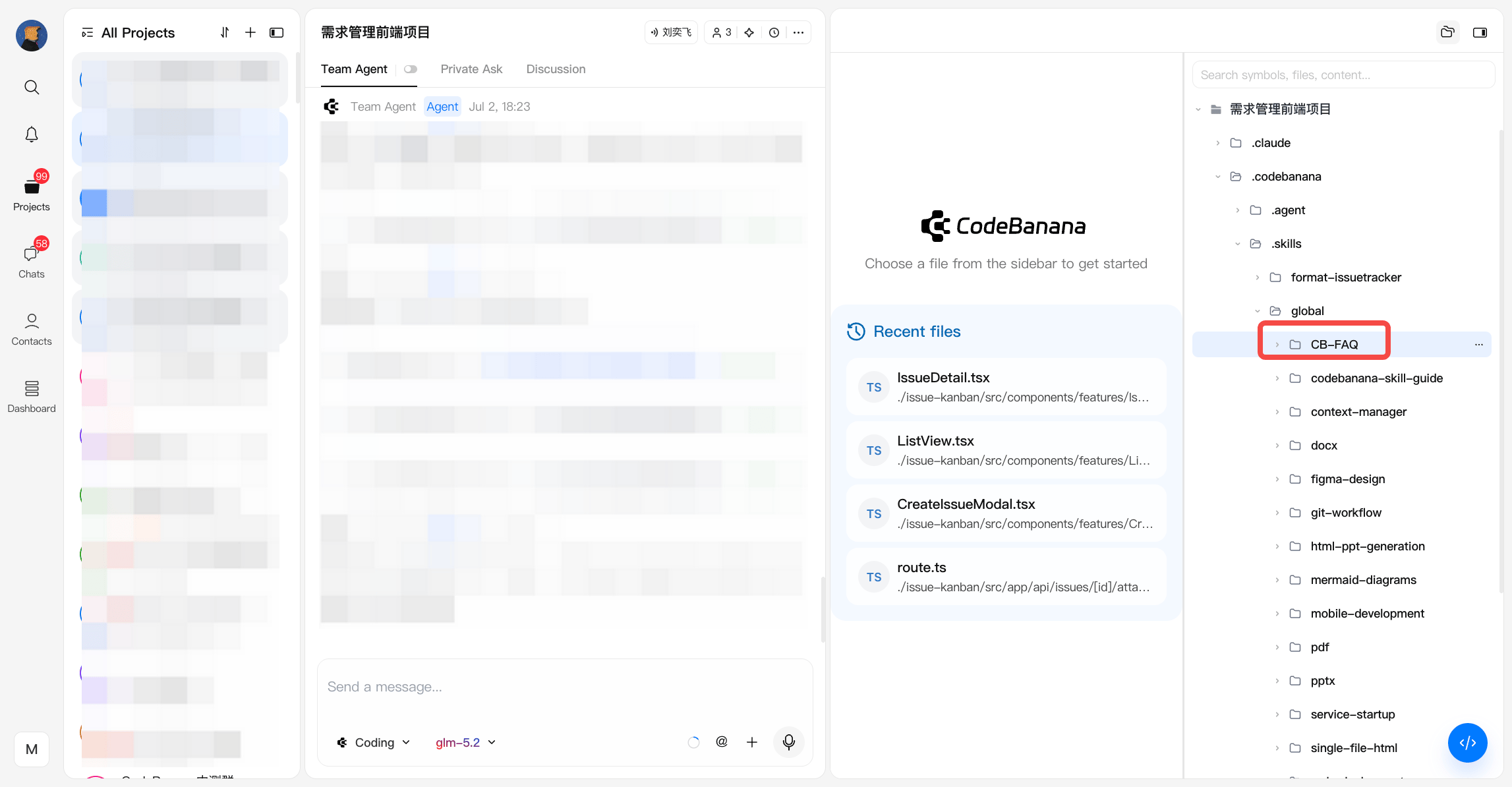
Every project comes with a built-in **CB-FAQ** Skill.
This Skill stays in sync with product updates, allowing users to ask the agent direct questions about how to use CodeBanana and get product-related guidance inside the project.
After approval by the organization owner:
* You are automatically added as a member
* Your workspace switches to the selected organization
## **Onboarding Enhancements**
CodeBanana provides several built-in onboarding enhancements to help new users get started more smoothly.
### **CB-FAQ Skill**
Every project comes with a built-in **CB-FAQ** Skill.
This Skill stays in sync with product updates, allowing users to ask the agent direct questions about how to use CodeBanana and get product-related guidance inside the project.
 ### **Org Admin Workspace**
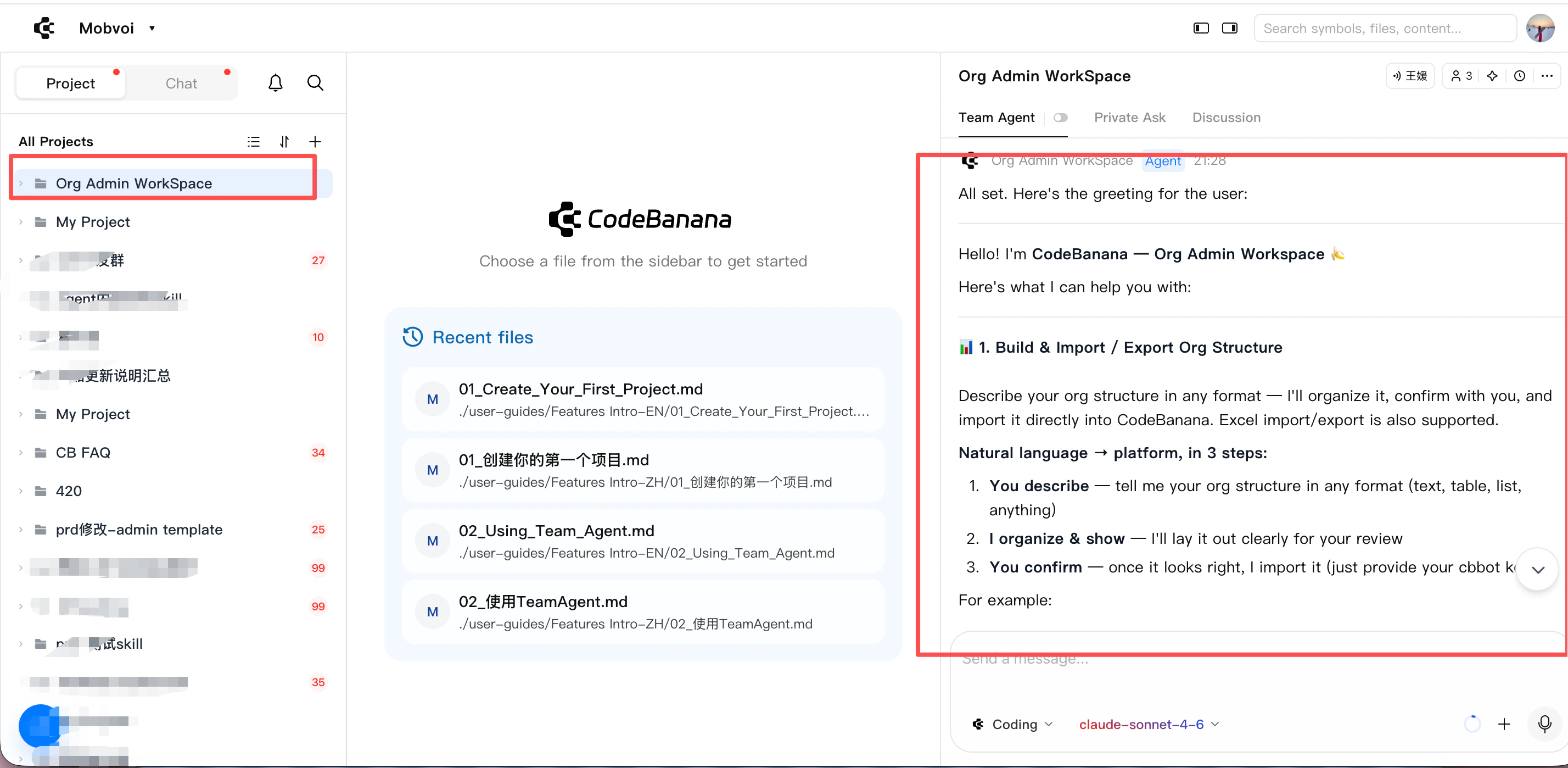
CodeBanana provides a dedicated **Org Admin Workspace** for organization owners and admins.
This workspace is designed as an intelligent operating console for organization management, usage analysis, and AI maturity insights.
**Entry path**:
* New users may receive this workspace by default during onboarding
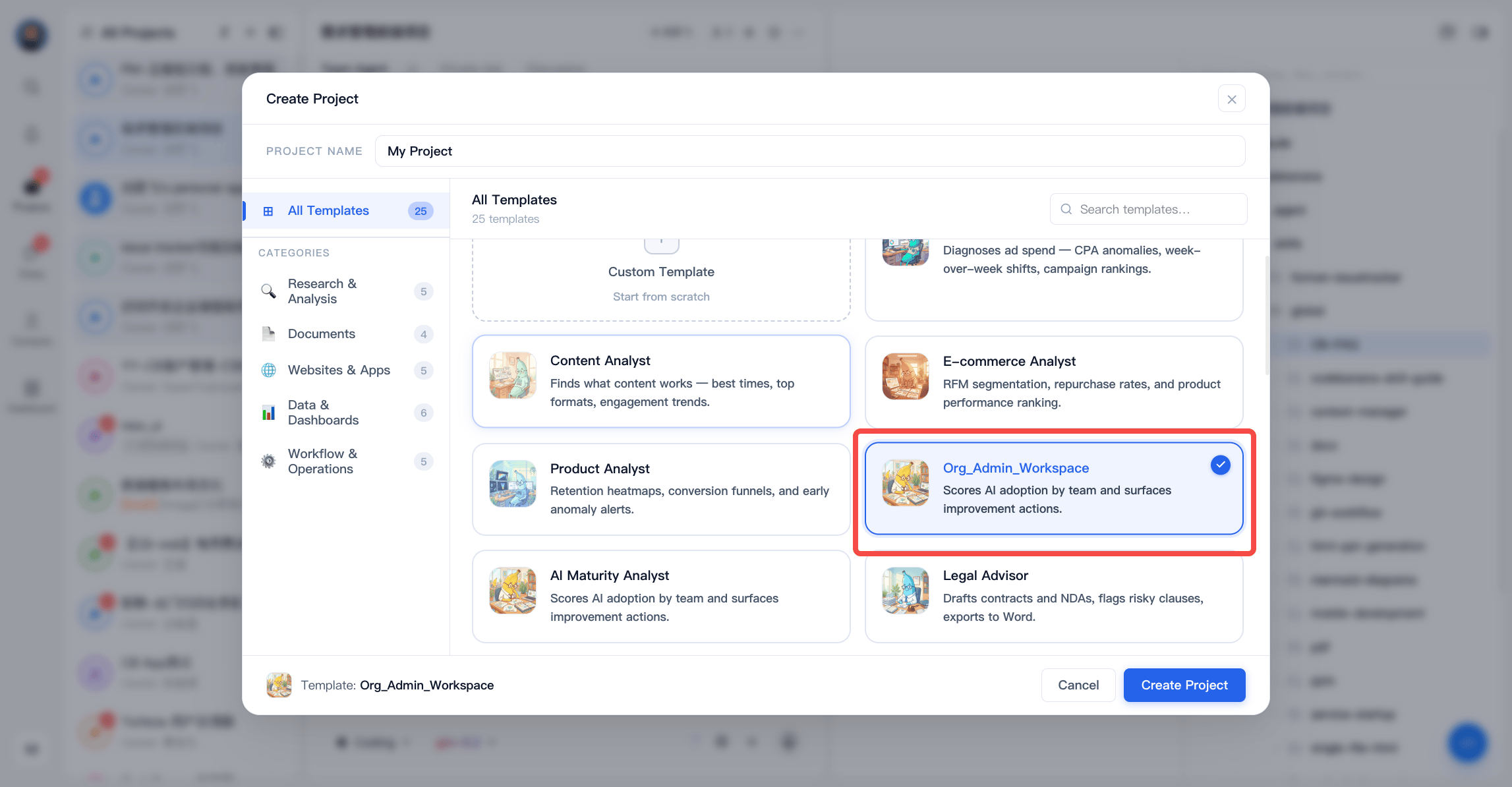
* Existing users can create it from **New Project → Template → Data & Analyst**
### **Org Admin Workspace**
CodeBanana provides a dedicated **Org Admin Workspace** for organization owners and admins.
This workspace is designed as an intelligent operating console for organization management, usage analysis, and AI maturity insights.
**Entry path**:
* New users may receive this workspace by default during onboarding
* Existing users can create it from **New Project → Template → Data & Analyst**
 **Permission note**:
* All queries and actions are validated against organization roles and structure
* Only **organization Owners** and **Admins** can access these management capabilities
**Supported capabilities**:
* **Organization structure setup and import/export**
**Permission note**:
* All queries and actions are validated against organization roles and structure
* Only **organization Owners** and **Admins** can access these management capabilities
**Supported capabilities**:
* **Organization structure setup and import/export**
Describe the organization in natural language, let the system structure it, preview the result, and confirm import. Excel import and export are also supported.
* **Department management**
Browse the organization tree, and create, rename, or delete departments. All write actions require confirmation.
* **Member management**
View members by department, assign or update departments, edit member information, and remove members.
* **Invitation management**
Invite new members, and view or cancel pending invitations.
* **AI operations metrics**
Query usage data such as token consumption, active users, and department rankings in natural language.
* **Daily AI maturity recommendations**
Enable automatic daily analysis to generate improvement suggestions and update the dashboard.
* **Manual AI maturity recommendations**
Generate AI maturity suggestions on demand for any selected time range.