> ## Documentation Index
> Fetch the complete documentation index at: https://docs.codebanana.com/llms.txt
> Use this file to discover all available pages before exploring further.
# Channel
> Connect CodeBanana project agents to external messaging channels through IM Settings, create and bind bots, and integrate Feishu, Lark, Telegram, Slack, Discord, DingTalk, WeCom, QQ, and Mattermost for agent conversations outside CodeBanana.
## **What is Channel**
Channel is a bridge between CodeBanana and external IM tools.
By configuring a bot, you can send messages from platforms like Slack or Telegram directly to your project agent and receive responses in return.
This enables a more flexible workflow where the agent is accessible **across different communication environments**.
#### **Supported Platforms**
You can connect the agent to multiple IM platforms, including:
* Feishu
* Telegram
* Slack
* Discord
* DingTalk
* WeCom
* QQ
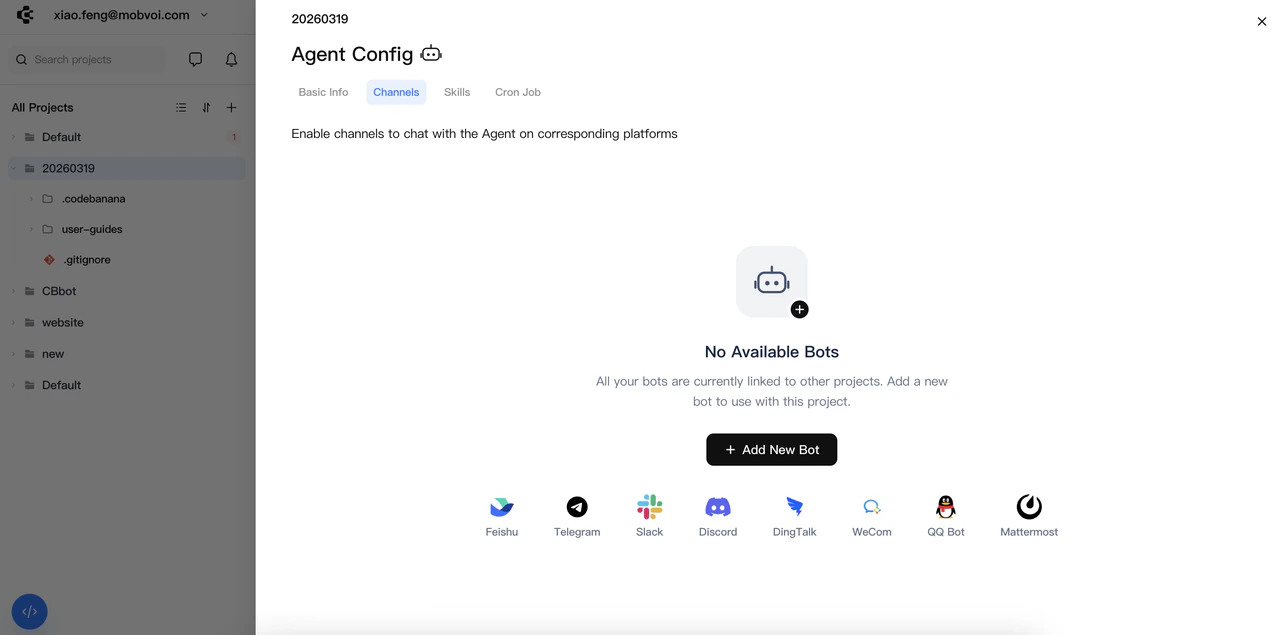 ### **Create a Bot**
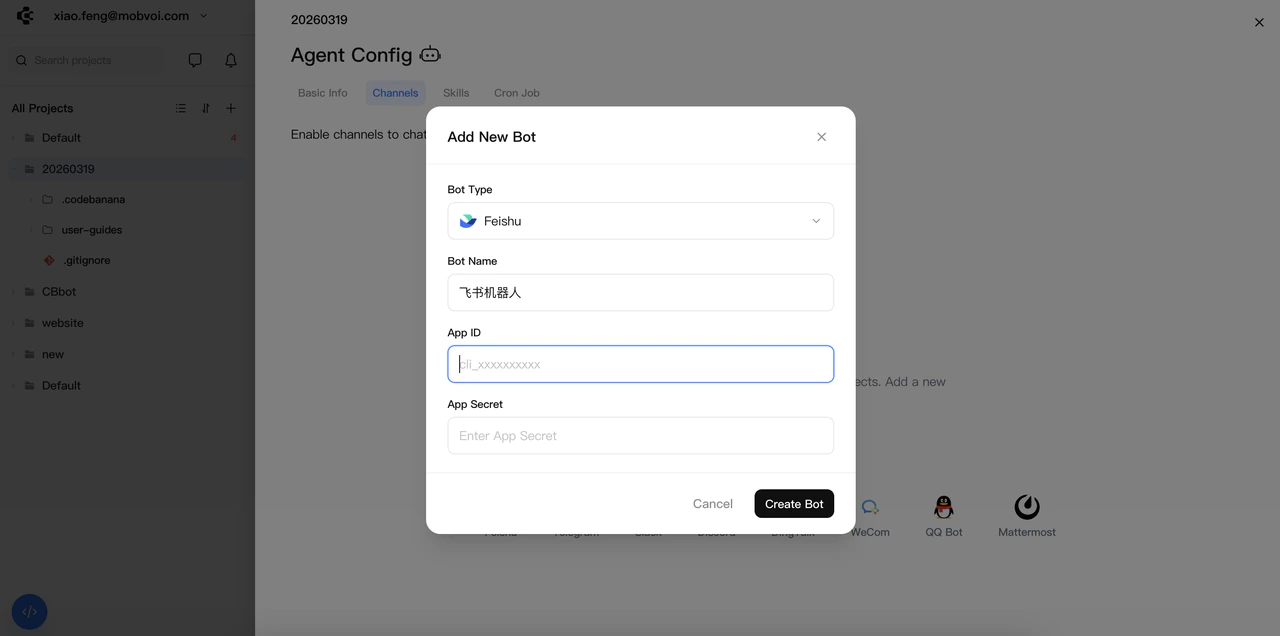
To enable Channel, you need to create and configure a bot:
* Go to **Agent Config → Channel → Add Bot**
* Select the target IM platform
* Provide required credentials (e.g. ID and Secret)
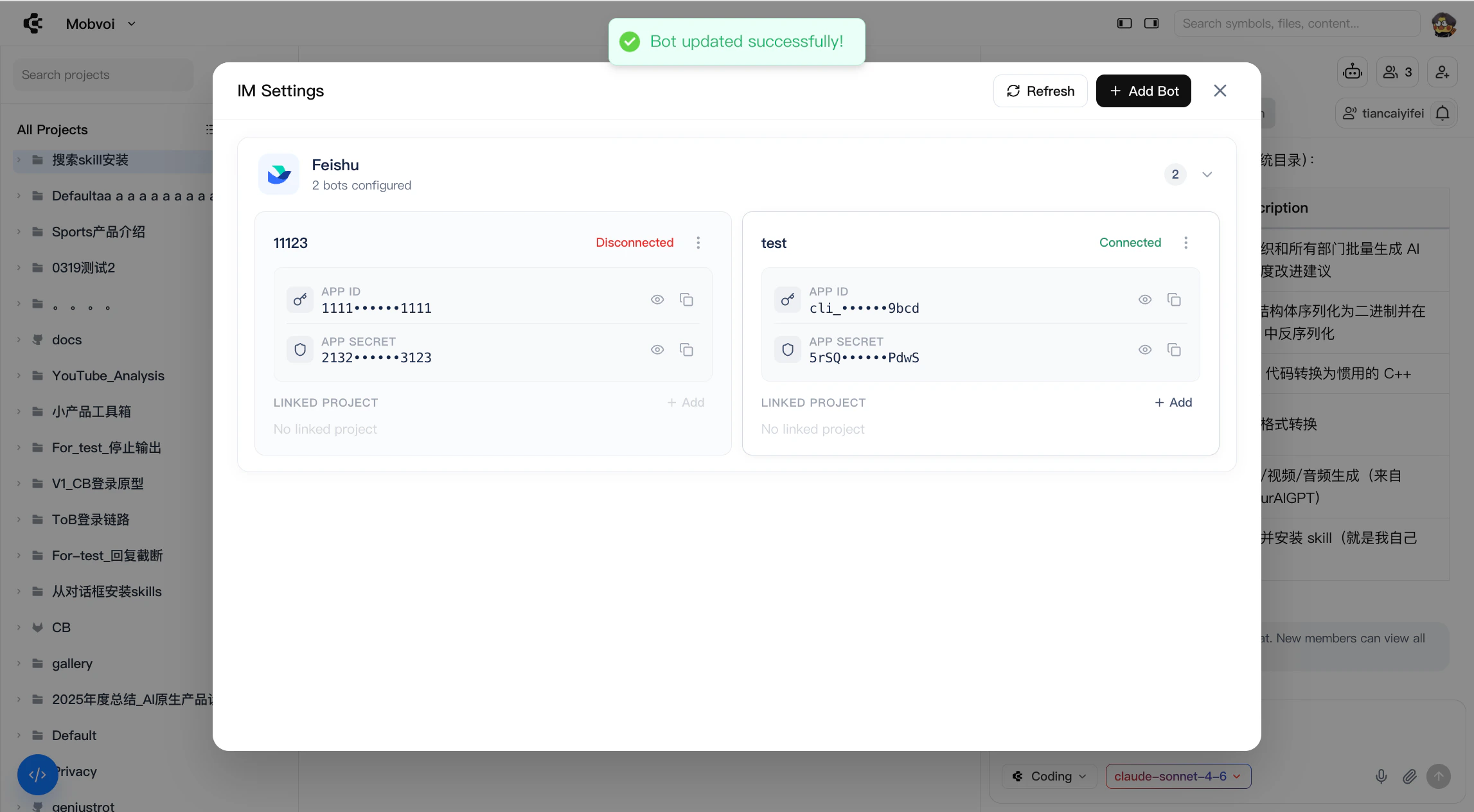
* Once configured correctly:
* Status shows as **Connected**
* Invalid configurations will show as **Disconnected**
You can create multiple bots for the same platform if needed.
### **Create a Bot**
To enable Channel, you need to create and configure a bot:
* Go to **Agent Config → Channel → Add Bot**
* Select the target IM platform
* Provide required credentials (e.g. ID and Secret)
* Once configured correctly:
* Status shows as **Connected**
* Invalid configurations will show as **Disconnected**
You can create multiple bots for the same platform if needed.
 #### **Bind Bot to Project**
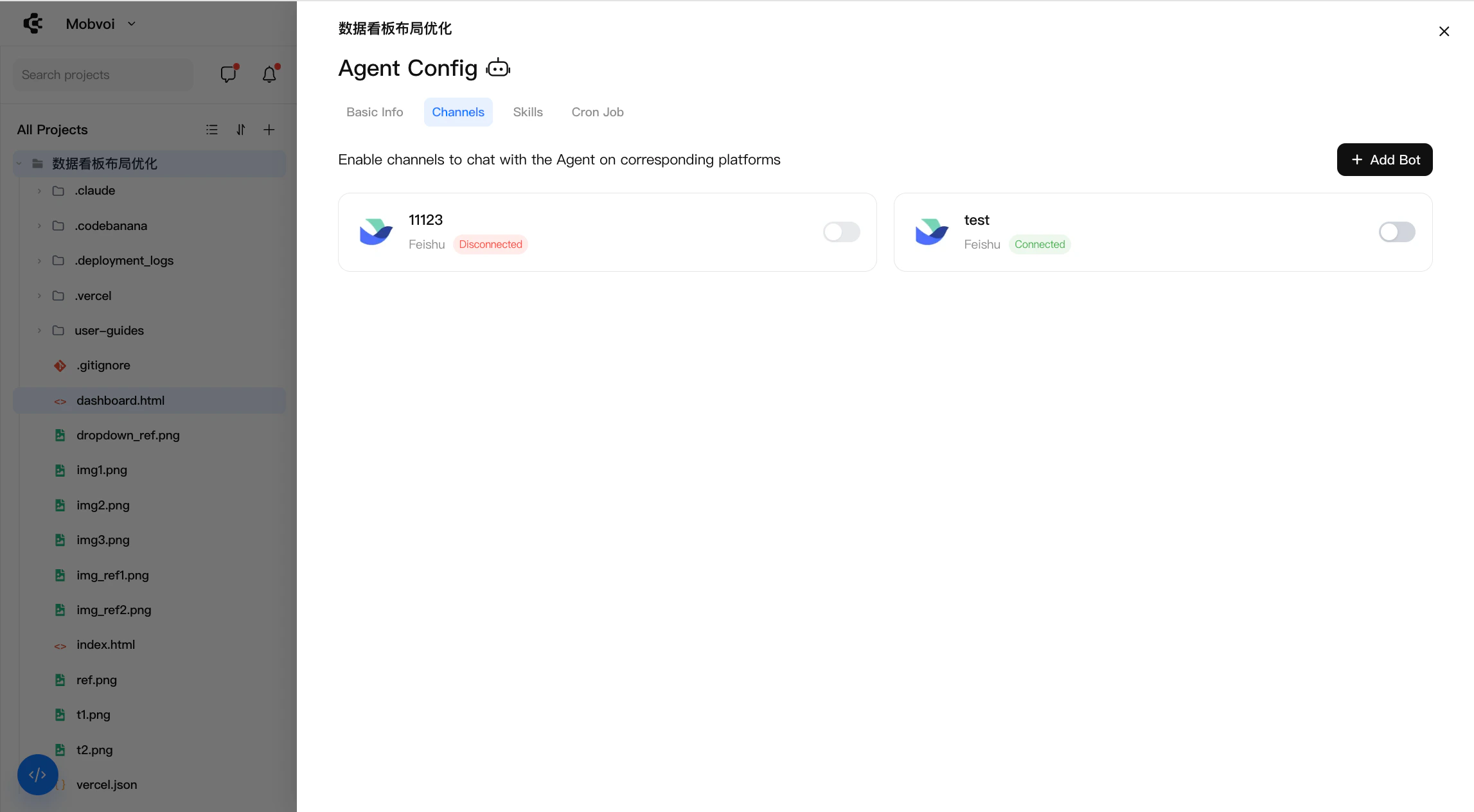
After creating a bot, it must be linked to a specific project:
* Select a bot and **bind it to the project**
* Each project can bind **only one bot**
* Each bot can be bound to **only one project**
Only bots in **Connected** status can be bound.
#### **Bind Bot to Project**
After creating a bot, it must be linked to a specific project:
* Select a bot and **bind it to the project**
* Each project can bind **only one bot**
* Each bot can be bound to **only one project**
Only bots in **Connected** status can be bound.
 ## **How It Works**
Once connected:
* Messages sent from the external platform are routed to the project Team Agent
* The agent processes the request using the same project context
* Responses are returned to the external platform
This allows teams to interact with the agent **without entering the CodeBanana interface**.
## **IM Integration Guide**
#### **Setup**
Create an application in the developer console:
* Log in to [https://open.feishu.cn/app](https://open.feishu.cn/app)
* Create an enterprise self-built application
* Configure name, description, and avatar
* Record **App ID** and **App Secret**
#### **Permissions**
Add the following:
* `im:message:send_as_bot`
* `im:message:readonly`
#### **Event Subscription**
* Use **long connection mode**
* Subscribe to:` im.message.receive_v1`
#### **Configuration in CodeBanana**
* Go to **Personal Center → IM Settings**
* Enter **App ID** and **App Secret**
#### **Setup**
* Open Telegram and search **@BotFather**
* Send `/start `and `/newbot`
* Set bot name and username (must end with` _bot`)
* Copy the **HTTP API Token**
#### **Configuration in CodeBanana**
* Paste the Token into **IM Settings** e.g. `123456789:ABCdefGhIJKlmNoPQRStuVWxyZ`
#### **Setup**
* Admin Console → Applications → Create
* Configure name, logo, and visibility (All)
#### **Messaging Configuration**
* Enable API message receiving
* Generate:
* Token
* EncodingAESKey
#### **Webhook Setup**
* Copy Webhook URL from **IM Settings**
* Paste into WeCom server configuration
#### **Constraints**
* Webhook domain must match the enterprise’s registered domain
#### **Setup**
* Visit [https://q.qq.com/#/](https://q.qq.com/#/)
* Enter OpenClaw bot creation portal
* Log in via QR code
* Create bot and obtain:
* **App ID**
* **App Secret**
#### **Configuration in CodeBanana**
* Add credentials in **IM Settings**
#### **Setup**
* Open [https://open-dev.dingtalk.com](https://open-dev.dingtalk.com)
* Create OpenClaw bot application
* Record:
* Client ID
* Client Secret
#### **Configuration in CodeBanana**
* Enter credentials in **IM Settings**
#### **Setup**
Create a Slack App from the official console:
* Visit [https://api.slack.com/apps](https://api.slack.com/apps)
* Click **Create New App → From scratch**
* App Name: (e.g. CB)
* Development Slack Workspace: select your workspace
* Click **Create App**
#### **Socket Mode (Required)**
Enable long connection mode:
* Go to **Settings → Socket Mode**
* Turn on **Enable Socket Mode**
* Create a token (e.g. `openclaw-socket`)
* Permission: `connections:write (auto-assigned)`
* Click **Generate** and copy the **App-Level Token** (`xapp-...`)
#### **Bot Permissions**
Configure bot capabilities:
* Go to **Features → OAuth & Permissions**
* Under **Bot Token Scopes → Add an OAuth Scope**, add:
* `app_mentions:read` — read @mentions
* `chat:write` — send messages
* `channels:history` — read public channels
* `groups:history` — read private channels
* `im:history `— read direct messages
* `mpim:history` — read group DMs
* `files:write` — upload files/images
#### **Install & Token**
* Click **Install to Workspace → Allow**
* Copy the **Bot User OAuth Token** (`xoxb-...`)
You should now have two tokens:
* `xapp-...` → App Token (Socket Mode / connection)
* `xoxb-...` → Bot Token (message sending)
#### **App Home Configuration**
* Go to **Features → App Home**
* Under **Show Tabs**, enable:
* **Messages Tab** (allows users to DM the bot)
#### **Event Subscription**
Enable event-based message handling:
* Go to **Features → Event Subscriptions**
* Turn on **Enable Events**
* Under **Subscribe to bot events**, add:
* `app_mention` — triggered when bot is mentioned in channels
* `message.im` — direct messages
* `message.channels `— public channels
* `message.groups` — private channels
* Click **Save Changes**
#### **Configuration in CodeBanana**
* Go to **Personal Center → IM Settings**
* Configure both tokens:
* App Token (`xapp-...`)
* Bot Token (`xoxb-...`)
#### **Create Bot**
Set up a bot via the Developer Portal:
* Visit [https://discord.com/developers/applications](https://discord.com/developers/applications)
* Click **New Application** → name it (e.g. `OpenClaw Bot`) → Create
* Go to **Bot → Add Bot → Yes, do it!**
Retrieve credentials:
* Click **Reset Token** → copy Bot Token (shown once only)
* Example format: `MTk5OTk5OTkyNzY4OTk4NzYxNg...`
#### **Required Intents (Critical)**
Enable privileged intents:
* Scroll to **Privileged Gateway Intents**
* Enable all:
* `Message Content Intent `(read message content)
* `Server Members Intent`
* `Presence Intent`
* Click **Save Changes**
#### **Invite Bot to Server**
Generate an invite link:
* Go to **OAuth2 → URL Generator**
Select scopes:
* `bot`
* `applications.commands `(for slash commands)
Select permissions (minimum required):
* `Read Messages / View Channels`
* `Send Messages`
* `Read Message History`
* `Embed Links`
* `Add Reactions (optional)`
* Copy generated URL → open in browser
* Select your server → **Authorize**
#### **Configuration in CodeBanana**
* Go to **Personal Center → IM Settings**
* Paste the **Bot Token**
## **How It Works**
Once connected:
* Messages sent from the external platform are routed to the project Team Agent
* The agent processes the request using the same project context
* Responses are returned to the external platform
This allows teams to interact with the agent **without entering the CodeBanana interface**.
## **IM Integration Guide**
#### **Setup**
Create an application in the developer console:
* Log in to [https://open.feishu.cn/app](https://open.feishu.cn/app)
* Create an enterprise self-built application
* Configure name, description, and avatar
* Record **App ID** and **App Secret**
#### **Permissions**
Add the following:
* `im:message:send_as_bot`
* `im:message:readonly`
#### **Event Subscription**
* Use **long connection mode**
* Subscribe to:` im.message.receive_v1`
#### **Configuration in CodeBanana**
* Go to **Personal Center → IM Settings**
* Enter **App ID** and **App Secret**
#### **Setup**
* Open Telegram and search **@BotFather**
* Send `/start `and `/newbot`
* Set bot name and username (must end with` _bot`)
* Copy the **HTTP API Token**
#### **Configuration in CodeBanana**
* Paste the Token into **IM Settings** e.g. `123456789:ABCdefGhIJKlmNoPQRStuVWxyZ`
#### **Setup**
* Admin Console → Applications → Create
* Configure name, logo, and visibility (All)
#### **Messaging Configuration**
* Enable API message receiving
* Generate:
* Token
* EncodingAESKey
#### **Webhook Setup**
* Copy Webhook URL from **IM Settings**
* Paste into WeCom server configuration
#### **Constraints**
* Webhook domain must match the enterprise’s registered domain
#### **Setup**
* Visit [https://q.qq.com/#/](https://q.qq.com/#/)
* Enter OpenClaw bot creation portal
* Log in via QR code
* Create bot and obtain:
* **App ID**
* **App Secret**
#### **Configuration in CodeBanana**
* Add credentials in **IM Settings**
#### **Setup**
* Open [https://open-dev.dingtalk.com](https://open-dev.dingtalk.com)
* Create OpenClaw bot application
* Record:
* Client ID
* Client Secret
#### **Configuration in CodeBanana**
* Enter credentials in **IM Settings**
#### **Setup**
Create a Slack App from the official console:
* Visit [https://api.slack.com/apps](https://api.slack.com/apps)
* Click **Create New App → From scratch**
* App Name: (e.g. CB)
* Development Slack Workspace: select your workspace
* Click **Create App**
#### **Socket Mode (Required)**
Enable long connection mode:
* Go to **Settings → Socket Mode**
* Turn on **Enable Socket Mode**
* Create a token (e.g. `openclaw-socket`)
* Permission: `connections:write (auto-assigned)`
* Click **Generate** and copy the **App-Level Token** (`xapp-...`)
#### **Bot Permissions**
Configure bot capabilities:
* Go to **Features → OAuth & Permissions**
* Under **Bot Token Scopes → Add an OAuth Scope**, add:
* `app_mentions:read` — read @mentions
* `chat:write` — send messages
* `channels:history` — read public channels
* `groups:history` — read private channels
* `im:history `— read direct messages
* `mpim:history` — read group DMs
* `files:write` — upload files/images
#### **Install & Token**
* Click **Install to Workspace → Allow**
* Copy the **Bot User OAuth Token** (`xoxb-...`)
You should now have two tokens:
* `xapp-...` → App Token (Socket Mode / connection)
* `xoxb-...` → Bot Token (message sending)
#### **App Home Configuration**
* Go to **Features → App Home**
* Under **Show Tabs**, enable:
* **Messages Tab** (allows users to DM the bot)
#### **Event Subscription**
Enable event-based message handling:
* Go to **Features → Event Subscriptions**
* Turn on **Enable Events**
* Under **Subscribe to bot events**, add:
* `app_mention` — triggered when bot is mentioned in channels
* `message.im` — direct messages
* `message.channels `— public channels
* `message.groups` — private channels
* Click **Save Changes**
#### **Configuration in CodeBanana**
* Go to **Personal Center → IM Settings**
* Configure both tokens:
* App Token (`xapp-...`)
* Bot Token (`xoxb-...`)
#### **Create Bot**
Set up a bot via the Developer Portal:
* Visit [https://discord.com/developers/applications](https://discord.com/developers/applications)
* Click **New Application** → name it (e.g. `OpenClaw Bot`) → Create
* Go to **Bot → Add Bot → Yes, do it!**
Retrieve credentials:
* Click **Reset Token** → copy Bot Token (shown once only)
* Example format: `MTk5OTk5OTkyNzY4OTk4NzYxNg...`
#### **Required Intents (Critical)**
Enable privileged intents:
* Scroll to **Privileged Gateway Intents**
* Enable all:
* `Message Content Intent `(read message content)
* `Server Members Intent`
* `Presence Intent`
* Click **Save Changes**
#### **Invite Bot to Server**
Generate an invite link:
* Go to **OAuth2 → URL Generator**
Select scopes:
* `bot`
* `applications.commands `(for slash commands)
Select permissions (minimum required):
* `Read Messages / View Channels`
* `Send Messages`
* `Read Message History`
* `Embed Links`
* `Add Reactions (optional)`
* Copy generated URL → open in browser
* Select your server → **Authorize**
#### **Configuration in CodeBanana**
* Go to **Personal Center → IM Settings**
* Paste the **Bot Token**