> ## Documentation Index
> Fetch the complete documentation index at: https://docs.codebanana.com/llms.txt
> Use this file to discover all available pages before exploring further.
# Cron job
> Automate CodeBanana agents with Cron Jobs, Heartbeat, HEARTBEAT.md, scheduled tasks, daily or weekly runs, custom intervals, file watch triggers, event-based automation, and recurring background workflows.
## **What is Cron Job**
Cron Job is a mechanism to **trigger the agent at the right time**, either:
* At a specific time (e.g. every day at 7 AM)
* At regular intervals (e.g. every 30 minutes)
* When certain events occur (e.g. file changes)
This allows the agent to operate **asynchronously**, even when you are not actively interacting with it.
## **Types of Cron Jobs**
There are two main types:
### **Heartbeat (Interval-based)**
Runs tasks repeatedly at fixed intervals.
* Configure a time interval (e.g. every 30 minutes)
* Executes all tasks defined in **HEARTBEAT.md**
* Suitable for:
* Periodic checks
* Monitoring workflows
* Batch processing
### **Scheduled Tasks (Time/Event-based)**
Runs tasks at specific times or based on triggers.
* **Time-based options**:
* Daily, weekly, monthly
* One-time execution
* Custom intervals
* **Event-based (File Watch)**:
* Triggered when files are added, modified, or deleted
* Example: notify when a file is removed
### **How to Choose**
1. **Is this a one-time task or reminder?**
* Yes → Use **Scheduled Task**
* No → Continue
2. **Does the task need to run at an exact time?**
* Yes → Use **Scheduled Task**
* No → Continue
3. **Can this task be grouped with other periodic checks?**
* Yes → Use **Heartbeat** (add it to **HEARTBEAT.md**)
* No → Use **Scheduled Task**
4. **Is the task triggered by file changes or events?**
* Yes → Use **Scheduled Task (File Watch)**
* No → Follow the rules above
#### **Configuration**
**Heartbeat**
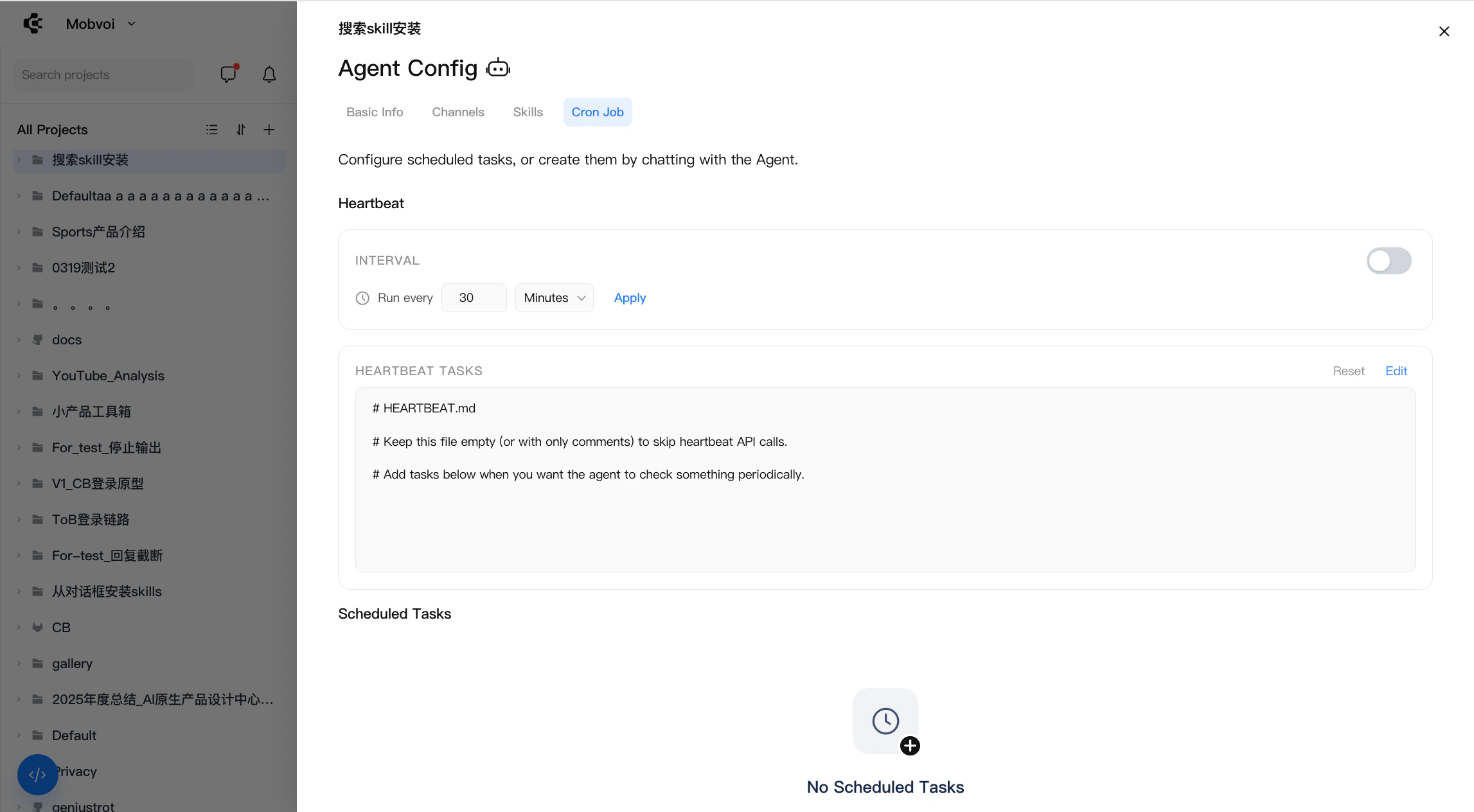
1. Enable Heartbeat by turning on the **toggle on the right panel**
2. Set the **execution interval** (e.g. every 10 minutes, 30 minutes, etc.)
3. The system will automatically execute all tasks defined in **HEARTBEAT.md** at each interval
Task management:
* Click **Edit** next to **HEARTBEAT.md** to modify tasks
* Click **Reset** to restore the default configuration
 **Scheduled Task**
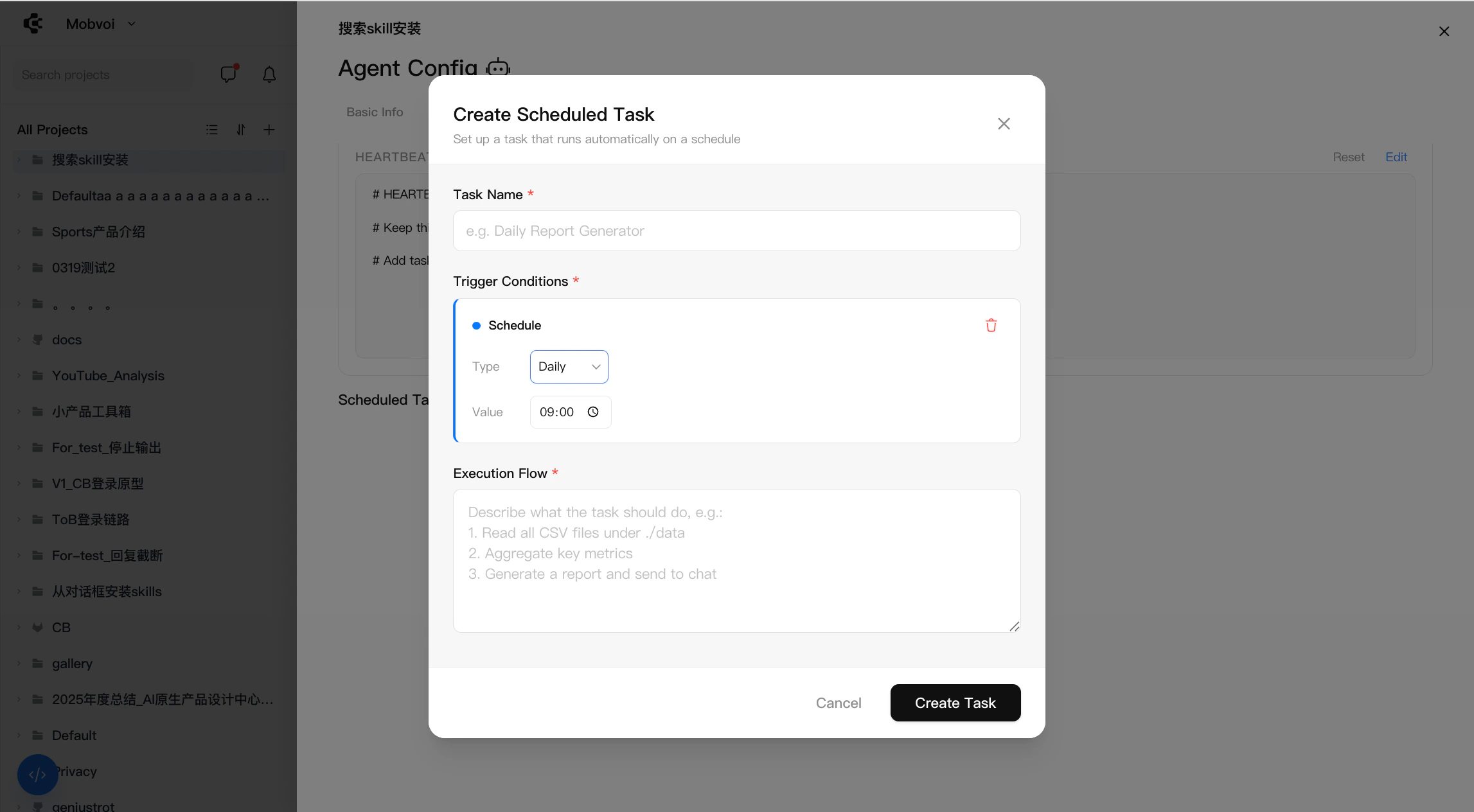
1. Click **Create New Task** to create a task
2. Define **Trigger Conditions**, which determine when the task runs:
* **Scheduled (time-based)**
Choose from:
* Daily — run at a specific time each day
* Weekly — run on a specific day and time
* Monthly — run on a specific date and time
* Once — run a single time
* Every — run at a fixed interval
* **File Watch (event-based)**
Triggered when changes occur in a selected directory:
* File created
* File modified
* File deleted
Example: trigger a task when an Excel file is deleted from a folder
3. Configure the **Execution Flow**
* Define what the agent should do when the task is triggered
* This can include any automated action or workflow handled by the agent
**Scheduled Task**
1. Click **Create New Task** to create a task
2. Define **Trigger Conditions**, which determine when the task runs:
* **Scheduled (time-based)**
Choose from:
* Daily — run at a specific time each day
* Weekly — run on a specific day and time
* Monthly — run on a specific date and time
* Once — run a single time
* Every — run at a fixed interval
* **File Watch (event-based)**
Triggered when changes occur in a selected directory:
* File created
* File modified
* File deleted
Example: trigger a task when an Excel file is deleted from a folder
3. Configure the **Execution Flow**
* Define what the agent should do when the task is triggered
* This can include any automated action or workflow handled by the agent