> ## Documentation Index
> Fetch the complete documentation index at: https://docs.codebanana.com/llms.txt
> Use this file to discover all available pages before exploring further.
# Organization
> Manage CodeBanana organizations, switching, join requests, owned and work organizations, members, roles, permissions, departments, organization contacts, invitations, application history, batch import, export files, and member removal.
### **Access and Switching**
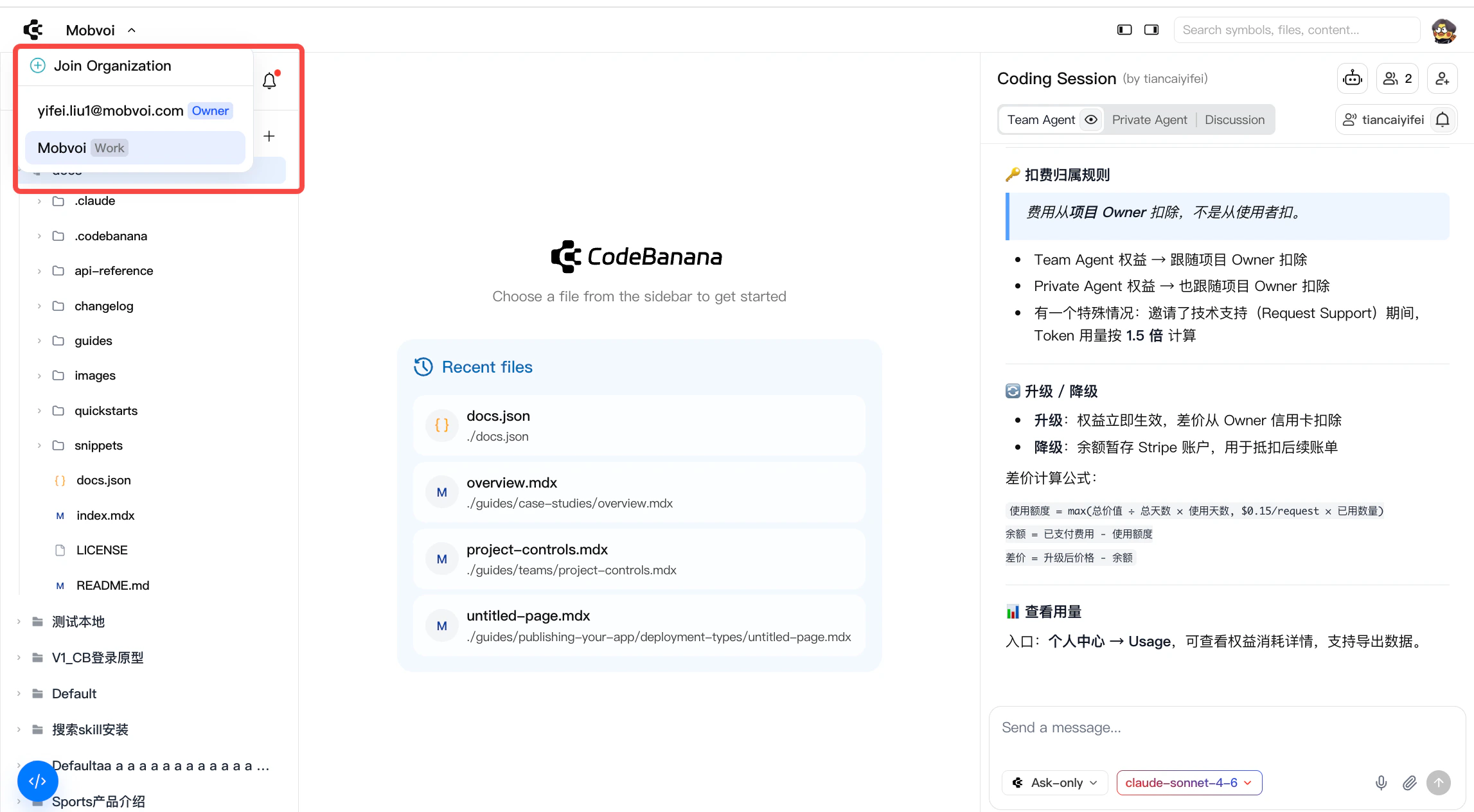
Click the **organization selector in the top-left corner** to:
* Switch between organizations
* Apply to join a new organization
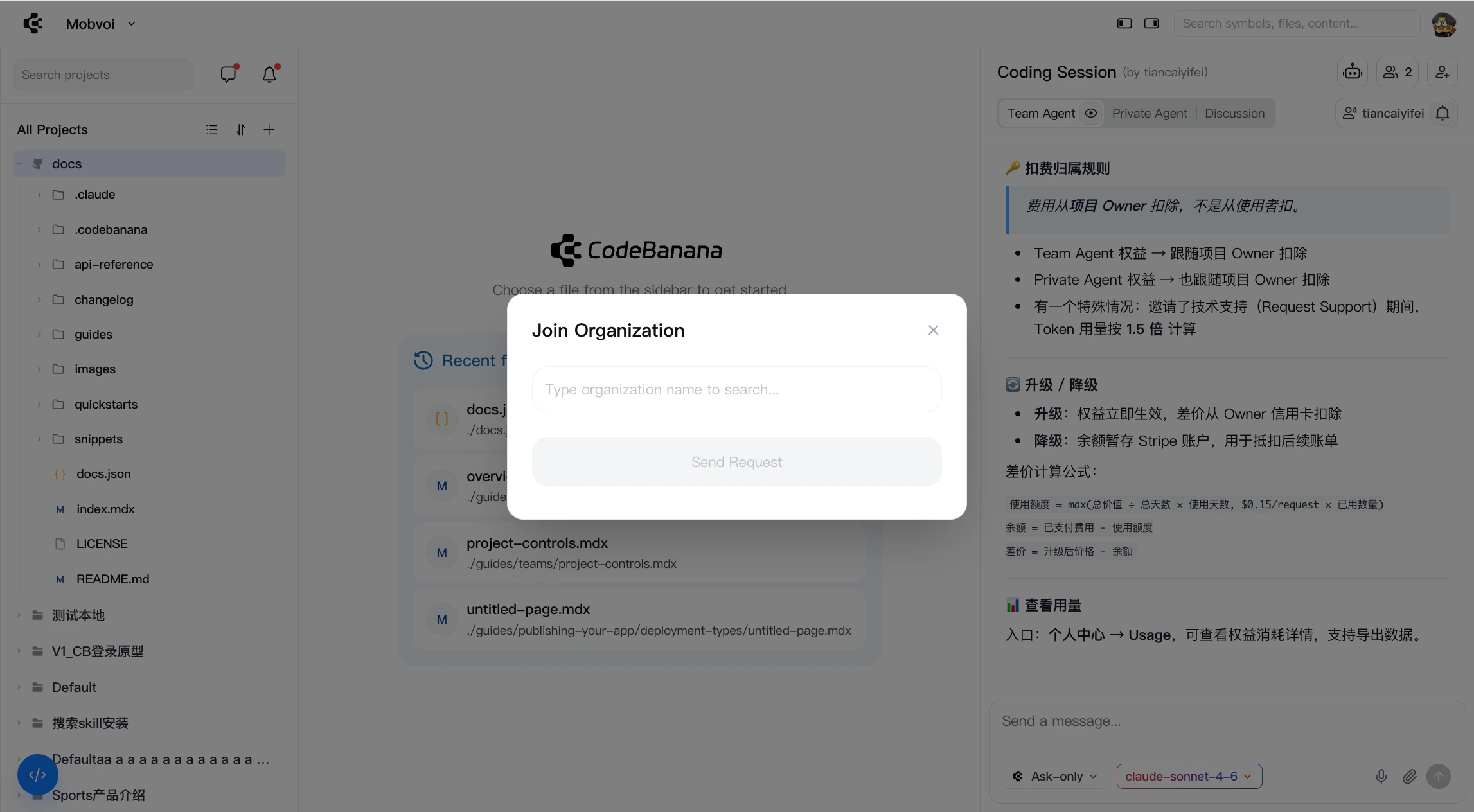
To **join** an organization:
* Search for the organization name
* Submit a request
* After approval by the **organization owner**, you can switch into that organization
 #### **Create Organization**
* A default organization is **automatically created** when you register (via email or third-party login)
* The organization name is initially based on your email and can be renamed by the owner
* Each user can have **only one owned organization**
#### **Organization Types**
CodeBanana distinguishes between two types of organizations:
**Own Organization**
* The organization you created and fully control
* You are the **Owner**
* Each user can have only one
**Work Organization**
* Organizations you join as a collaborator
* You can be part of multiple work organizations
#### **Key behavior**
* You can only be in **one organization at a time**
* Switching organizations means switching your entire workspace:
* Projects
* Files
* Contacts
#### **Members and Roles**
Organizations manage collaboration through roles:
* **Owner**
* Full control over the organization
* Manages members, permissions, and billing
* **Member**
* Can access AI resources and participate in projects
#### **Join mechanism**
* Users must **actively apply** to join an organization
* Search by organization name and submit a request
* Access is granted after admin approval
#### **Create Organization**
* A default organization is **automatically created** when you register (via email or third-party login)
* The organization name is initially based on your email and can be renamed by the owner
* Each user can have **only one owned organization**
#### **Organization Types**
CodeBanana distinguishes between two types of organizations:
**Own Organization**
* The organization you created and fully control
* You are the **Owner**
* Each user can have only one
**Work Organization**
* Organizations you join as a collaborator
* You can be part of multiple work organizations
#### **Key behavior**
* You can only be in **one organization at a time**
* Switching organizations means switching your entire workspace:
* Projects
* Files
* Contacts
#### **Members and Roles**
Organizations manage collaboration through roles:
* **Owner**
* Full control over the organization
* Manages members, permissions, and billing
* **Member**
* Can access AI resources and participate in projects
#### **Join mechanism**
* Users must **actively apply** to join an organization
* Search by organization name and submit a request
* Access is granted after admin approval
 #### **Leaving an organization**
* Users can switch between organizations if they belong to multiple
* Full removal currently requires action from the **organization owner**
* Self-service “leave organization” is not yet available (to prevent accidental data loss)
#### **Organization & Projects**
Projects are tightly bound to organizations:
**Strong binding**
* Every project must belong to a specific organization
* Projects cannot exist outside an organization
**Data isolation**
* Projects in one organization are **not visible** to members of another
* Switching organizations refreshes your entire project list
**External collaboration (special case)**
* If an external user is invited to a project:
* They gain access to the **project only**, not the organization
* Currently, the project may appear across their organization views
* Future updates will place such projects under the user’s personal organization
### Organization Management
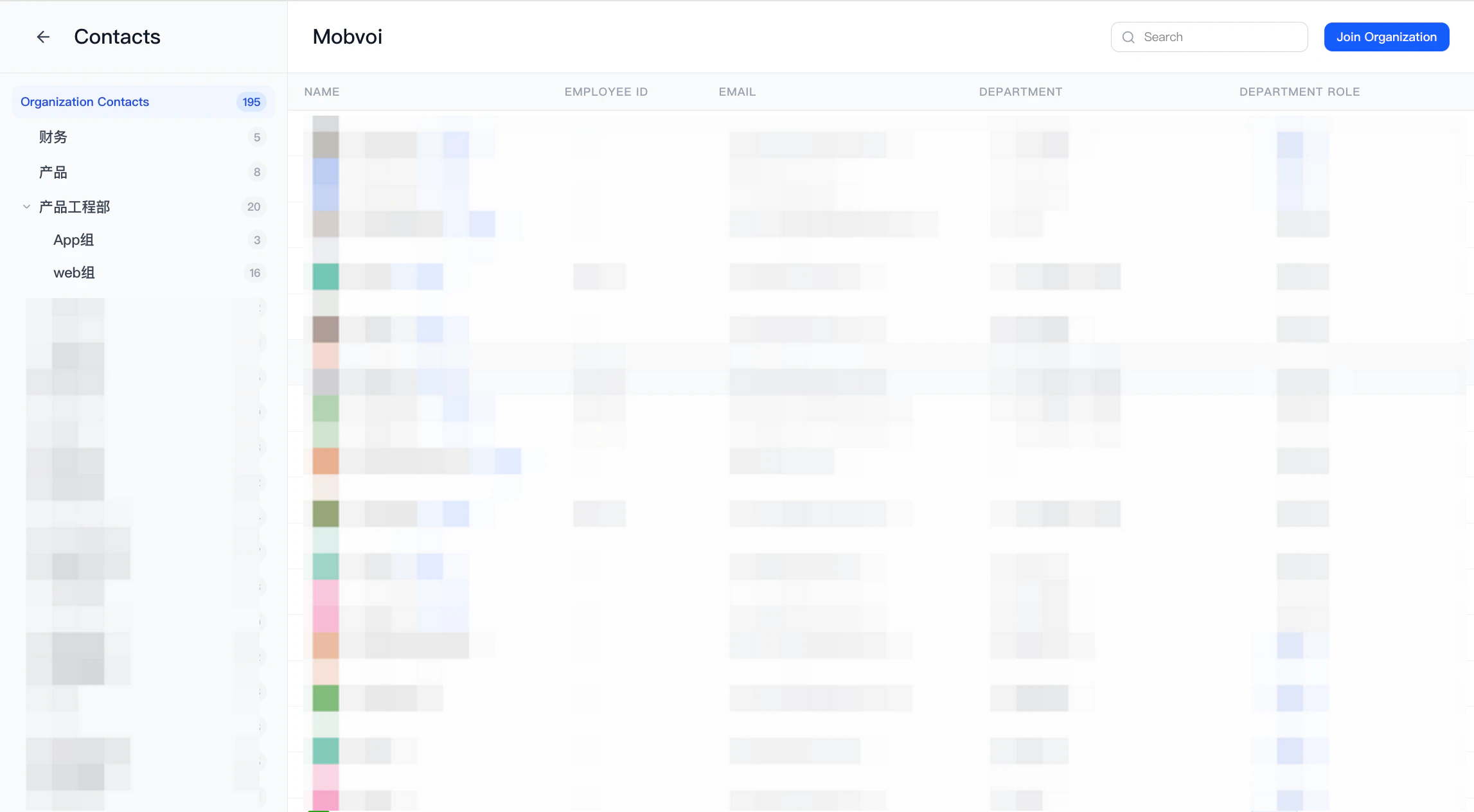
**Admin and owner** can manage the organization structure and members through **Contacts page**.
#### **Overview**
The Contacts module serves as the central place for:
* Organization structure management
* Member management and permissions
* Bulk operations for scaling teams
#### **Leaving an organization**
* Users can switch between organizations if they belong to multiple
* Full removal currently requires action from the **organization owner**
* Self-service “leave organization” is not yet available (to prevent accidental data loss)
#### **Organization & Projects**
Projects are tightly bound to organizations:
**Strong binding**
* Every project must belong to a specific organization
* Projects cannot exist outside an organization
**Data isolation**
* Projects in one organization are **not visible** to members of another
* Switching organizations refreshes your entire project list
**External collaboration (special case)**
* If an external user is invited to a project:
* They gain access to the **project only**, not the organization
* Currently, the project may appear across their organization views
* Future updates will place such projects under the user’s personal organization
### Organization Management
**Admin and owner** can manage the organization structure and members through **Contacts page**.
#### **Overview**
The Contacts module serves as the central place for:
* Organization structure management
* Member management and permissions
* Bulk operations for scaling teams
 #### **Invitations**
Members can be added in two ways:
* **Invite Members (Manual)**
- Click avatar → contacts
#### **Invitations**
Members can be added in two ways:
* **Invite Members (Manual)**
- Click avatar → contacts
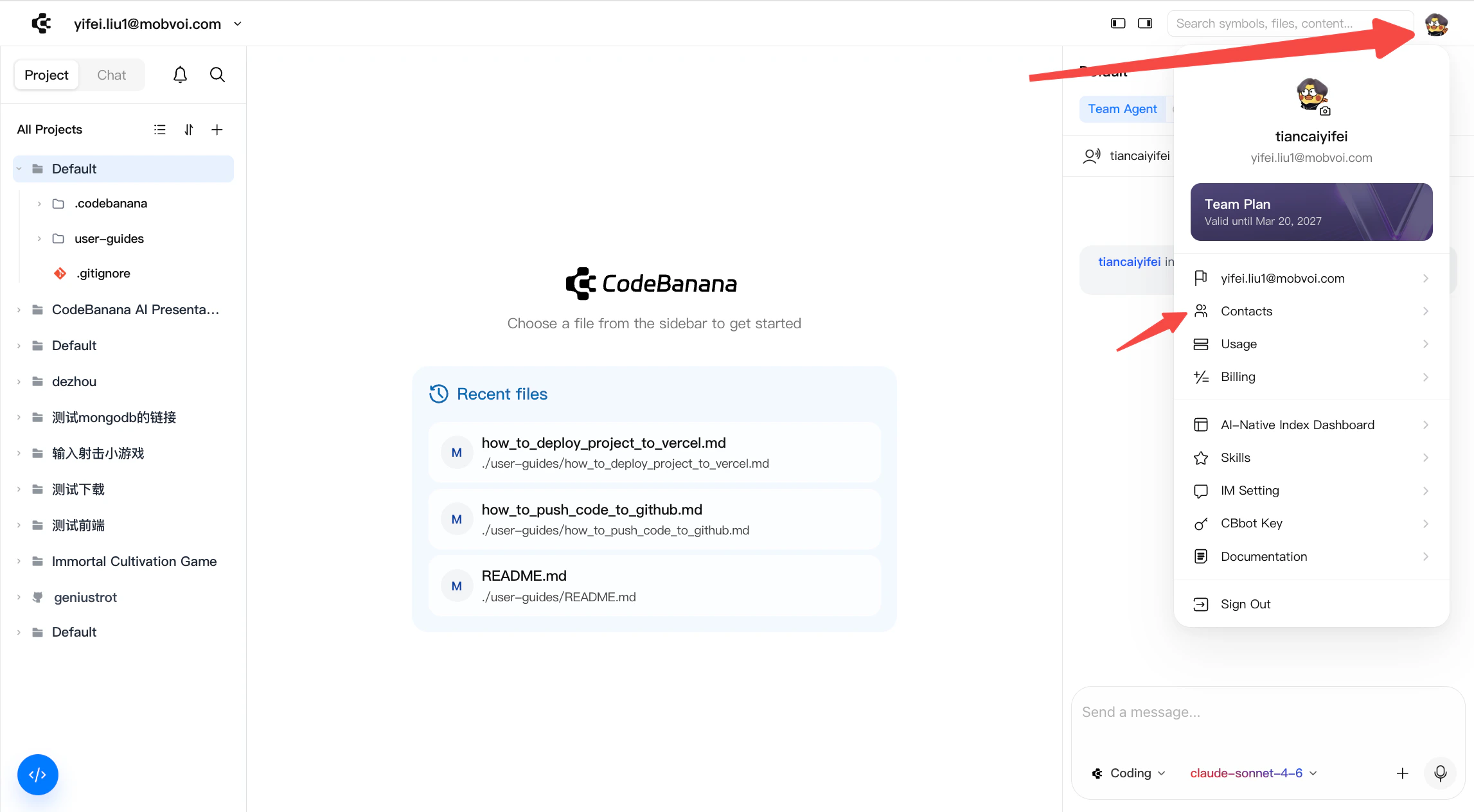 * Invite users individually via the **Invite Members** button
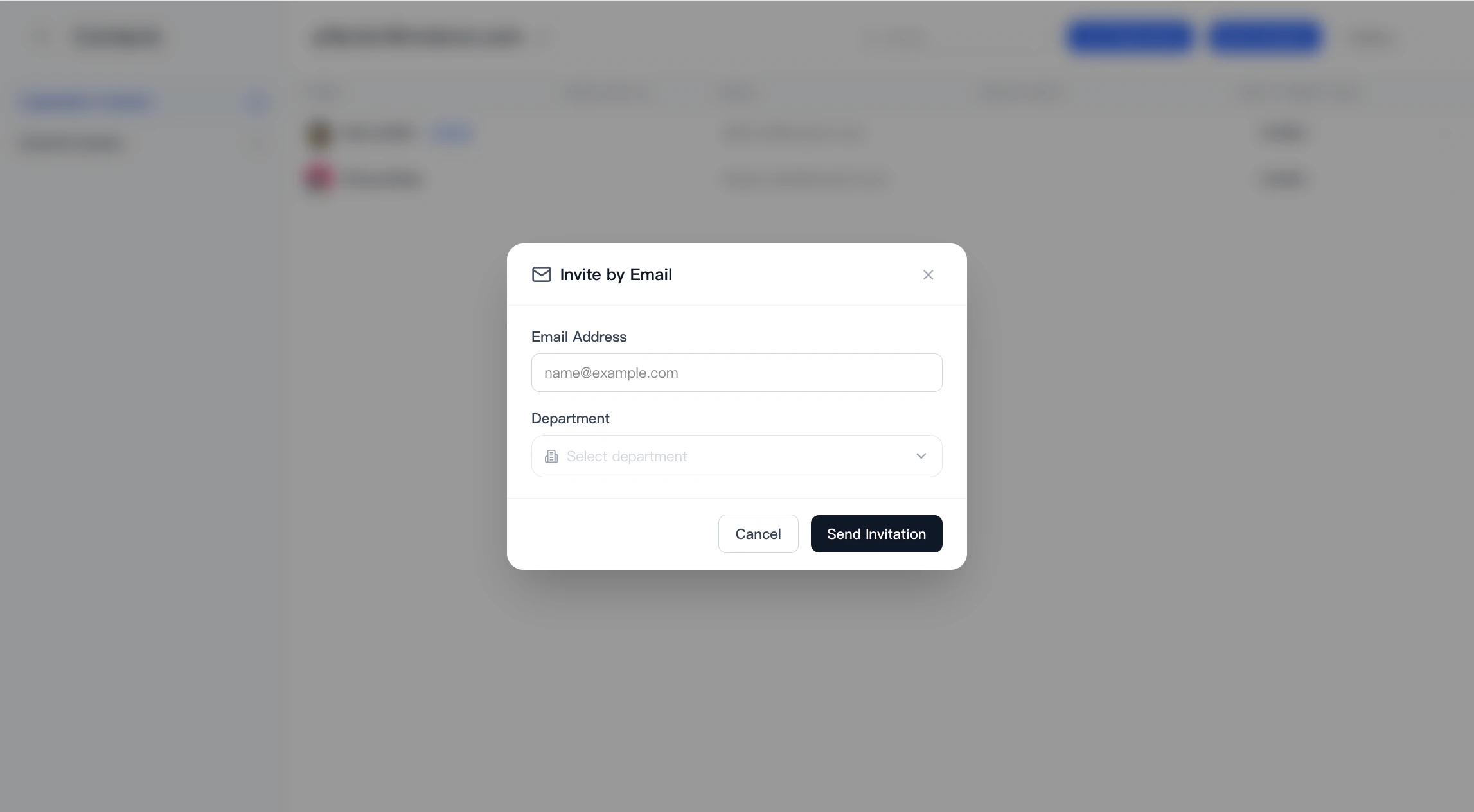
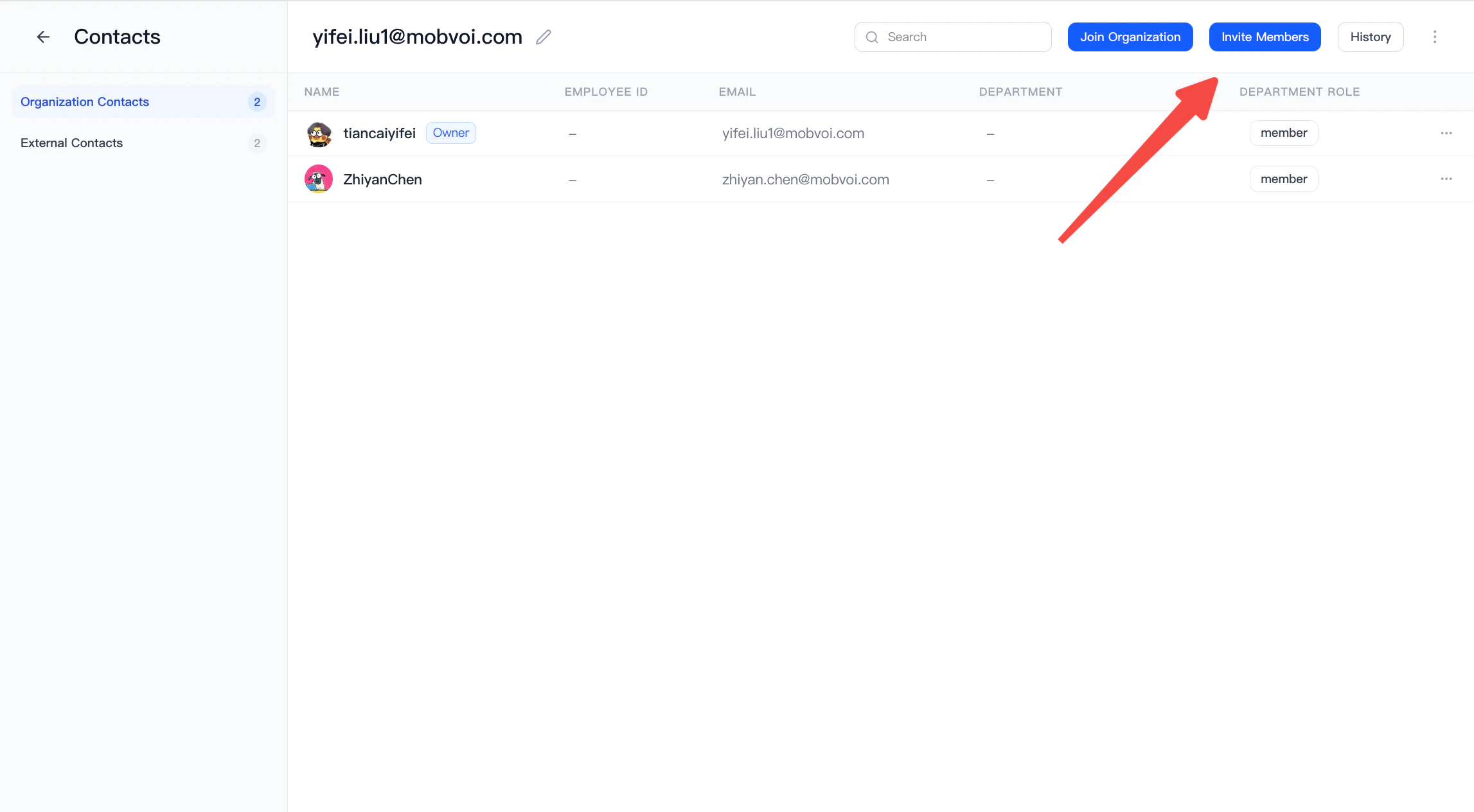 * Enter the email address and select a department
 * **Batch Import**
- Click avatar → contacts
* **Batch Import**
- Click avatar → contacts
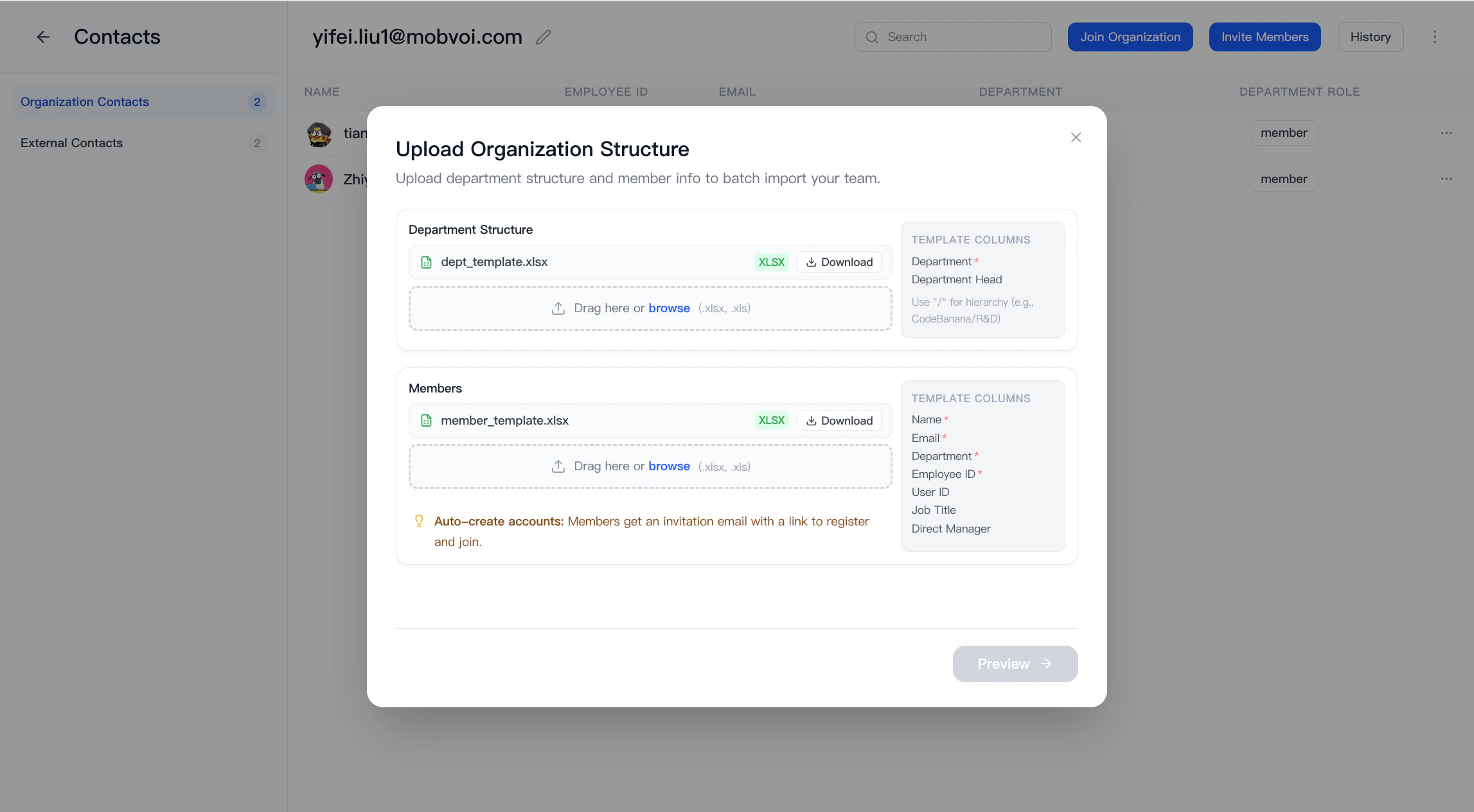
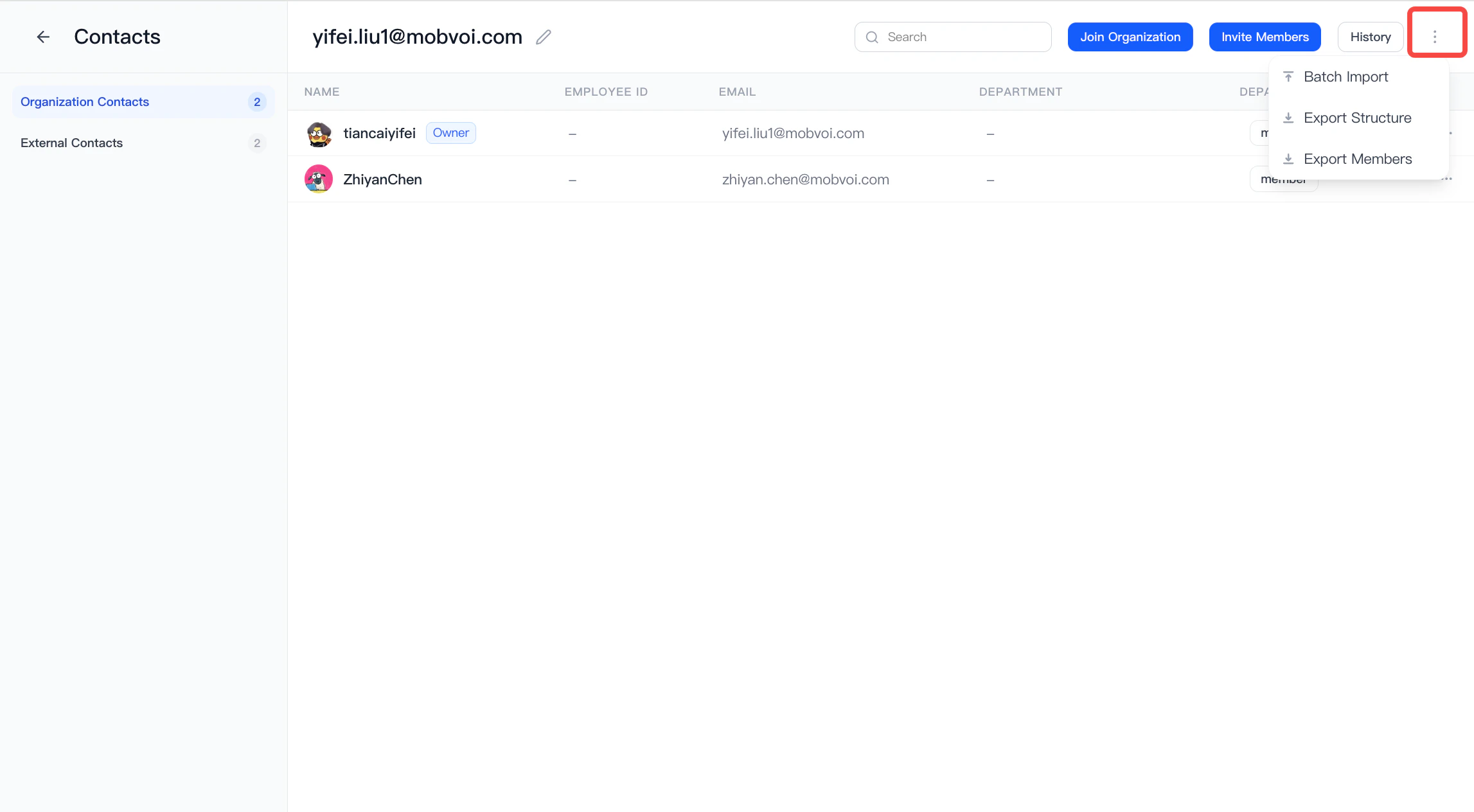 * Click Batch Import
* Download two templates
* Edit these templates under guidance
* Click Batch Import
* Download two templates
* Edit these templates under guidance
 #### **Application History**
Application History shows all organization-related requests and invitations in one place.
It helps users track applications they submitted, invitations they sent, and requests they received from others.
* **Requests Sent**
* View the requests you submitted to join other organizations.
* You can check the status of each request, such as pending or approved.
* **Applications Sent**
* View the invitations you sent to others to join your organization.
* You can track the status of each invitation and cancel invitations that are still pending.
* **Requests Received**
* View the join requests submitted by other users to your organization.
* You can process incoming requests or review their previous status and handling results.
#### **Export files**
Exported files can be edited and re-uploaded:
* **Export Structure** — export department hierarchy
* **Export Members** — export member list
#### **Department Management**
**Admins and owner** can manage organizational structure:
* Create top-departments
* Add sub-departments under existing ones (**Add Sub-dept**)
* Edit department information
#### **Application History**
Application History shows all organization-related requests and invitations in one place.
It helps users track applications they submitted, invitations they sent, and requests they received from others.
* **Requests Sent**
* View the requests you submitted to join other organizations.
* You can check the status of each request, such as pending or approved.
* **Applications Sent**
* View the invitations you sent to others to join your organization.
* You can track the status of each invitation and cancel invitations that are still pending.
* **Requests Received**
* View the join requests submitted by other users to your organization.
* You can process incoming requests or review their previous status and handling results.
#### **Export files**
Exported files can be edited and re-uploaded:
* **Export Structure** — export department hierarchy
* **Export Members** — export member list
#### **Department Management**
**Admins and owner** can manage organizational structure:
* Create top-departments
* Add sub-departments under existing ones (**Add Sub-dept**)
* Edit department information
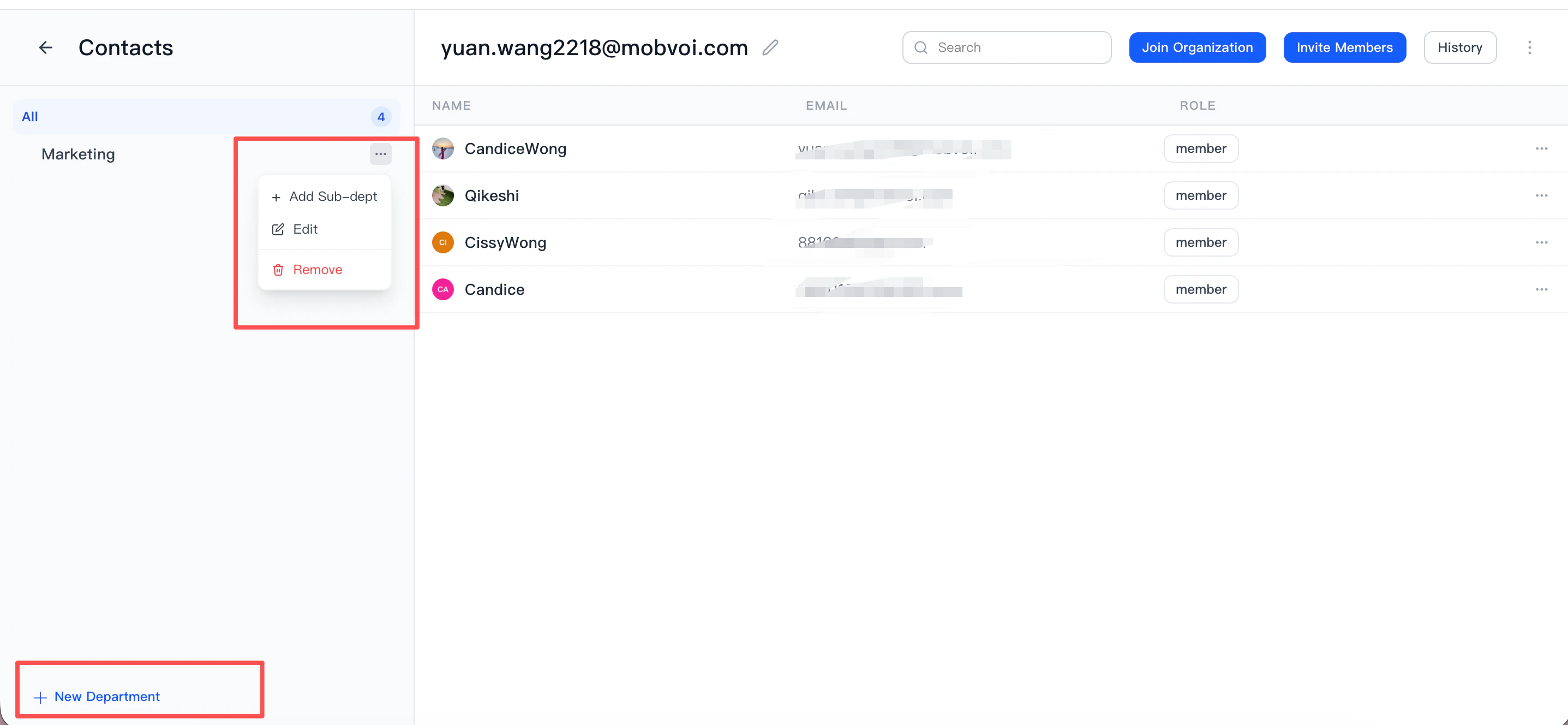 * Delete departments
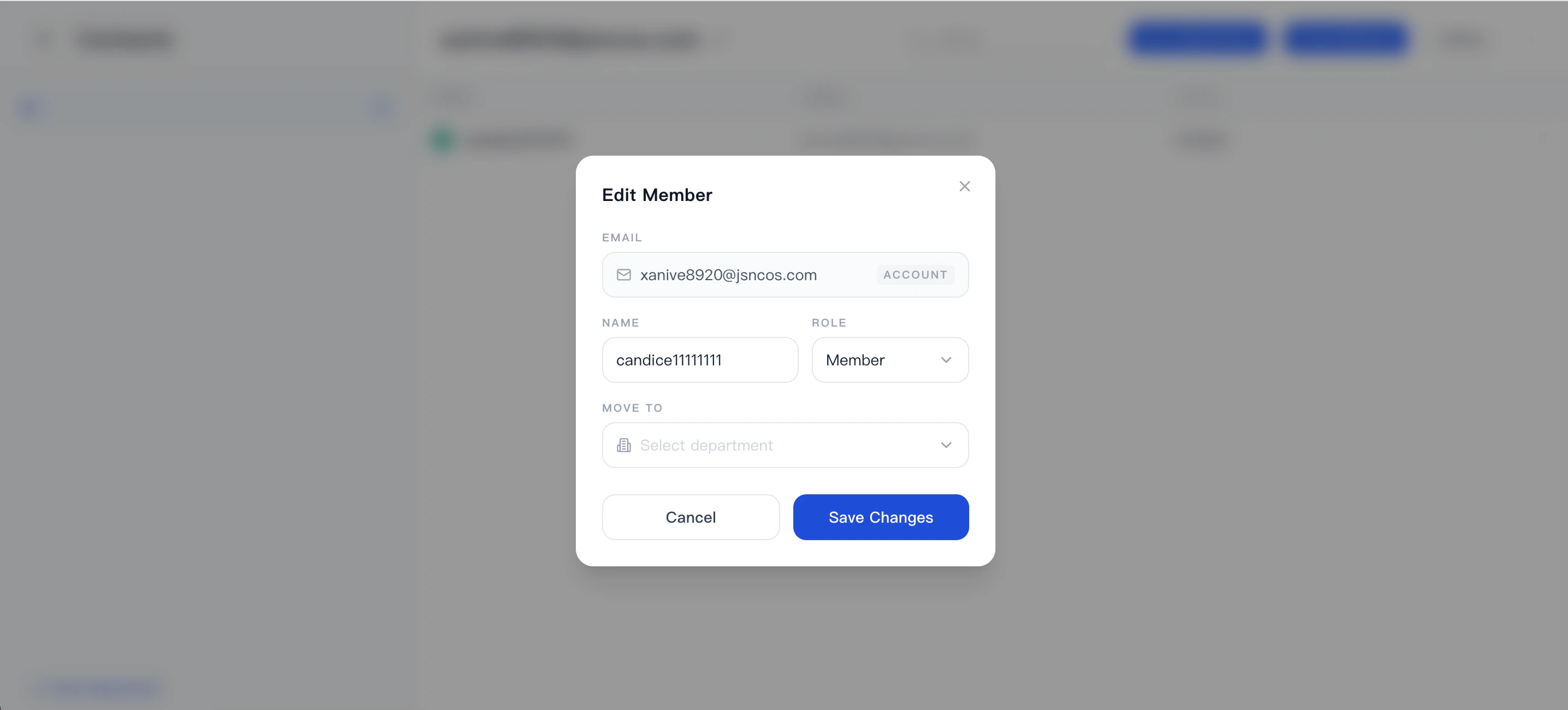
* Update member name, role, and assigned department
* Delete departments
* Update member name, role, and assigned department
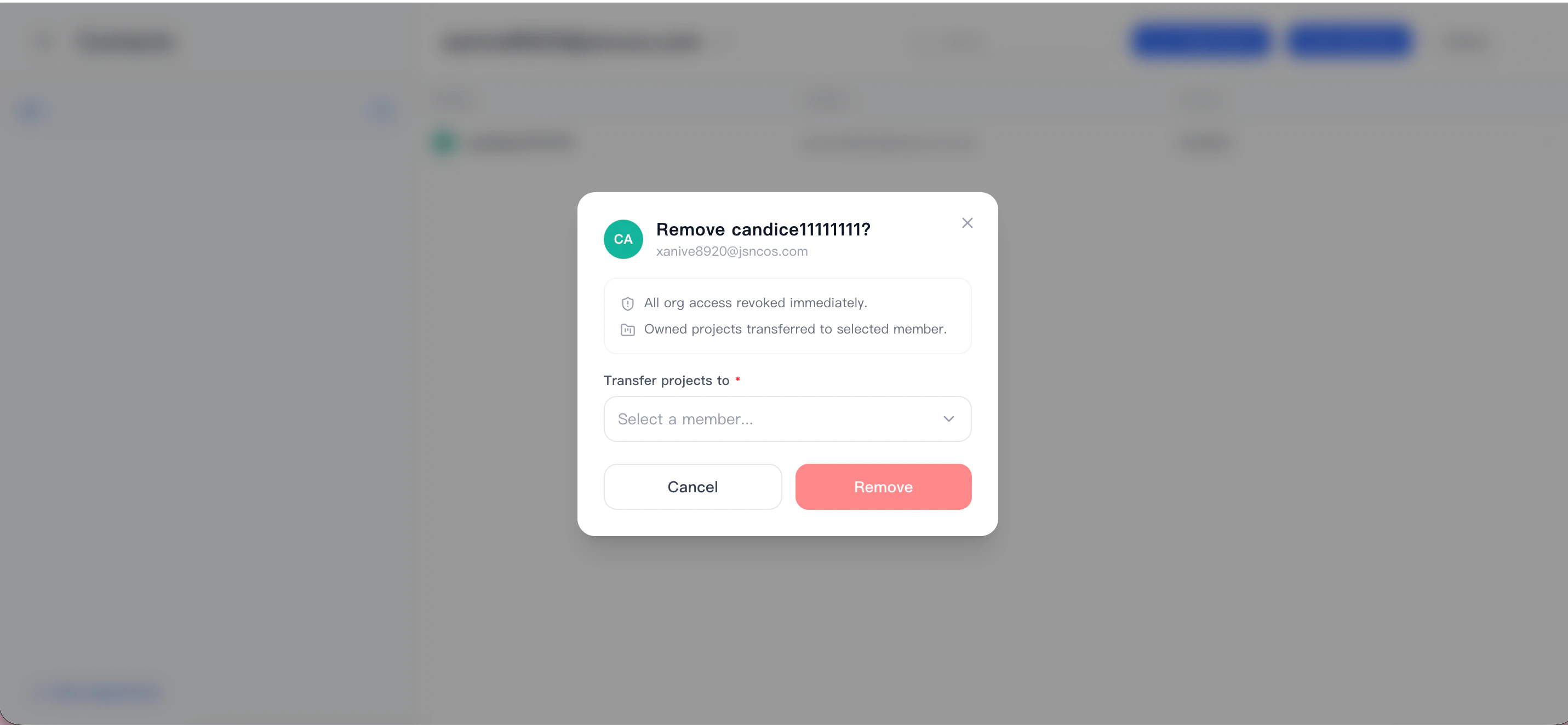
 * Remove Member
* Requires transferring all projects owned by the member to another user
* All organization permissions are revoked immediately upon removal
* Remove Member
* Requires transferring all projects owned by the member to another user
* All organization permissions are revoked immediately upon removal